Troubleshoot SophMate Provider Connections and PHP Extensions
Diagnose failed provider tests, missing PHP extensions, outbound HTTPS problems, and environment warnings before users rely on SophMate workflows.
Diagnose failed provider tests, missing PHP extensions, outbound HTTPS problems, and environment warnings before users rely on SophMate workflows.
By the end of this tutorial, you will know how to use SophMate for SophMate provider connection troubleshooting while keeping the work reviewable inside WordPress.
An administrator has entered a provider key, but the connection test or diagnostics report shows an error before Copilot can be used.
Use this tutorial to evaluate whether SophMate gives buyers a support-ready setup path. A production plugin should help administrators separate key, billing, model access, PHP extension, DNS, SSL, firewall, and outbound HTTPS problems without exposing provider secrets.
Review this failed provider connection safely. Identify whether the likely cause is credentials, billing, model access, PHP extensions, DNS, SSL, firewall, or outbound HTTPS. Do not include provider keys in the report.
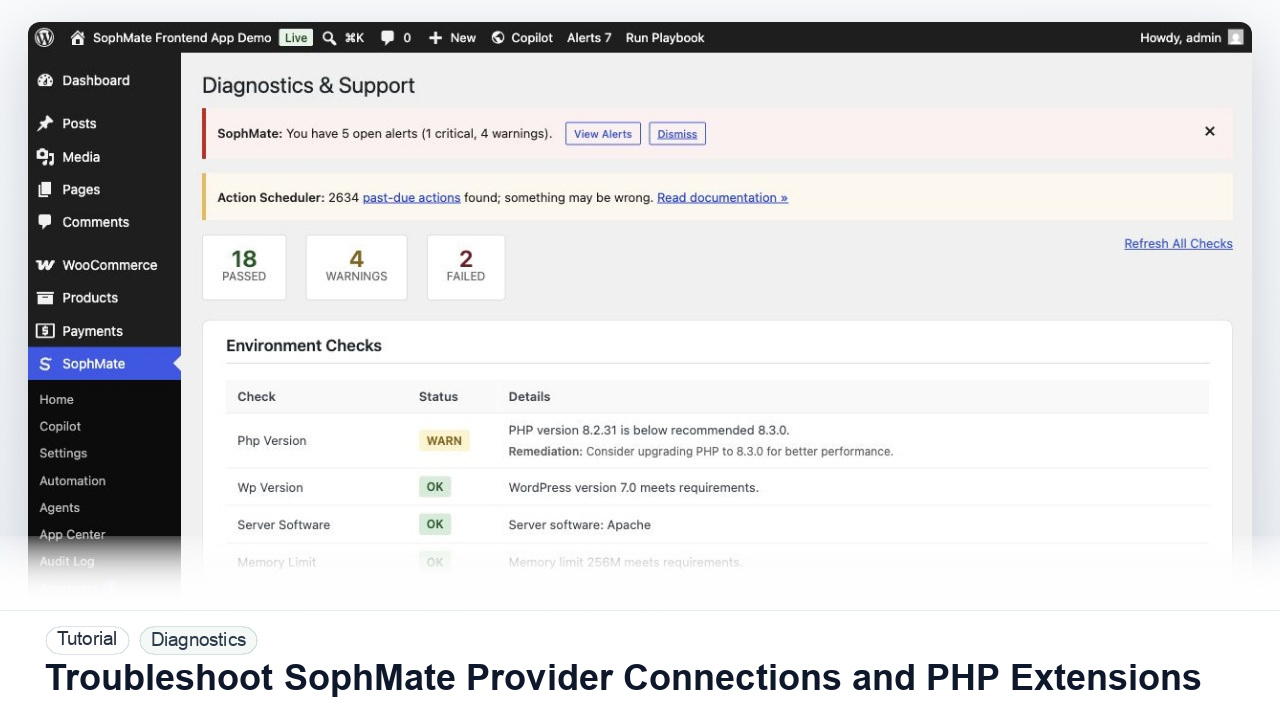
The tutorial image shows Diagnostics and Support context where environment checks, connectivity, plugin inventory, extensions, and support reports are prepared.
Use these records to explain behavior without disclosing secrets or unnecessary customer data.
Open SophMate > Diagnostics and refresh environment and connectivity checks. Capture the exact failing check instead of guessing from the provider settings screen alone.
Verify PHP version, OpenSSL, DOM, iconv, cURL or outbound HTTPS support, and any hosting-level restrictions shown in the report. Missing extensions should be fixed at the server or hosting control panel level.
Confirm the key belongs to the intended provider account, has available billing or credits, and was copied without leading spaces, quotes, or expired project restrictions.
If the key is valid but the test fails, ask the host to confirm that the WordPress server can reach the provider endpoint over HTTPS and that no firewall, proxy, or SSL inspection rule blocks the request.
If the issue remains, send the diagnostics report, exact timestamp, affected provider, WordPress/PHP versions, and reproduction steps. Do not send API keys or raw server secrets.
The diagnostics workflow is successful when support can see the environment state, failed check, and reproduction steps without receiving provider keys or unnecessary private data.
If evidence is incomplete or unsafe to share, stop escalation until redaction, timestamps, environment details, and reproduction steps are corrected.
Document the failing diagnostics check, provider name, WordPress and PHP versions, required extension status, outbound HTTPS result, and the exact time of the failed test. Never document provider keys, raw secrets, or private server credentials.
The site administrator or hosting owner should run this check during setup, after provider changes, after hosting changes, and whenever Copilot or Image Studio reports connection failures.
Escalate to the host when PHP extensions, outbound HTTPS, DNS, firewall, or SSL issues fail. Escalate to the provider when billing, account limits, model access, or key restrictions are the likely cause.
Send exact timestamps, affected screen, environment details, failed check, reproduction steps, and redacted diagnostics. Do not send provider keys, server credentials, purchase codes, or unrelated customer records.
No. SophMate should make the work easier to draft, inspect, approve, and repeat. Human review remains necessary when output affects customers, money, published content, privacy, settings, or workflow execution.
Record the owner, input scope, access boundary, approval point, failure modes tested, evidence location, monitoring window, and rollback or stop path.
Rerun diagnostics after each fix and stop when the failing category is proven. If the issue remains, send a redacted support report with the exact check, timestamp, provider, PHP version, extension status, and outbound HTTPS result.
Next step
Review the SophMate listing for current package details, screenshots, compatibility notes, and license terms.
Related
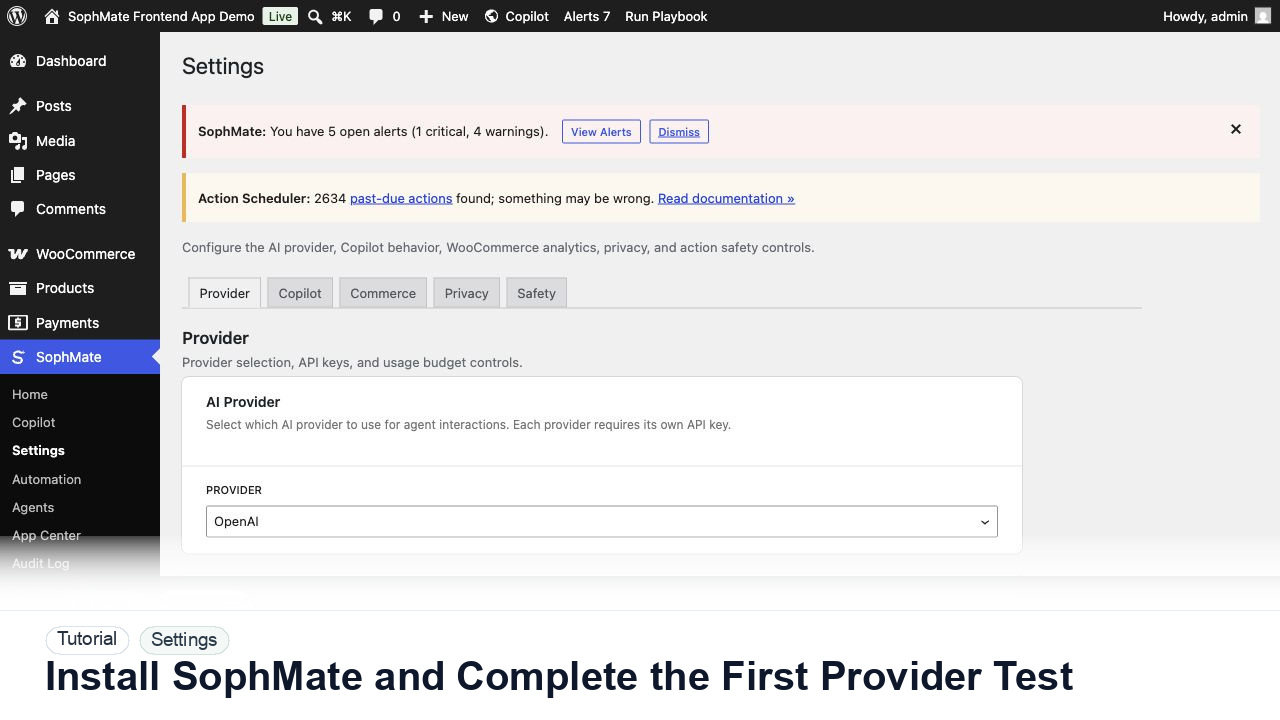
Install SophMate, add an OpenAI or Anthropic provider key, run the connection test, and confirm budgets before users begin AI-assisted work.
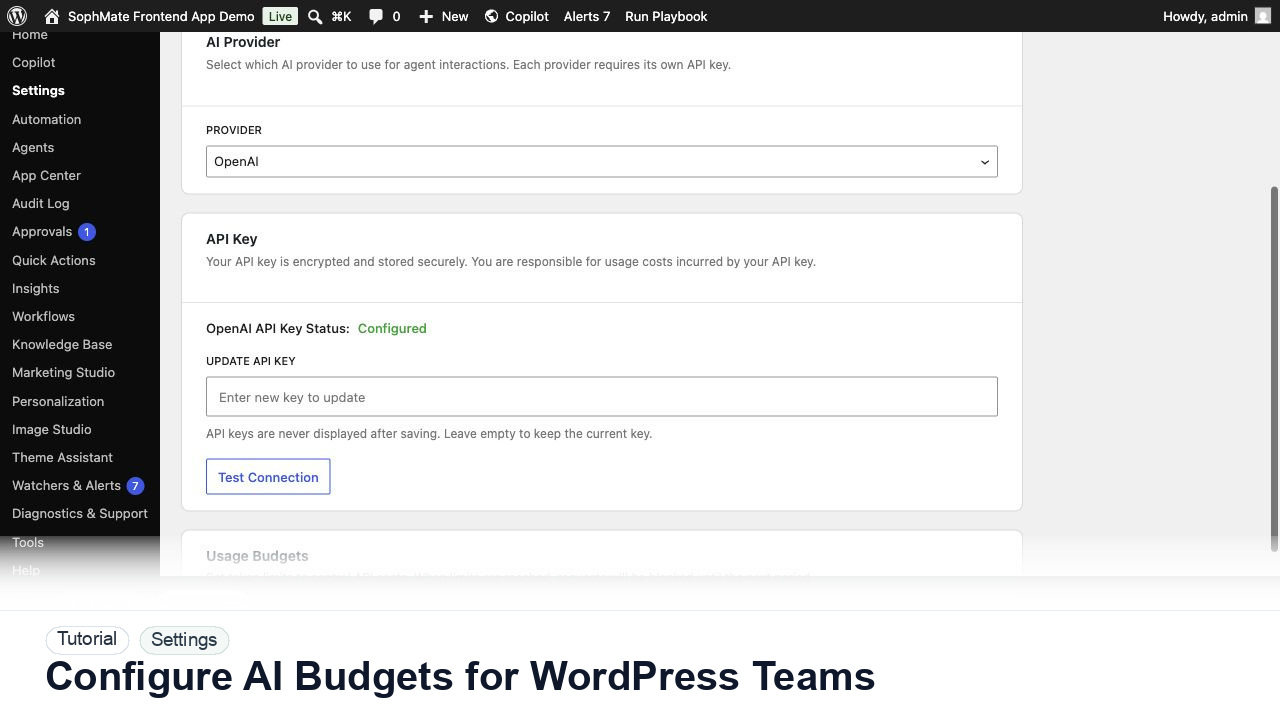
Set SophMate monthly and per-user budget limits so AI usage stays predictable across administrators, editors, support staff, and agencies.
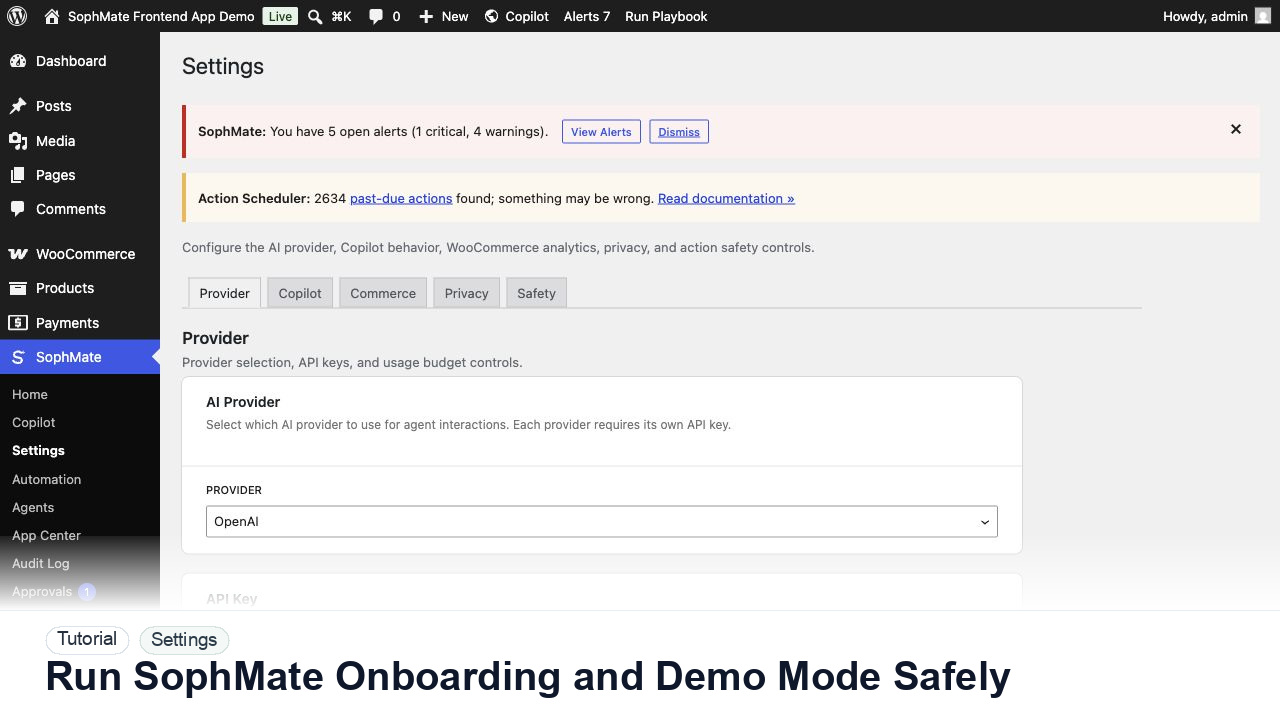
Use SophMate onboarding, sample data, and demo workflows to train operators without confusing test records with production work.