Recover Safely After a Failed SophMate Workflow Run
Use SophMate run history, audit events, approval status, and kill switches to investigate a failed workflow without creating duplicate or unsafe follow-up actions.
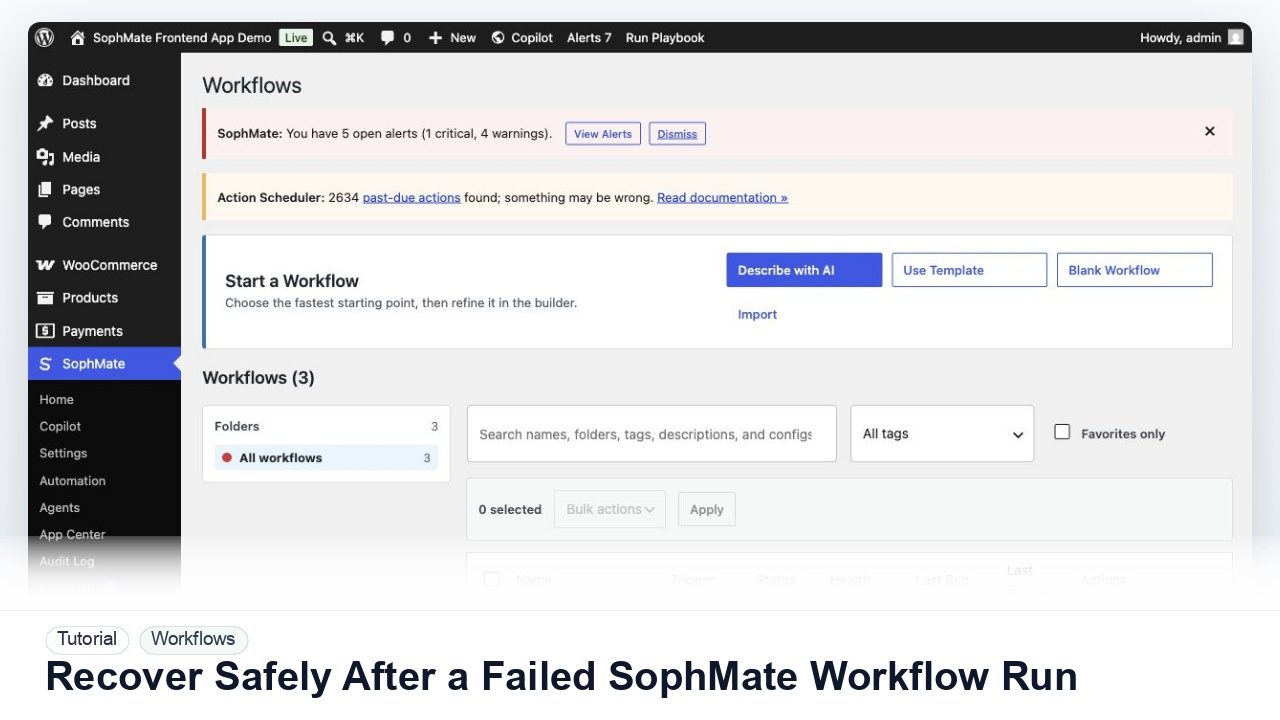
Use SophMate run history, audit events, approval status, and kill switches to investigate a failed workflow without creating duplicate or unsafe follow-up actions.
By the end of this tutorial, you will know how to use SophMate for SophMate workflow failure recovery while keeping the work reviewable inside WordPress.
A scheduled workflow failed during a campaign week, and the operations lead needs to understand whether anything changed before re-running it.
Use this tutorial to evaluate failure recovery. The important product signal is whether SophMate preserves run IDs, affected records, audit events, retry scope, and duplicate-action risk before anyone restarts workflow execution.
Review this failed workflow run before anyone retries it. Identify completed steps, affected records, failed step, duplicate-action risk, audit evidence, and the narrowest safe retry path.
The tutorial image shows Workflows so the reader can connect the plain-English workflow idea to triggers, templates, run history, and health checks.
Start with notification and summary outputs before enabling write actions or unattended execution.
Go to Workflows and inspect the failed run details, step output, artifacts, cost estimate, trigger, and error message before editing the workflow.
A failed workflow may still have completed earlier read or write steps. Use approval status, action plans, and audit events to confirm what happened.
If the workflow can affect products, coupons, customer messages, or settings, pause the workflow or related workflow path while the failure is investigated.
Address missing inputs, provider limits, permission errors, stale Knowledge Base sources, invalid tool schemas, or external service failures before running again.
Use a single record, test segment, or manual trigger for the first retry. Avoid retrying a broad workflow until the team knows whether duplicate actions are possible.
The workflow is successful when the first run is observable, expected artifacts are produced, costs are understandable, failures have owners, and write actions stay behind approval until proven safe.
Stop retries until the failed step, affected records, completed actions, and audit state are understood. Resume only with a narrow retry scope and a named owner.
Document the workflow name, run ID or timestamp, trigger, failed step, completed steps, affected records, approval state, audit events, and retry scope. This makes duplicate-action risk easier to assess before anyone runs the workflow again.
The workflow owner should review failed runs as soon as they are noticed. For production workflows that affect customers, products, coupons, or messages, review failures before any retry or broad re-enable.
Escalate when a failed workflow may have changed customer-facing data, repeated after retry, consumed unusual budget, exposed a tool validation problem, or left unclear audit records.
Usually no. Start with read-only, staging, notification-only, or approval-gated behavior until trigger scope, owner response, failure handling, and run history are proven.
No. SophMate should make the work easier to draft, inspect, approve, and repeat. Human review remains necessary when output affects customers, money, published content, privacy, settings, or workflow execution.
Record the owner, input scope, access boundary, approval point, failure modes tested, evidence location, monitoring window, and rollback or stop path.
Decide whether to retry, revise, or retire the workflow only after the affected records, completed steps, duplicate-action risk, and audit trail are clear.
Next step
Review the SophMate listing for current package details, screenshots, compatibility notes, and license terms.
Related
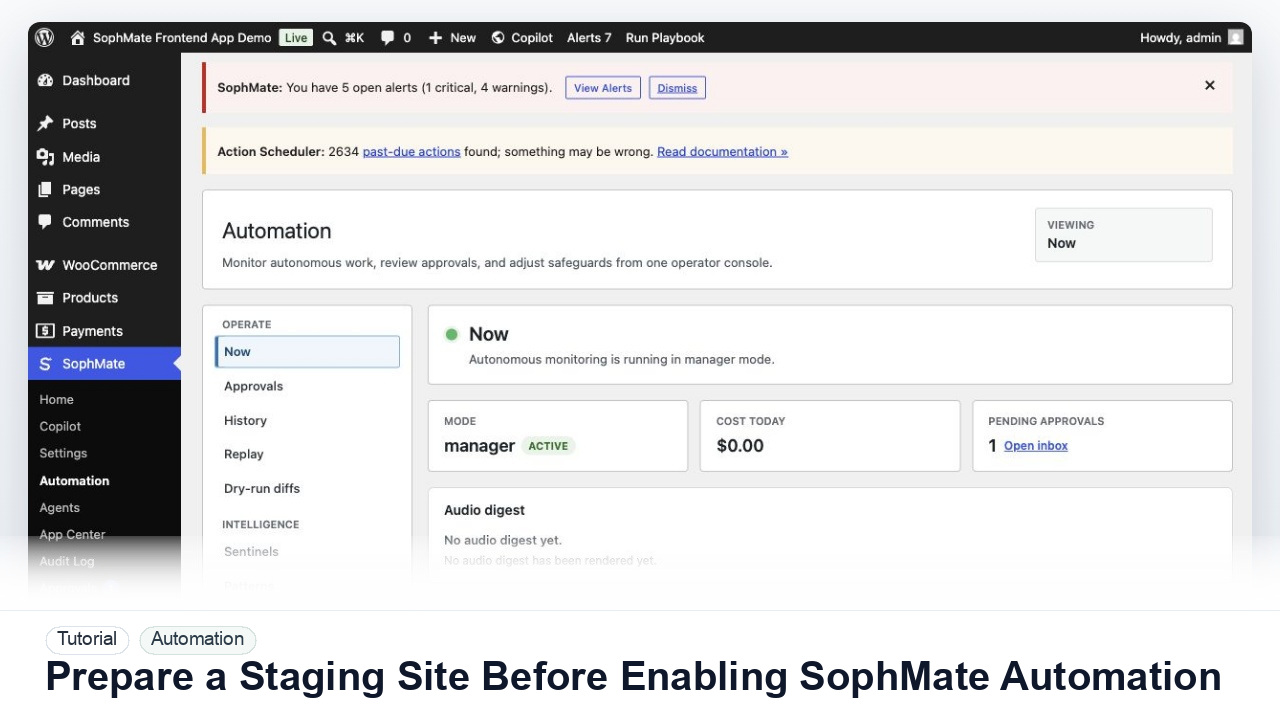
Use a staging WordPress site to test SophMate workflows, watchers, agents, approvals, and kill switches before production rollout.
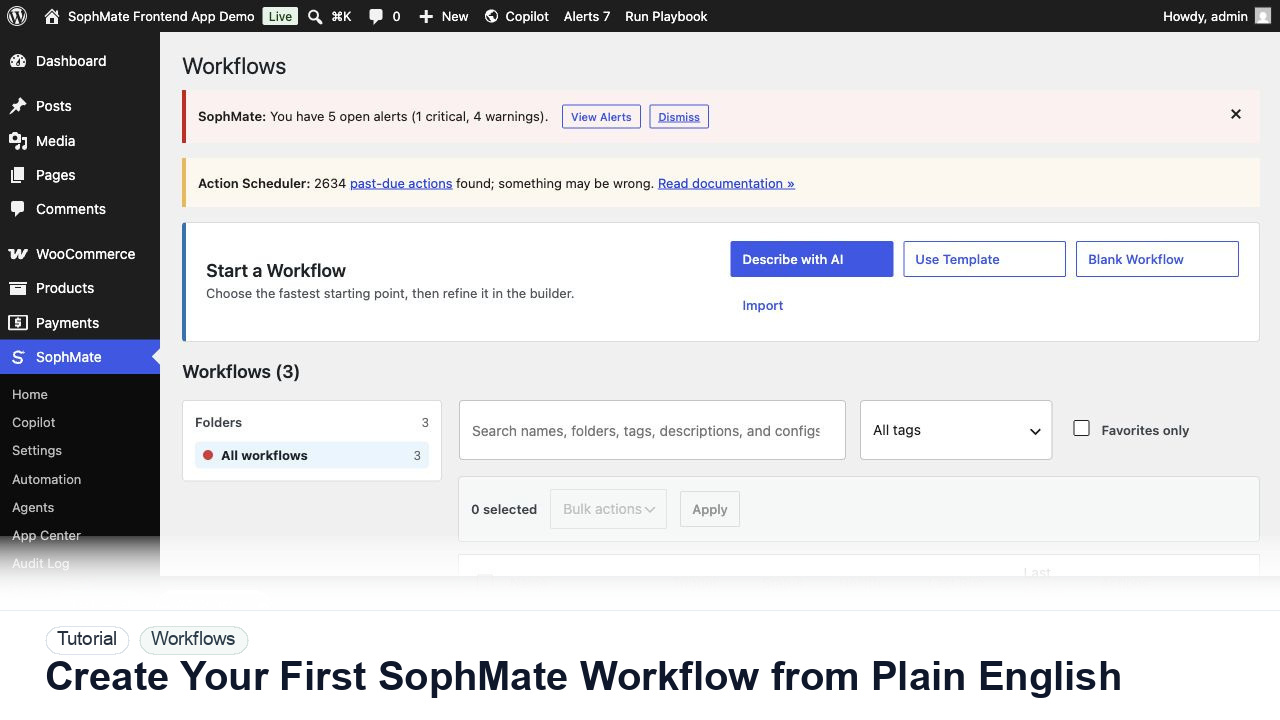
Use SophMate Workflows Describe with AI to turn a plain-English operations idea into a workflow draft with triggers, steps, and review notes.
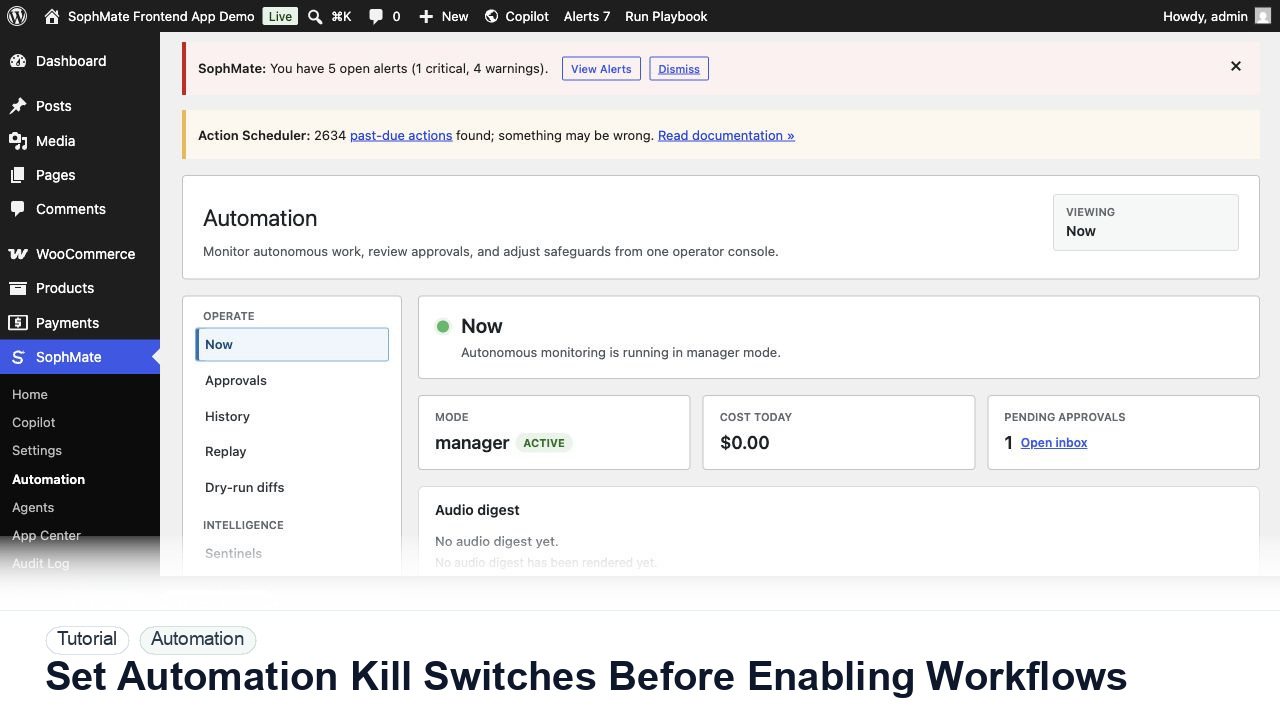
Configure SophMate workflow kill switches and ownership rules before enabling workflows that can affect WooCommerce or WordPress operations.