Prepare a Staging Site Before Enabling SophMate Workflows
Use a staging WordPress site to test SophMate workflows, watchers, agents, approvals, and kill switches before production rollout.
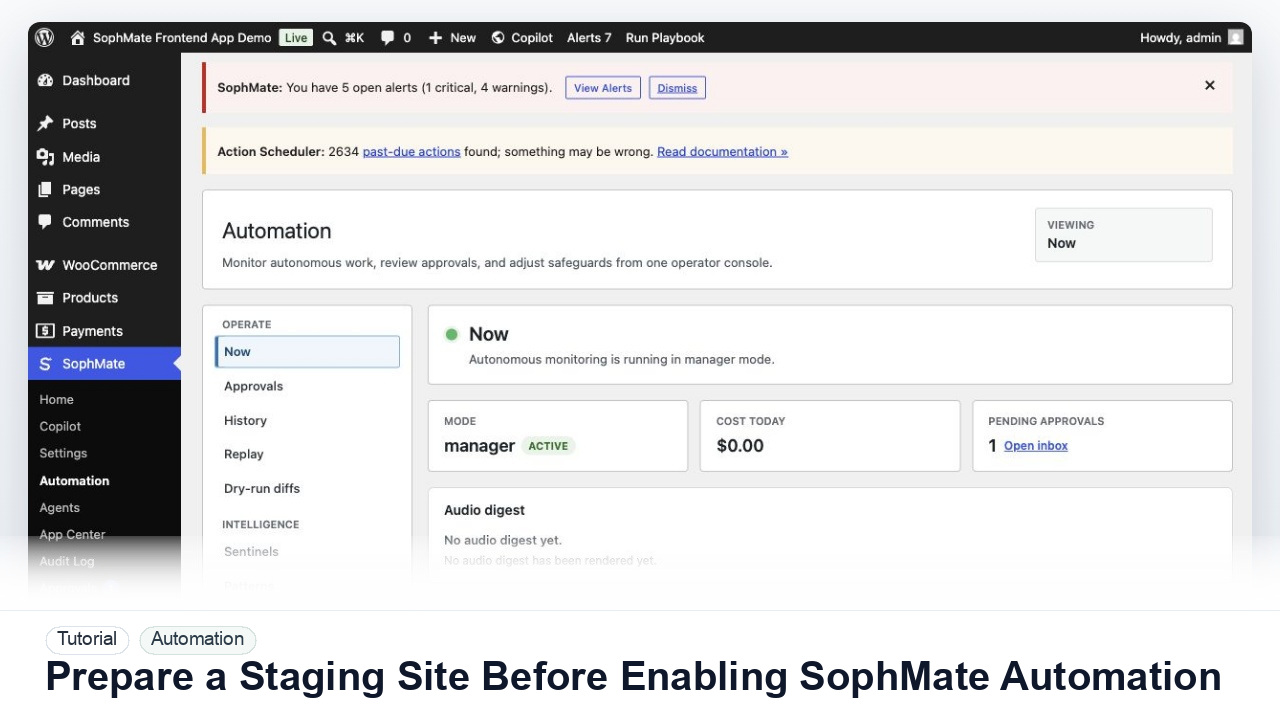
Use a staging WordPress site to test SophMate workflows, watchers, agents, approvals, and kill switches before production rollout.
By the end of this tutorial, you will know how to use SophMate for SophMate staging workflow setup while keeping the work reviewable inside WordPress.
An operations lead wants to test workflow behavior with realistic WooCommerce data before allowing workflows to run on the production store.
Use this tutorial to evaluate whether SophMate can be introduced gradually on a real store. A buyer should see a path from staging validation to narrow production rollout before enabling workflows, watchers, agents, or visitor-facing apps.
Convert this recurring task into a safe first workflow. Start with read-only or notification-only output, define trigger, owner, approval point, failure alert, cost expectation, and kill switch.
The tutorial image shows Workflows so the reader can connect the plain-English workflow idea to triggers, templates, run history, and health checks.
Start with notification and summary outputs before enabling write actions or unattended execution.
Use a recent staging copy with representative products, orders, policies, users, and theme state. Redact or anonymize customer data when the staging process requires it.
Use staging-safe provider budgets, disabled customer email sends, and clear environment labels so test workflow output cannot be mistaken for production activity.
Start with summaries, diagnostics, watchers, and report drafts. Confirm the workflow reads the expected data before any write-capable step is tested.
Create one low-risk action plan, approve it with a staging reviewer, then pause the related workflow path to verify the team knows the stop path.
Move the workflow to production only after documenting owner, trigger, approval point, first production scope, expected output, and rollback behavior.
The workflow is successful when the first run is observable, expected artifacts are produced, costs are understandable, failures have owners, and write actions stay behind approval until proven safe.
If output is noisy, duplicated, delayed, or unsafe, disable the workflow or watcher category, preserve run history, and restart only after owner review.
Document the staging URL or environment label, data freshness, redaction rules, provider budget, mail suppression setting, tested workflow, approval behavior, kill switch result, and first production scope.
The operations lead or site administrator should own staging tests before each meaningful workflow rollout, major plugin update, or new agent launch. Keep the cadence tied to production risk rather than a calendar alone.
Escalate when staging cannot safely mirror the production behavior, customer-facing sends cannot be suppressed, or workflow output differs between staging and production in a way the team cannot explain.
Usually no. Start with read-only, staging, notification-only, or approval-gated behavior until trigger scope, owner response, failure handling, and run history are proven.
No. SophMate should make the work easier to draft, inspect, approve, and repeat. Human review remains necessary when output affects customers, money, published content, privacy, settings, or workflow execution.
Record the owner, input scope, access boundary, approval point, failure modes tested, evidence location, monitoring window, and rollback or stop path.
Run the first version as read-only, simulation, or notification-only, then review alerts, costs, audit records, and kill switch behavior before allowing writes.
Next step
Review the SophMate listing for current package details, screenshots, compatibility notes, and license terms.
Related
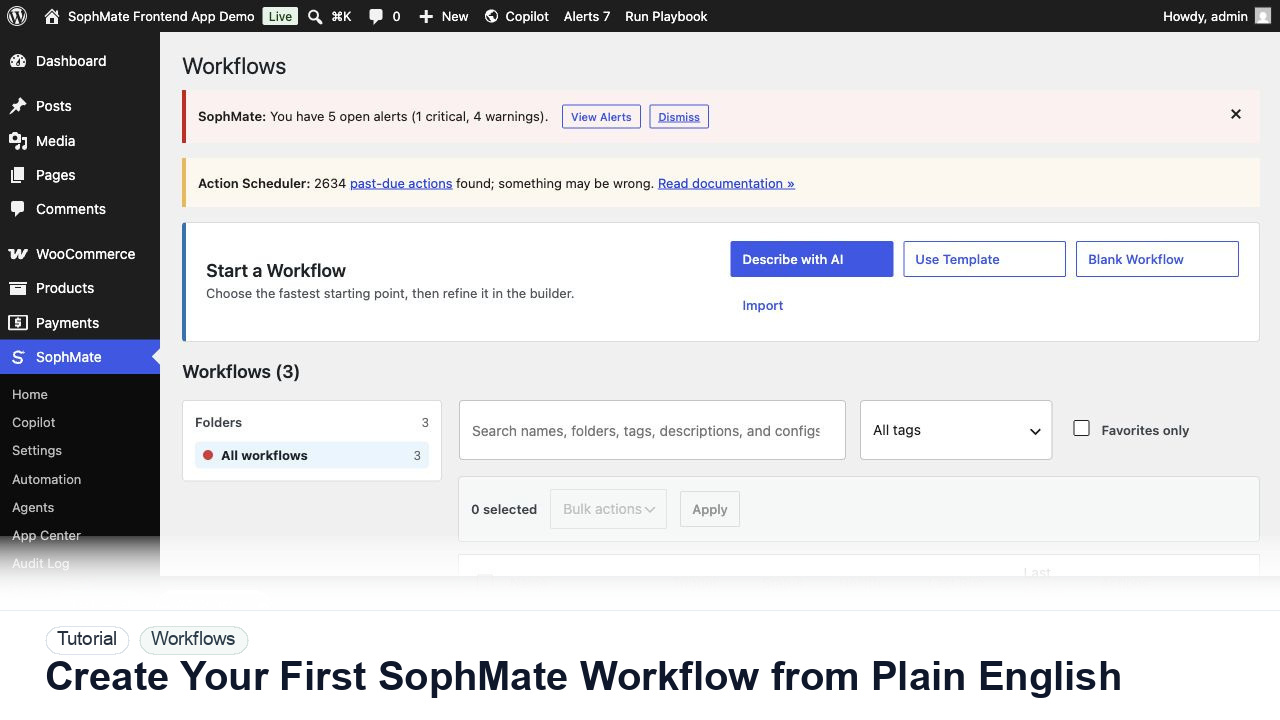
Use SophMate Workflows Describe with AI to turn a plain-English operations idea into a workflow draft with triggers, steps, and review notes.
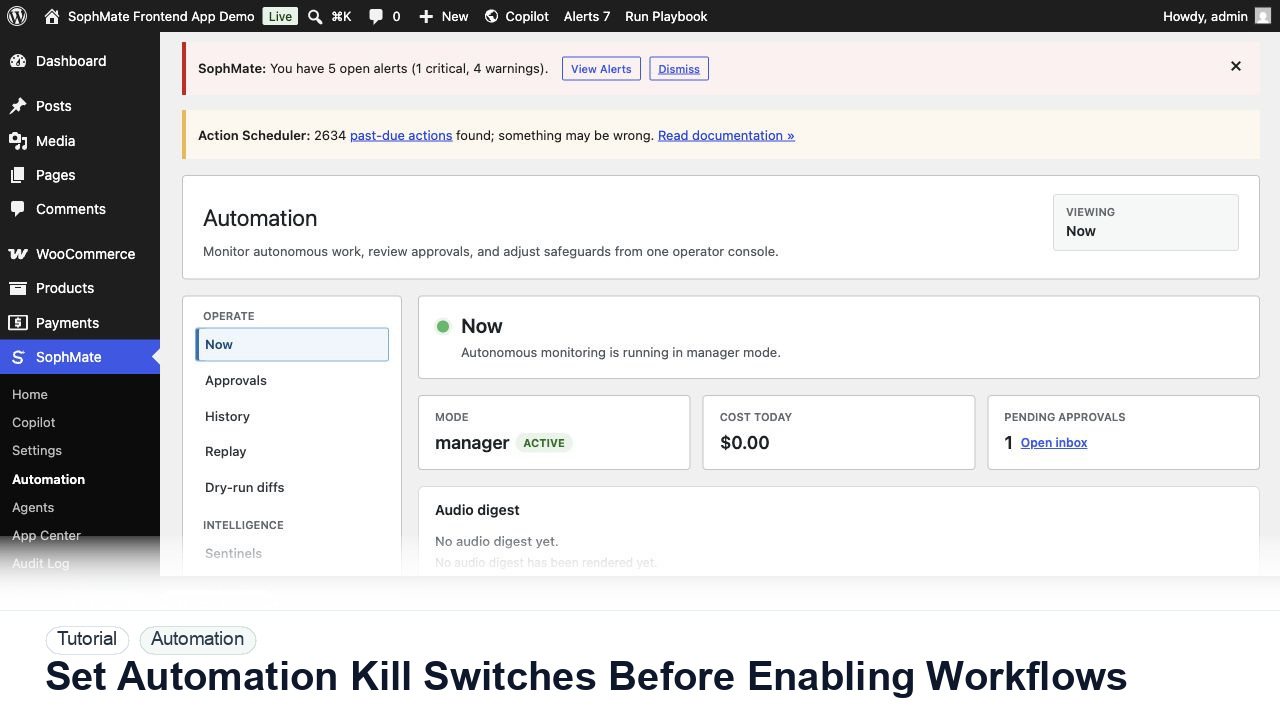
Configure SophMate workflow kill switches and ownership rules before enabling workflows that can affect WooCommerce or WordPress operations.
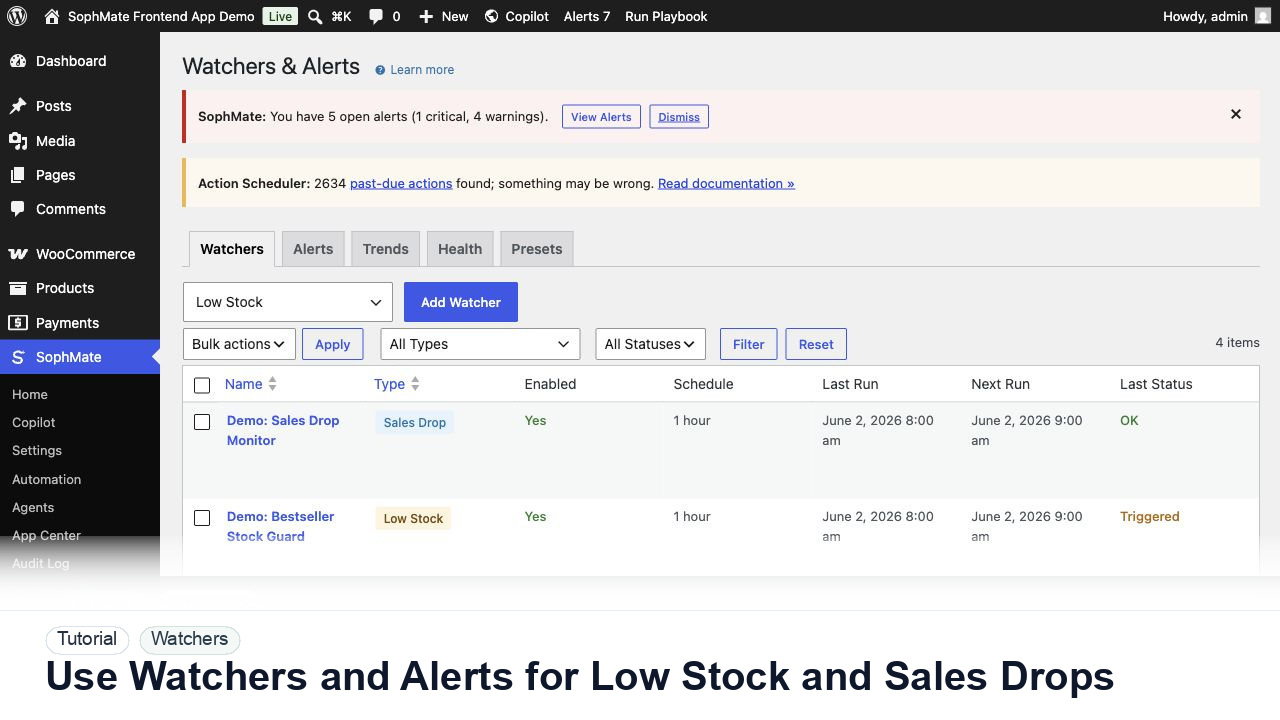
Configure SophMate Watchers for low-stock and sales-drop signals, then route alerts into the right review or workflow path.