Fix Theme Assistant Design from URL Bad Gateway Errors
Troubleshoot Theme Assistant design-reference URLs that return 502 Bad Gateway, blocked fetches, SSL errors, login walls, or unusable page snapshots.
Troubleshoot Theme Assistant design-reference URLs that return 502 Bad Gateway, blocked fetches, SSL errors, login walls, or unusable page snapshots.
By the end of this tutorial, you will know how to use SophMate for Theme Assistant design from URL 502 while keeping the work reviewable inside WordPress.
A client provides a design reference URL, but Theme Assistant reports a 502 Bad Gateway or cannot load enough of the page to create a useful design brief.
Use this tutorial to evaluate whether SophMate handles failed design references as supportable evidence instead of vague AI failure. A serious Theme Assistant workflow should separate URL fetch problems, WAF behavior, DNS, SSL, authentication, and screenshot fallback decisions before a buyer relies on design-from-URL work.
Help me diagnose why this public design reference returns a 502 from Theme Assistant. Keep the design brief separate from network evidence, record the URL, timestamp, response code, and suggest a screenshot fallback if the fetch remains blocked.
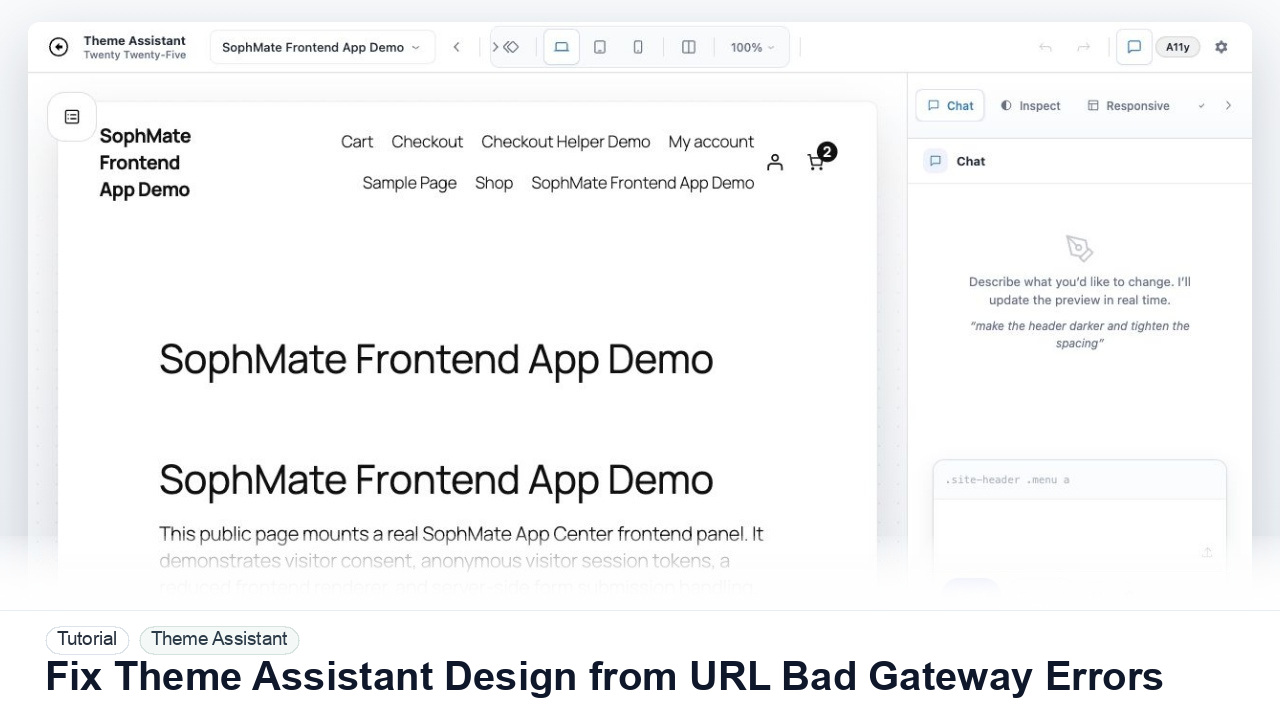
The tutorial image shows Theme Assistant context: live preview, design controls, responsive review, and presentation-oriented workflow areas for visual changes.
Use scoped CSS, responsive checks, accessibility review, and history notes before publishing visual changes.
Open the reference URL in a normal browser window and confirm it loads without authentication, region restrictions, cookie banners that block content, or certificate warnings.
A page can load in your browser but still block server-side requests through a WAF, bot rule, rate limit, hotlink protection, or upstream 502. Ask the client for a public, stable reference when possible.
Try the final page URL instead of a redirect, shortened link, staging login, search result, or builder preview. Avoid URLs that require cookies, admin sessions, or JavaScript-only routing.
If the source site cannot be fetched reliably, use screenshots, notes, and visible design traits as the reference. Theme Assistant can still translate rhythm, spacing, hierarchy, and color ideas into scoped CSS guidance.
Save the failing URL, response code, timestamp, browser result, and any diagnostics evidence. This makes support faster and keeps the design review from blocking on one external site.
The Theme Assistant workflow is successful when the change is scoped, reviewed at key breakpoints, accessibility concerns are documented, and the team can revert or explain the CSS history.
Stop using the failing reference URL when repeated fetches return 502 responses. Use screenshots or a stable public reference only after recording the failed URL, timestamp, and fallback source.
Document the reference URL, response code, timestamp, whether it loads in a normal browser, whether authentication is required, and which fallback evidence was used. Keep screenshots and design notes attached to the review so the team can explain why the final CSS diverges from the reference.
The design lead should own the design decision, while the site administrator or host should own repeated fetch failures. Run this check whenever a new external reference URL fails or becomes unreliable.
Escalate when the reference URL is public but still returns repeated 502 responses, the host blocks server-side fetches, SSL validation fails, or Theme Assistant cannot capture enough page structure for a useful design brief.
Do not publish from one preview alone. Check mobile, desktop, logged-out state, accessibility, cache behavior, checkout/account impact, and rollback history first.
No. SophMate should make the work easier to draft, inspect, approve, and repeat. Human review remains necessary when output affects customers, money, published content, privacy, settings, or workflow execution.
Record the owner, input scope, access boundary, approval point, failure modes tested, evidence location, monitoring window, and rollback or stop path.
Retry the reference with one public URL and one screenshot fallback. If both produce reviewable evidence, document which source will be used for the design brief before generating or publishing CSS.
Next step
Review the SophMate listing for current package details, screenshots, compatibility notes, and license terms.
Related
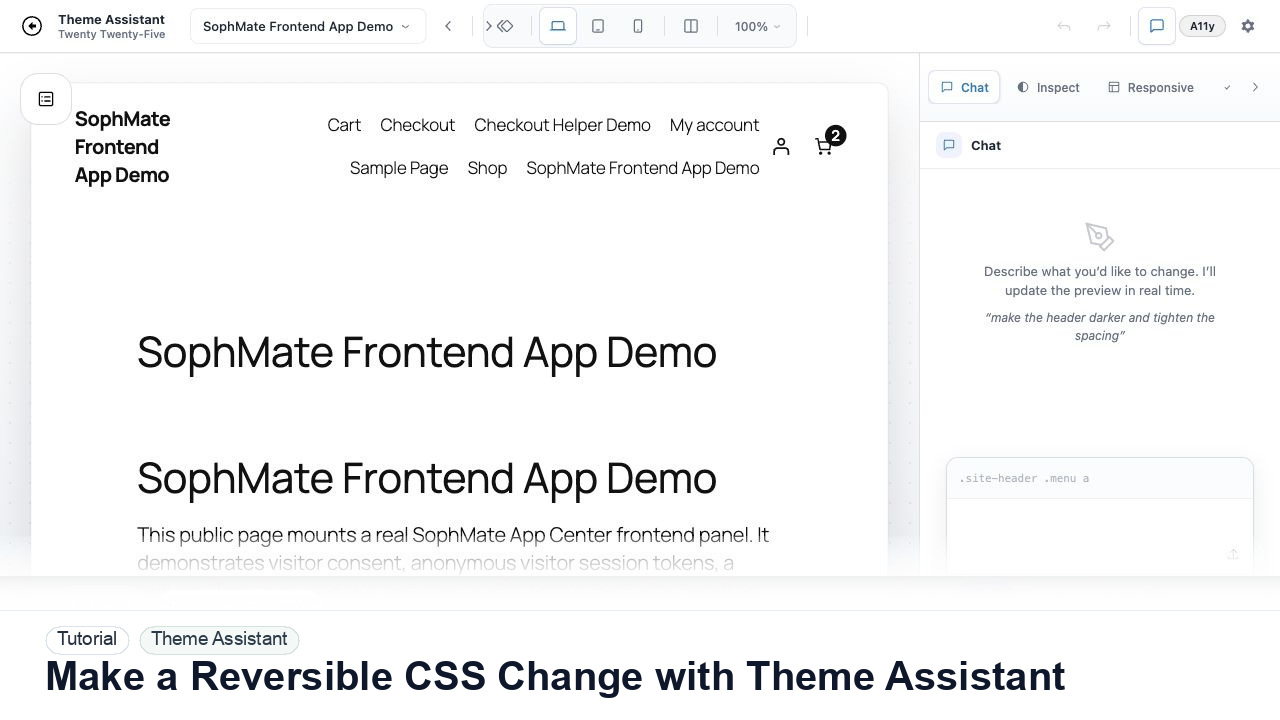
Use Theme Assistant to request a CSS refinement, inspect the preview, review generated CSS, and keep the change reversible through history.
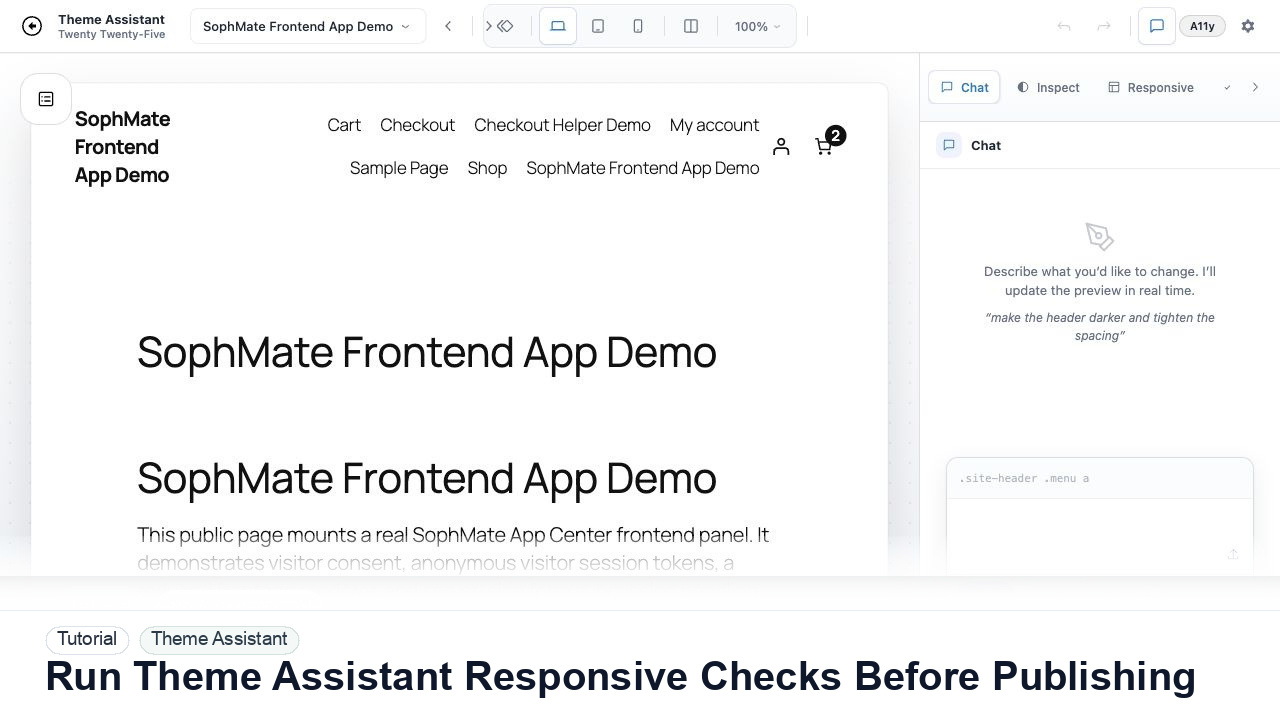
Switch Theme Assistant between desktop, tablet, and mobile views to catch spacing, navigation, overflow, and CTA issues before publishing CSS.
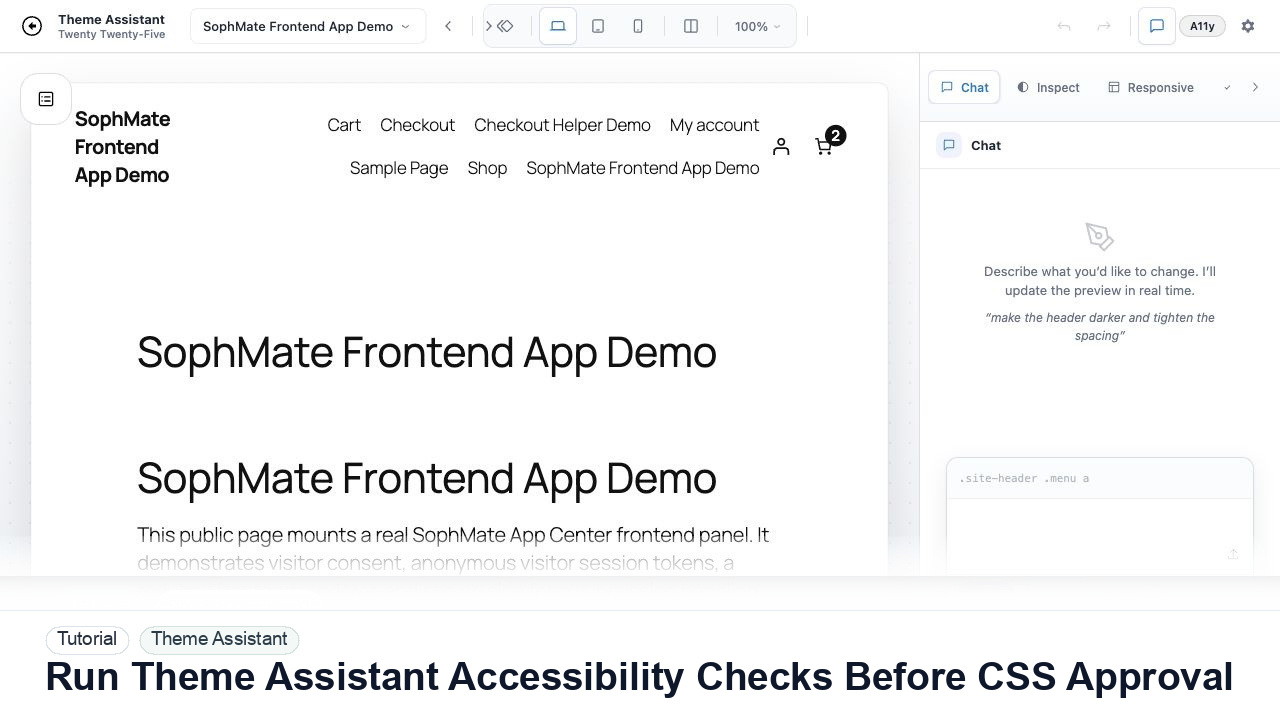
Use Theme Assistant accessibility checks to review contrast, hierarchy, spacing, and tap-target concerns before approving AI-generated CSS.