Run Theme Assistant Accessibility Checks Before CSS Approval
Use Theme Assistant accessibility checks to review contrast, hierarchy, spacing, and tap-target concerns before approving AI-generated CSS.
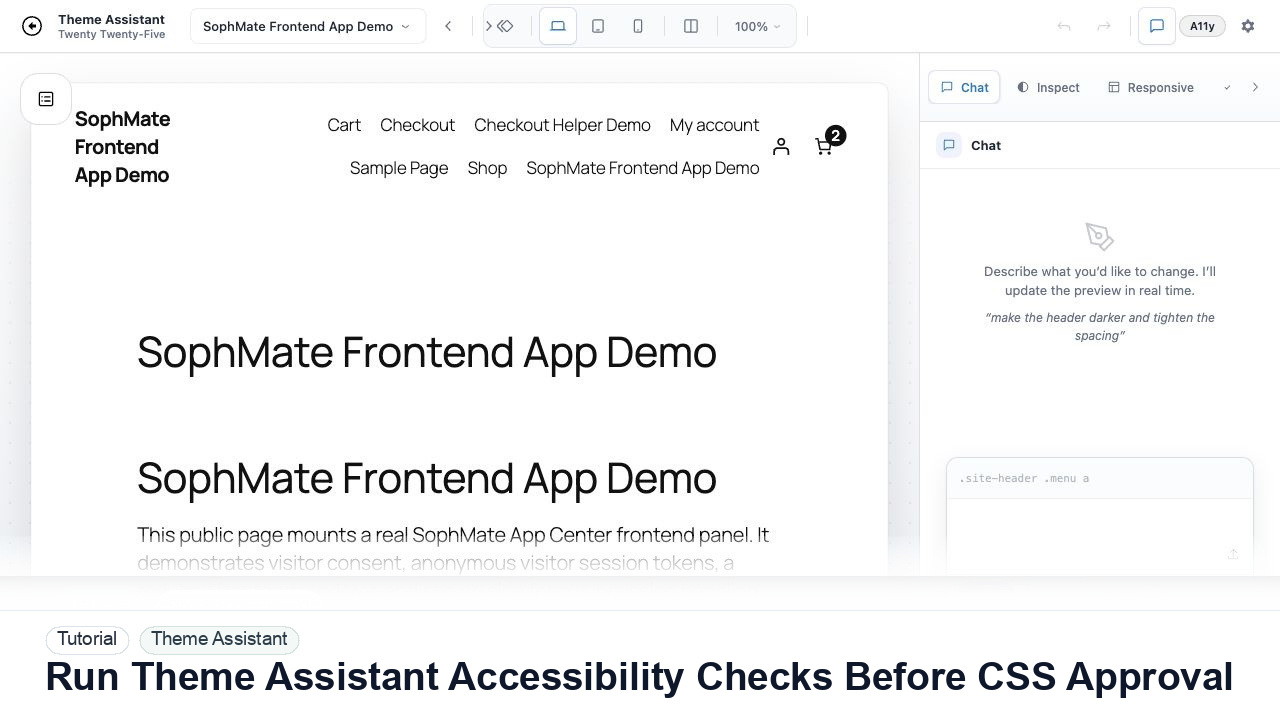
Use Theme Assistant accessibility checks to review contrast, hierarchy, spacing, and tap-target concerns before approving AI-generated CSS.
By the end of this tutorial, you will know how to use SophMate for WordPress accessibility AI review while keeping the work reviewable inside WordPress.
A designer has a polished homepage CSS draft, but the agency needs to confirm it does not create contrast or mobile usability problems.
Use this tutorial to evaluate whether SophMate can support client-facing design work without hiding production risk. Buyers should look for target components, selector scope, responsive checks, accessibility review, CSS history, and rollback behavior.
Propose a scoped Theme Assistant change for this page. Name the target component, selector risk, responsive checks, accessibility concerns, CSS history label, and rollback path before publishing.
The tutorial image shows Theme Assistant context: live preview, design controls, responsive review, and presentation-oriented workflow areas for visual changes.
Use scoped CSS, responsive checks, accessibility review, and history notes before publishing visual changes.
Run accessibility review against the proposed CSS state, not an unrelated page. The reviewer should know which change is being tested.
Review text contrast, heading structure, button prominence, and whether important actions remain visible at the intended breakpoints.
Switch to mobile and inspect buttons, links, nav controls, cards, and checkout-adjacent CTAs. Small visual tweaks can still reduce usability.
When Theme Assistant finds an issue, ask for a narrow correction that preserves the approved visual direction. Avoid accepting a broad reset that changes unrelated components.
Add a note describing the checks performed and any remaining caveats. This makes client review and later rollback easier.
The Theme Assistant workflow is successful when the change is scoped, reviewed at key breakpoints, accessibility concerns are documented, and the team can revert or explain the CSS history.
If visual output harms layout, accessibility, or checkout-adjacent states, revert the named CSS change from history and keep the module paused until the affected pages are rechecked.
Document target page, selector or component family, desktop/tablet/mobile checks, accessibility notes, CSS history label, and approval status.
A designer owns visual intent, while the site owner or developer owns production impact. Review every meaningful CSS change before publishing.
Escalate when CSS affects checkout, account, accessibility, mobile navigation, or theme structure beyond the intended visual scope.
Do not publish from one preview alone. Check mobile, desktop, logged-out state, accessibility, cache behavior, checkout/account impact, and rollback history first.
No. SophMate should make the work easier to draft, inspect, approve, and repeat. Human review remains necessary when output affects customers, money, published content, privacy, settings, or workflow execution.
Record the owner, input scope, access boundary, approval point, failure modes tested, evidence location, monitoring window, and rollback or stop path.
Save one scoped draft with desktop, mobile, accessibility, cache, and rollback notes before asking a client or site owner to approve the visual change.
Next step
Review the SophMate listing for current package details, screenshots, compatibility notes, and license terms.
Related
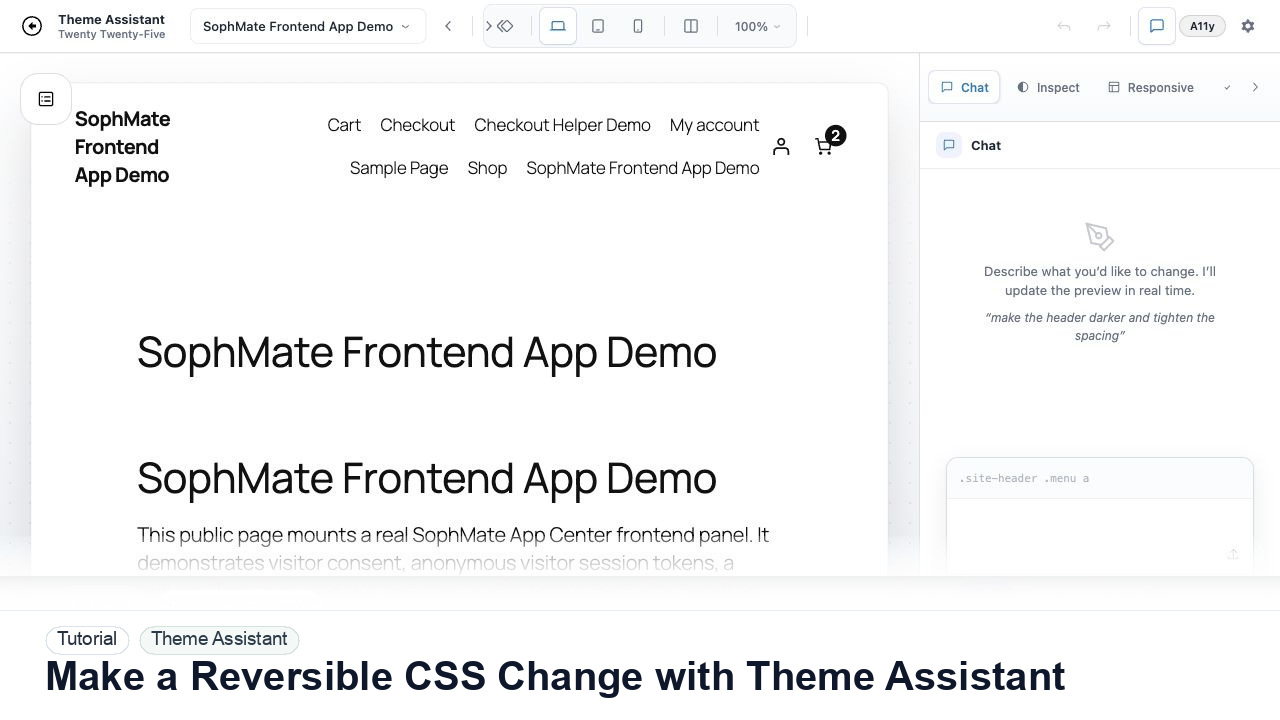
Use Theme Assistant to request a CSS refinement, inspect the preview, review generated CSS, and keep the change reversible through history.
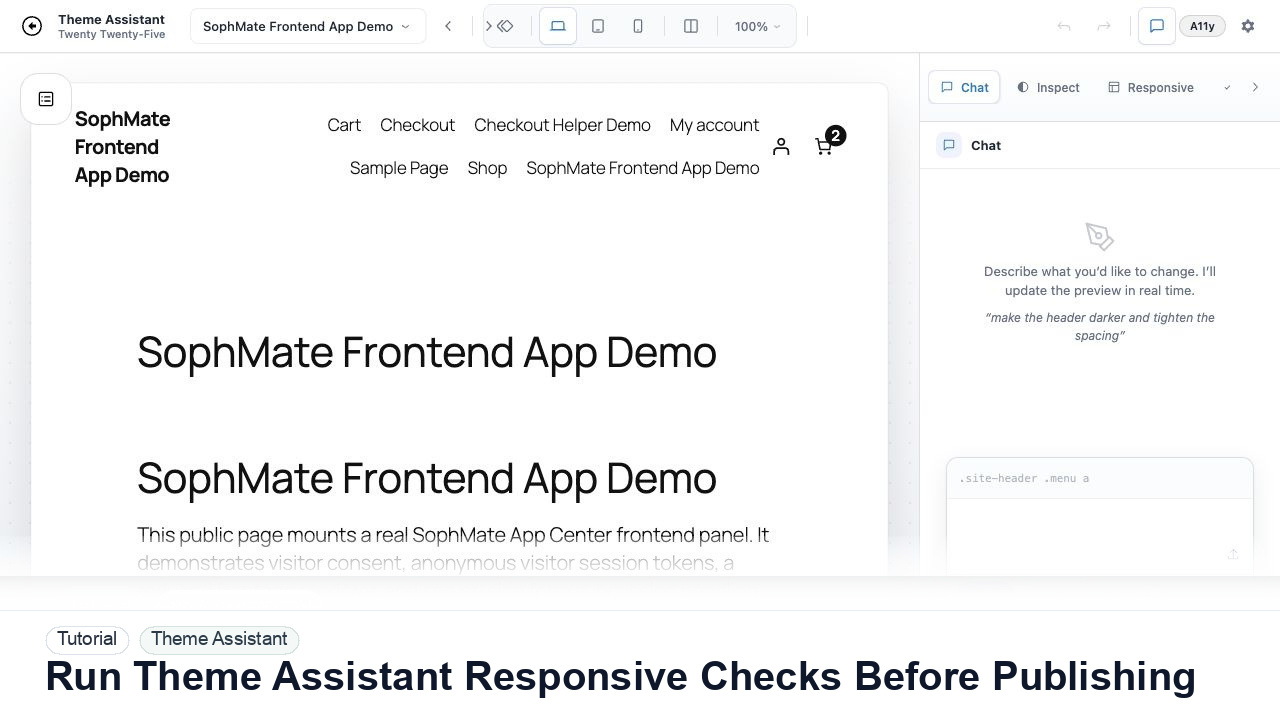
Switch Theme Assistant between desktop, tablet, and mobile views to catch spacing, navigation, overflow, and CTA issues before publishing CSS.
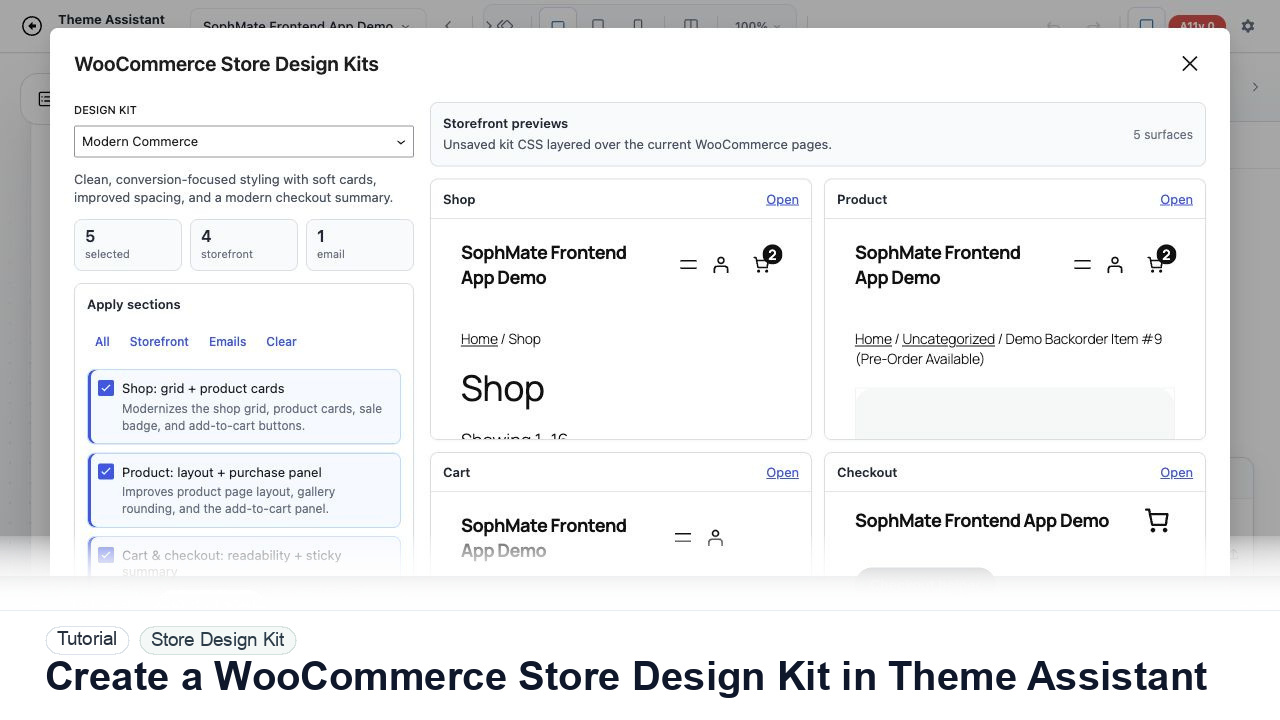
Use Theme Assistant to gather tokens, page patterns, product-card styling, checkout cues, and reusable CSS guidance for a WooCommerce design kit.