Trust and operations 6 min read Mar 4, 2026

Review Provider Changes, Budgets, and Safe Mode After Incidents

Review provider changes, budget spikes, safe mode, diagnostics, queues, and audit evidence after a SophMate incident or unusual AI usage.
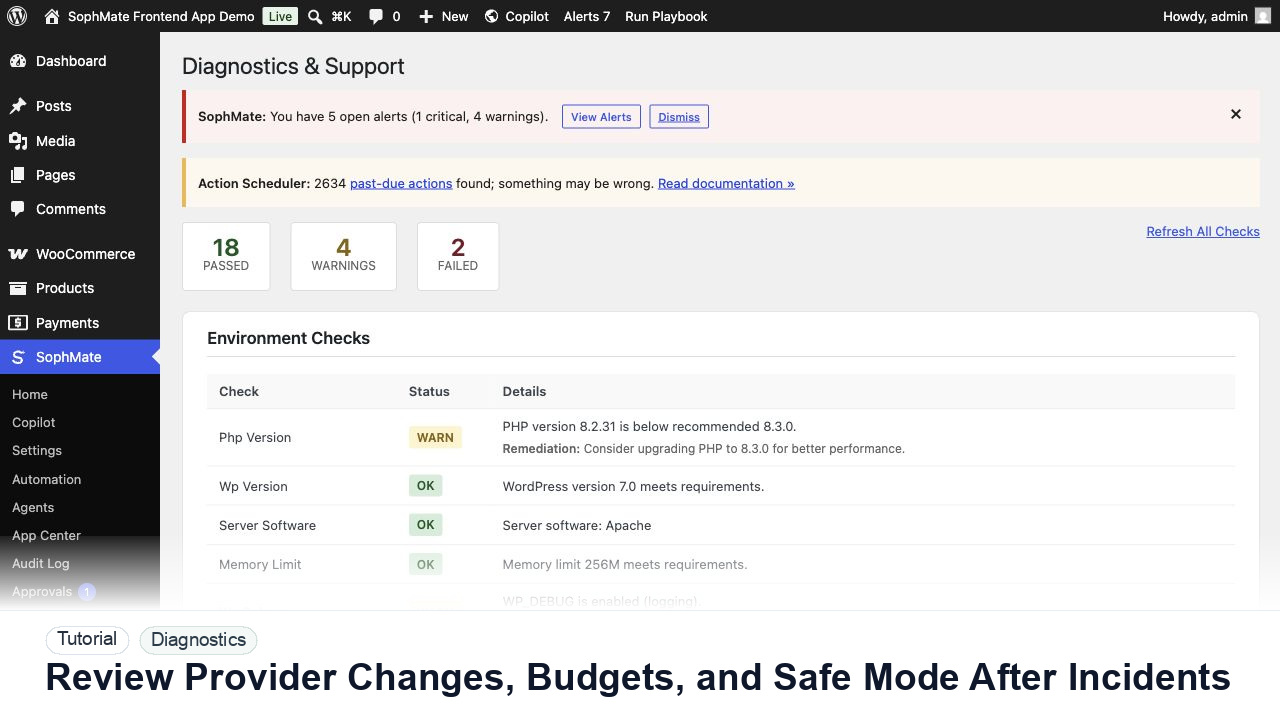
SophMate tutorial image for Review Provider Changes, Budgets, and Safe Mode After Incidents showing the related wp-admin workflow context.

Outcome

By the end of this tutorial, you will know how to use SophMate for SophMate provider incident review while keeping the work reviewable inside WordPress.

Scenario

A site owner notices failed provider requests and an unexpected usage spike after a campaign workflow ran overnight.

Buyer evaluation note

Use this tutorial to evaluate whether SophMate support evidence is actionable and safe to share. Buyers should expect exact screens, timestamps, environment facts, failed checks, reproduction steps, and redaction notes.

When not to use this workflow

  • Do not send diagnostics that include secrets, raw server credentials, purchase codes, payment data, or unrelated customer records.
  • Do not treat a warning as resolved until the check is rerun after the fix.
  • Do not use this workflow to bypass the normal owner, reviewer, or approval path for production changes.
  • Defer the workflow when the source data, permission boundary, rollback owner, or customer impact cannot be explained.

Example operator request

Prepare support-safe diagnostics for this issue. Capture exact screen, timestamp, environment, failed check, reproduction steps, and redaction notes before contacting support.

What the image shows

The tutorial image shows Diagnostics and Support context where environment checks, connectivity, plugin inventory, extensions, and support reports are prepared.

Before you begin

  • Record the exact screen, timestamp, error code, SophMate version, WordPress/PHP versions, and reproduction path before changing settings.
  • Decide which evidence is safe to share with support and which belongs only in private server logs.
  • Confirm SophMate is active, diagnostics do not show blocking failures, and the current user role can open the relevant SophMate module.
  • Check provider, budget, privacy, and approval settings before asking SophMate to draft or execute work.
  • Keep customer data, API keys, purchase codes, and private credentials out of prompts unless this workflow explicitly requires and permits that context.

Access and data boundary

  • Use support-safe diagnostics and environment facts instead of raw logs, API keys, database dumps, or server credentials.
  • Share exact timestamp, screen, error code, SophMate version, WordPress/PHP versions, and reproduction steps with only necessary private context.
  • Use the least-privileged SophMate role that can complete the review, and keep administrator-only access limited to setup, provider, billing, diagnostics, and high-risk approval work.
  • Prefer record IDs, short excerpts, and redacted screenshots over full customer records, payment details, provider keys, purchase codes, or raw server logs.

Guardrail

Use these records to explain behavior without disclosing secrets or unnecessary customer data.

Common mistakes to avoid

  • Contacting support without fresh diagnostics and reproduction steps.
  • Sending raw server details or screenshots that include secrets.
  • Treating a warning as resolved without rerunning the check after the fix.

Step 1: Stop risky execution first

Pause affected workflows, schedules, agents, image jobs, or campaign sends before changing provider settings or budget caps.

Step 2: Capture diagnostics and audit evidence

Export support evidence, provider status, budget state, queue health, cron state, failed actions, and recent approvals before cleanup.

Step 3: Review provider and model changes

Check whether keys, models, fallbacks, rate limits, or credentials changed before the incident window.

Step 4: Use safe mode intentionally

Enable safe mode or category kill switches when the same failure could repeat, then document which modules remain available.

Step 5: Approve the recovery path

Resume only after owner, root cause, budget impact, customer impact, and monitoring window are recorded.

Review checklist

  • Risky execution is paused first.
  • Diagnostics and audit evidence are captured before cleanup.
  • Recovery has an owner and monitoring window.

Production readiness

  • Refresh diagnostics near the issue time and verify the report redacts provider keys, credentials, and unnecessary customer data.
  • Include exact timestamps, screen names, reproduction steps, and environment versions for support.
  • Run the workflow first on a narrow, low-risk record or page before expanding scope.
  • Confirm the reviewer, approval rule, and evidence location before any production-changing action runs.

Failure modes to test

  • Test repeated warnings, outdated diagnostics, redaction mistakes, missing reproduction steps, and routing to the wrong owner.
  • Confirm support evidence stays useful after secrets and unrelated private context are removed.
  • Test the path where the user lacks permission, required context is missing, or the reviewer rejects the result.
  • Confirm the failed state leaves an audit record, visible owner, and clear next action instead of a silent or ambiguous outcome.

Success signal

The diagnostics workflow is successful when support can see the environment state, failed check, and reproduction steps without receiving provider keys or unnecessary private data.

Post-run monitoring

  • Rerun diagnostics after the fix or support handoff and compare against the captured baseline.
  • Watch repeated warnings by host, provider, PHP extension, queue, cron, or connectivity category.
  • Review the audit log, diagnostics, and affected WordPress records shortly after the first run.
  • Record any confusing output, missing source context, permission issue, cost spike, or reviewer correction before repeating the workflow.

Safe expansion criteria

  • Evidence is complete, redacted, reproducible, and routed to the correct owner.
  • The same issue can be triaged faster the next time because the support path is documented.
  • The first run has a documented owner, evidence, review result, and stop path.
  • A second operator can repeat the workflow from the notes without relying on hidden context.

Rollback or stop path

If evidence is incomplete or unsafe to share, stop escalation until redaction, timestamps, environment details, and reproduction steps are corrected.

What to document

Document the event chain, check results, support-safe report, reproduction steps, redaction review, and owner for the next action.

Owner and cadence

The site administrator or operations lead should review these records after incidents, before support contact, and during governance checks.

Escalate when

Escalate when support evidence is incomplete, redaction is uncertain, or the event chain cannot explain what happened.

Common questions

What should be sent to support?

Send exact timestamps, affected screen, environment details, failed check, reproduction steps, and redacted diagnostics. Do not send provider keys, server credentials, purchase codes, or unrelated customer records.

Does this workflow remove the need for human review?

No. SophMate should make the work easier to draft, inspect, approve, and repeat. Human review remains necessary when output affects customers, money, published content, privacy, settings, or workflow execution.

What should be documented before expanding the workflow?

Record the owner, input scope, access boundary, approval point, failure modes tested, evidence location, monitoring window, and rollback or stop path.

Next action

Fix one failing check, rerun diagnostics, and keep the before/after result with the support-safe report so the next owner can verify the change.

Next step

Bring this workflow into your WordPress site

Review the SophMate listing for current package details, screenshots, compatibility notes, and license terms.

View on CodeCanyon

Related

More from Trust and operations

Pro