Use Watchers and Alerts for Low Stock and Sales Drops
Configure SophMate Watchers for low-stock and sales-drop signals, then route alerts into the right review or workflow path.
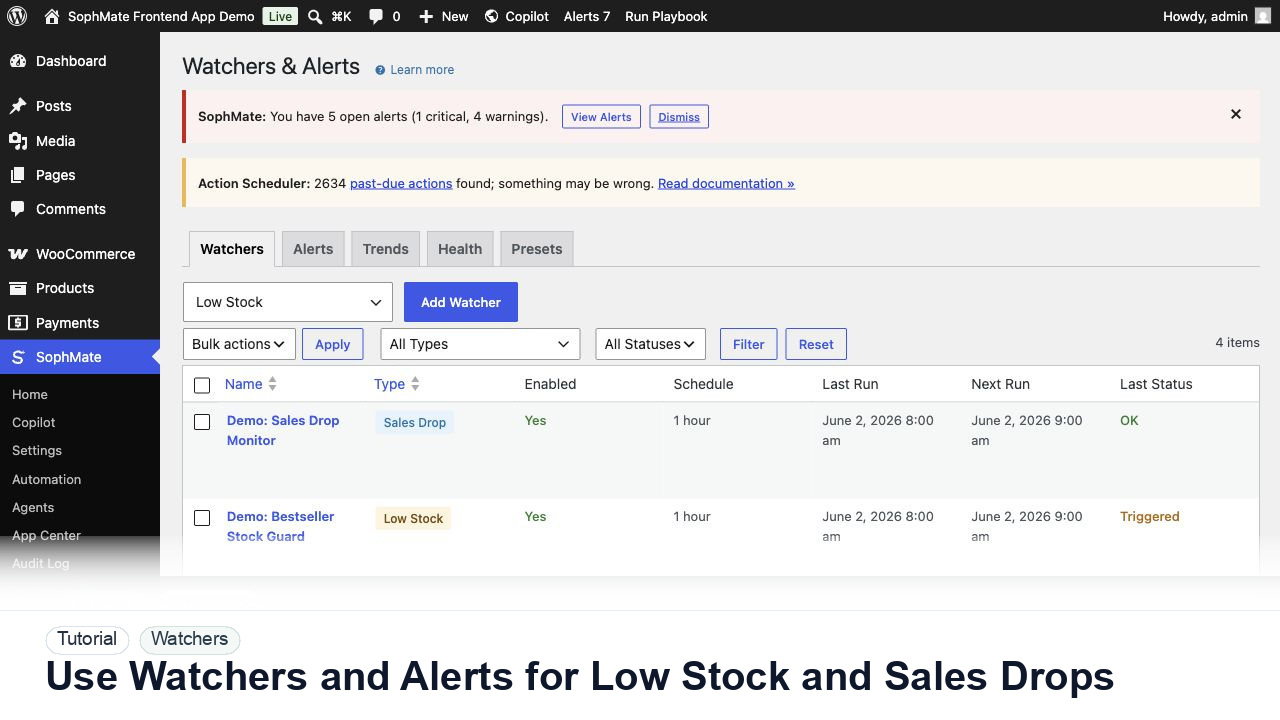
Configure SophMate Watchers for low-stock and sales-drop signals, then route alerts into the right review or workflow path.
By the end of this tutorial, you will know how to use SophMate for WooCommerce watcher alerts while keeping the work reviewable inside WordPress.
A store wants early warnings when campaign inventory runs low or revenue drops unexpectedly.
Use this tutorial to evaluate whether SophMate workflows start with operational maturity instead of unattended writes. The product signal is clear triggers, owners, approval points, alerts, cost expectations, run evidence, and kill switches.
Convert this recurring task into a safe first workflow. Start with read-only or notification-only output, define trigger, owner, approval point, failure alert, cost expectation, and kill switch.
The tutorial image shows Watchers and Alerts context where severity, ownership, alert history, and escalation paths are managed.
Start with notification and summary outputs before enabling write actions or unattended execution.
Start with one watcher type, such as low stock under a threshold or sales dropping compared with a previous period.
Define which alerts are informational, warning, or critical and who should respond. Owner clarity matters more than alert volume.
A threshold that fires constantly will be ignored. Start with values that represent real operational risk.
If an alert should produce a summary or draft a next action, connect it to a workflow. If it should change data, require approval.
After a week, check false positives, missed incidents, and whether any watcher should be paused, demoted, or promoted.
The watcher is successful when alerts are rare enough to matter, assigned to an owner, and connected to a clear response path.
If output is noisy, duplicated, delayed, or unsafe, disable the workflow or watcher category, preserve run history, and restart only after owner review.
Document trigger, owner, run history, expected output, approval point, failure response, and kill switch owner.
The workflow owner should inspect first runs immediately and review active workflows or watchers on a regular operations cadence.
Escalate when workflows may write data, repeat failures, miss critical alerts, or run without a clear owner.
Usually no. Start with read-only, staging, notification-only, or approval-gated behavior until trigger scope, owner response, failure handling, and run history are proven.
No. SophMate should make the work easier to draft, inspect, approve, and repeat. Human review remains necessary when output affects customers, money, published content, privacy, settings, or workflow execution.
Record the owner, input scope, access boundary, approval point, failure modes tested, evidence location, monitoring window, and rollback or stop path.
Run the first version as read-only, simulation, or notification-only, then review alerts, costs, audit records, and kill switch behavior before allowing writes.
Next step
Review the SophMate listing for current package details, screenshots, compatibility notes, and license terms.
Related
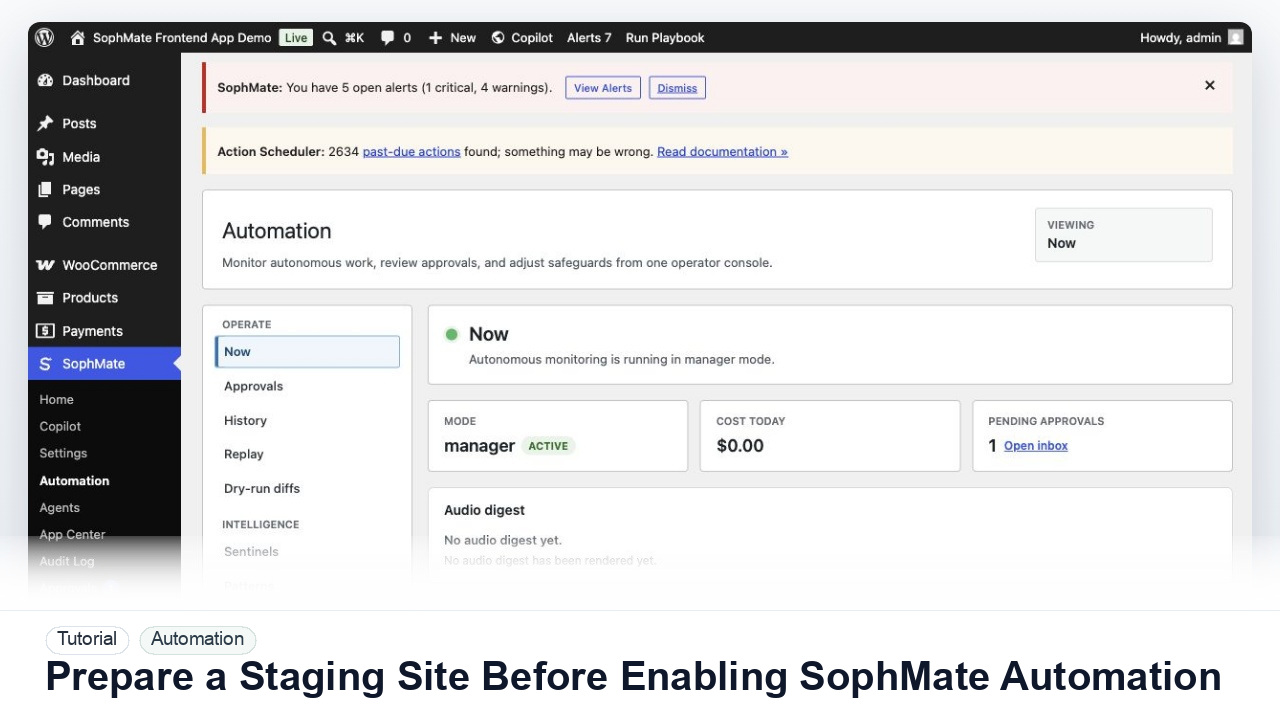
Use a staging WordPress site to test SophMate workflows, watchers, agents, approvals, and kill switches before production rollout.
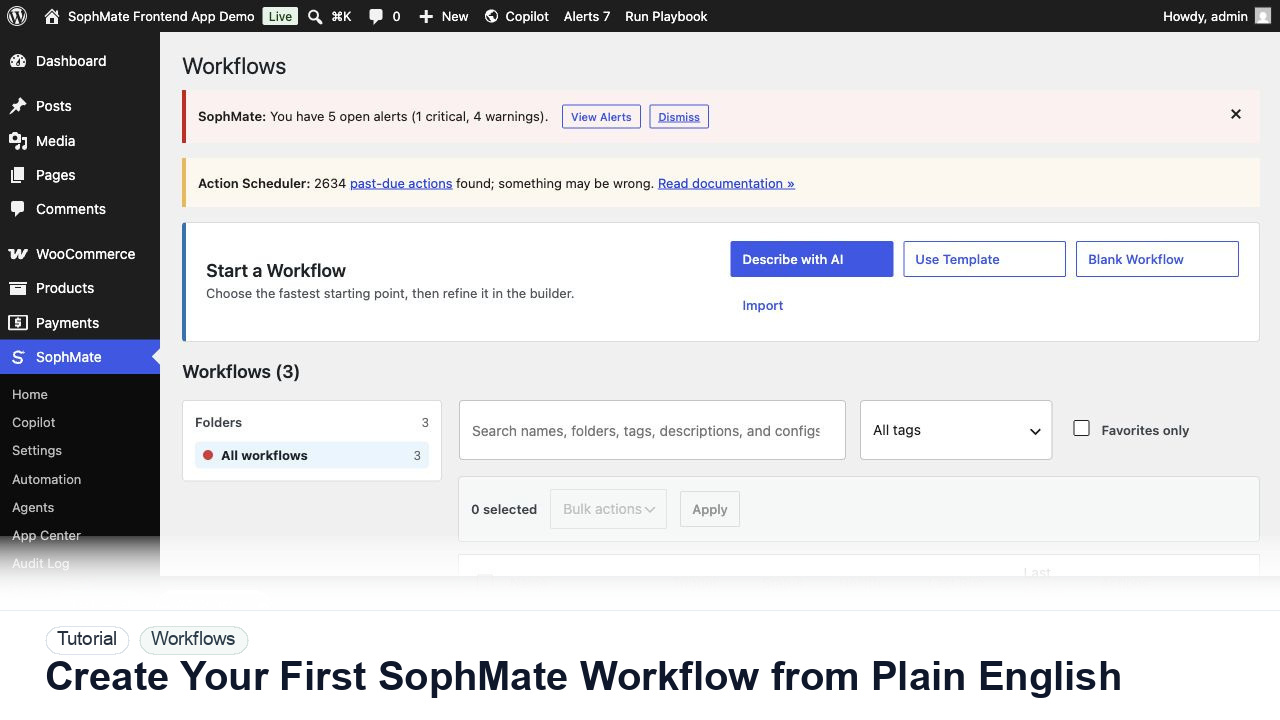
Use SophMate Workflows Describe with AI to turn a plain-English operations idea into a workflow draft with triggers, steps, and review notes.
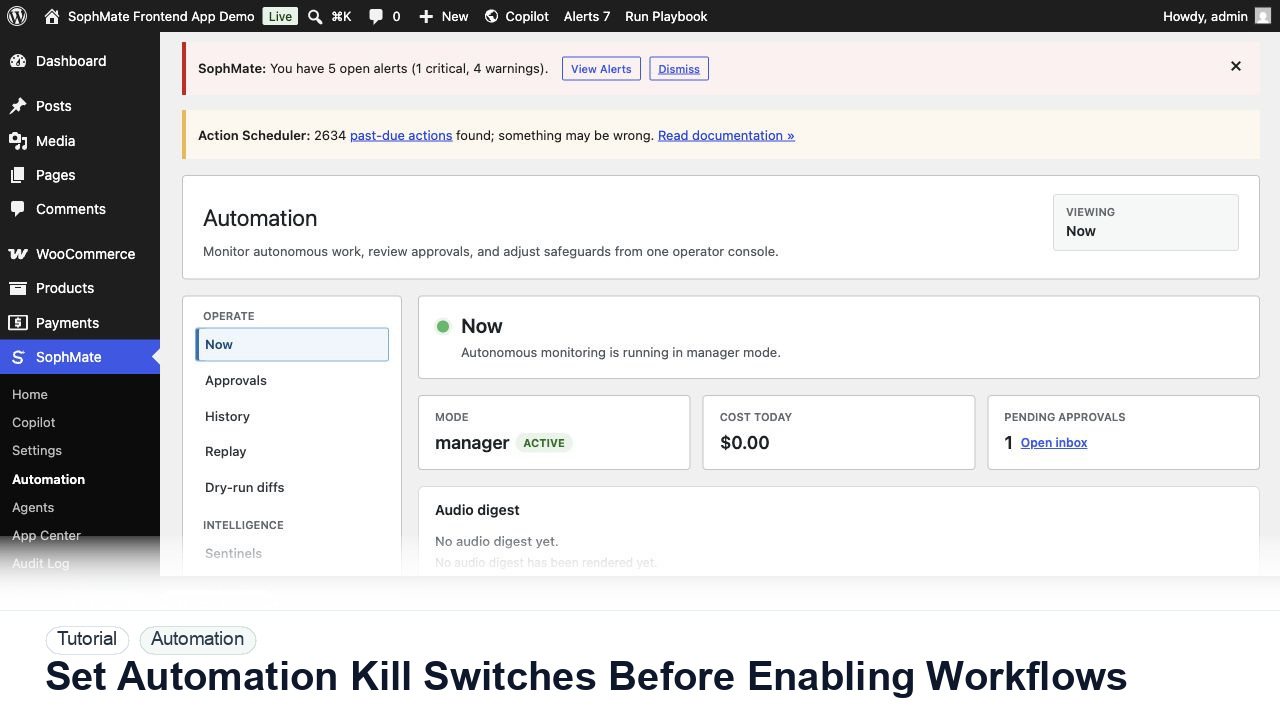
Configure SophMate workflow kill switches and ownership rules before enabling workflows that can affect WooCommerce or WordPress operations.