How to Prioritize Backorders in WooCommerce
Use SophMate to prioritize WooCommerce backorders by customer impact, product availability, promised dates, and support risk.
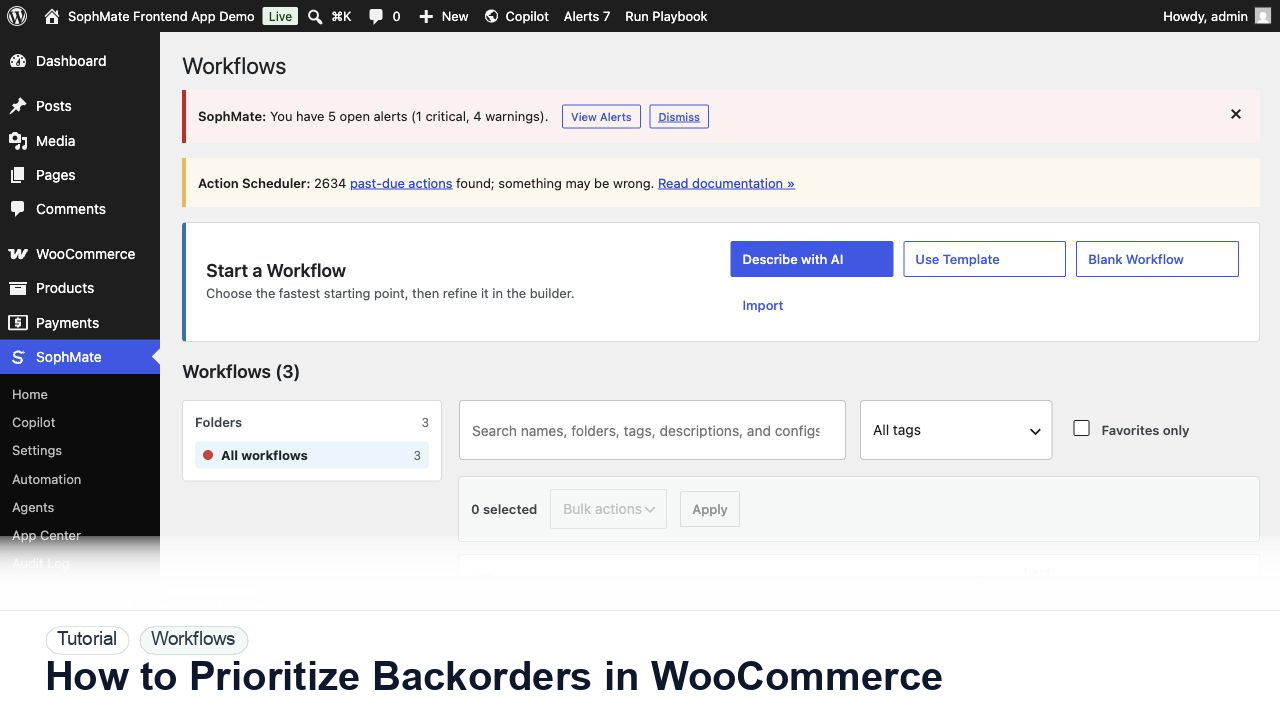
Use SophMate to prioritize WooCommerce backorders by customer impact, product availability, promised dates, and support risk.
By the end of this tutorial, you will know how to use SophMate for prioritizing WooCommerce backorders while keeping the work reviewable inside WordPress.
A store has more backorders than the team can handle manually, and customers need clear follow-up before support volume grows.
WooCommerce backorders can pile up because order age, product availability, promised dates, customer value, supplier state, and support risk are not prioritized in one place. The pain point is deciding who needs action first.
Use this tutorial to evaluate whether SophMate workflows start with operational maturity instead of unattended writes. The product signal is clear triggers, owners, approval points, alerts, cost expectations, run evidence, and kill switches.
Convert this recurring task into a safe first workflow. Start with read-only or notification-only output, define trigger, owner, approval point, failure alert, cost expectation, and kill switch.
The tutorial image shows Workflows so the reader can connect the plain-English workflow idea to triggers, templates, run history, and health checks.
Start with notification and summary outputs before enabling write actions or unattended execution.
Ask SophMate to summarize backorders by product, order age, customer tier, promised date, supplier status, and support history.
Separate orders that need supplier follow-up, customer communication, substitution offers, refund review, or manager escalation.
Use Knowledge Base policy and order context to draft messages without promising dates or replacements the team cannot confirm.
Refunds, substitutions, coupon offers, and priority fulfillment should move through approval before a customer sees the outcome.
During supply issues, schedule a daily triage workflow so stale backorders do not sit behind newer low-risk requests.
The workflow is successful when the first run is observable, expected artifacts are produced, costs are understandable, failures have owners, and write actions stay behind approval until proven safe.
If output is noisy, duplicated, delayed, or unsafe, disable the workflow or watcher category, preserve run history, and restart only after owner review.
Document trigger, owner, run history, expected output, approval point, failure response, and kill switch owner.
The workflow owner should inspect first runs immediately and review active workflows or watchers on a regular operations cadence.
Escalate when workflows may write data, repeat failures, miss critical alerts, or run without a clear owner.
Usually no. Start with read-only, staging, notification-only, or approval-gated behavior until trigger scope, owner response, failure handling, and run history are proven.
No. SophMate should make the work easier to draft, inspect, approve, and repeat. Human review remains necessary when output affects customers, money, published content, privacy, settings, or workflow execution.
Record the owner, input scope, access boundary, approval point, failure modes tested, evidence location, monitoring window, and rollback or stop path.
Run the first version as read-only, simulation, or notification-only, then review alerts, costs, audit records, and kill switch behavior before allowing writes.
Next step
Review the SophMate listing for current package details, screenshots, compatibility notes, and license terms.
Related
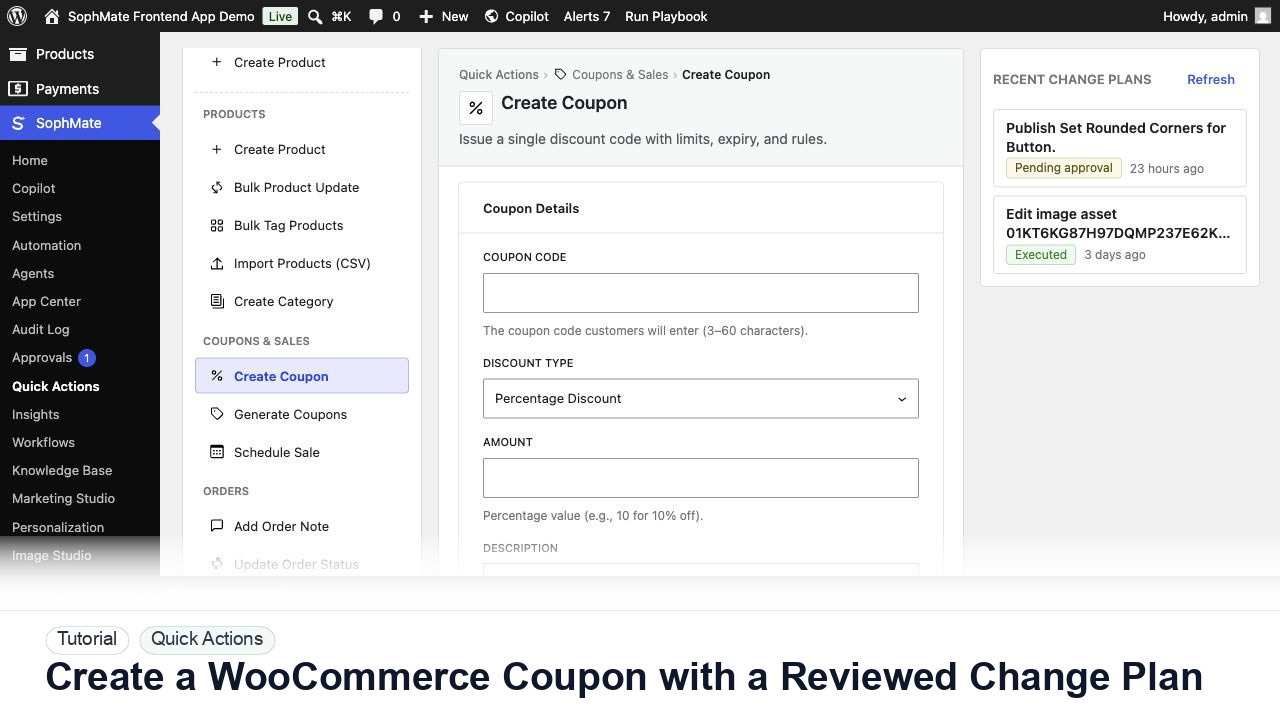
Create a WooCommerce coupon with SophMate, review the generated change plan, and apply the discount only after settings are confirmed.
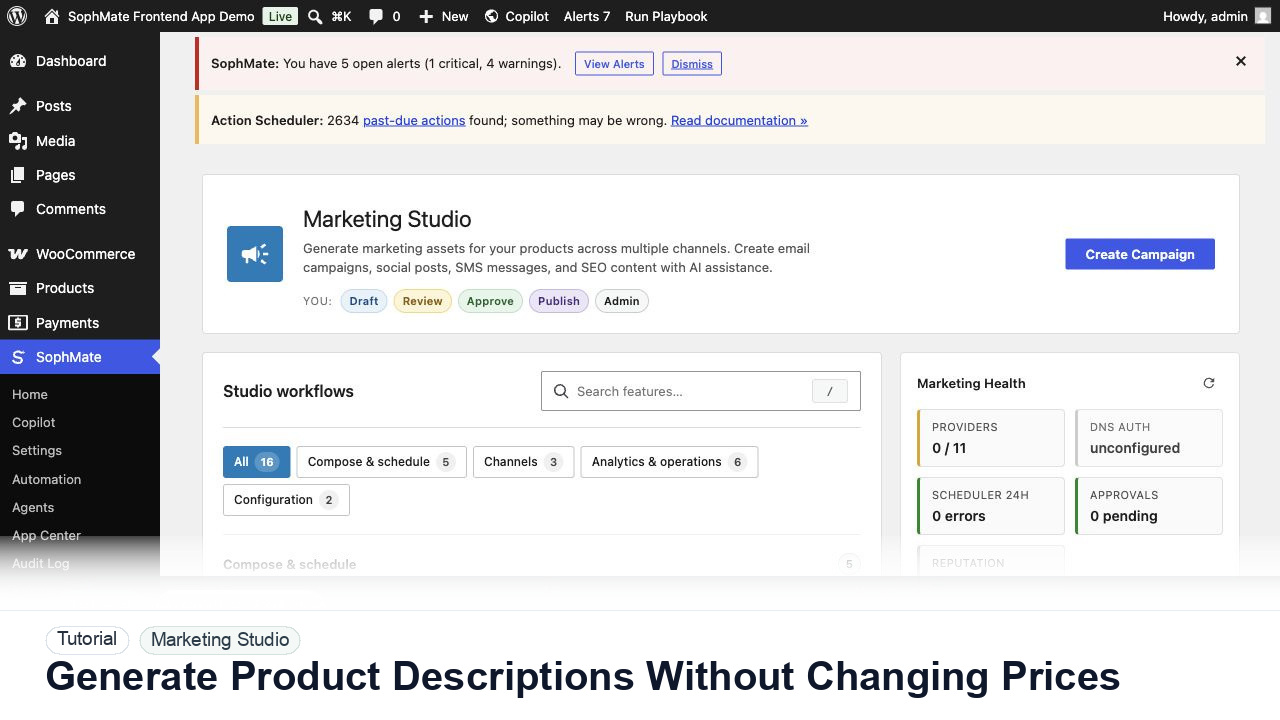
Use SophMate to draft product descriptions, SEO titles, and short descriptions while keeping price, stock, shipping, and variation settings out of scope.
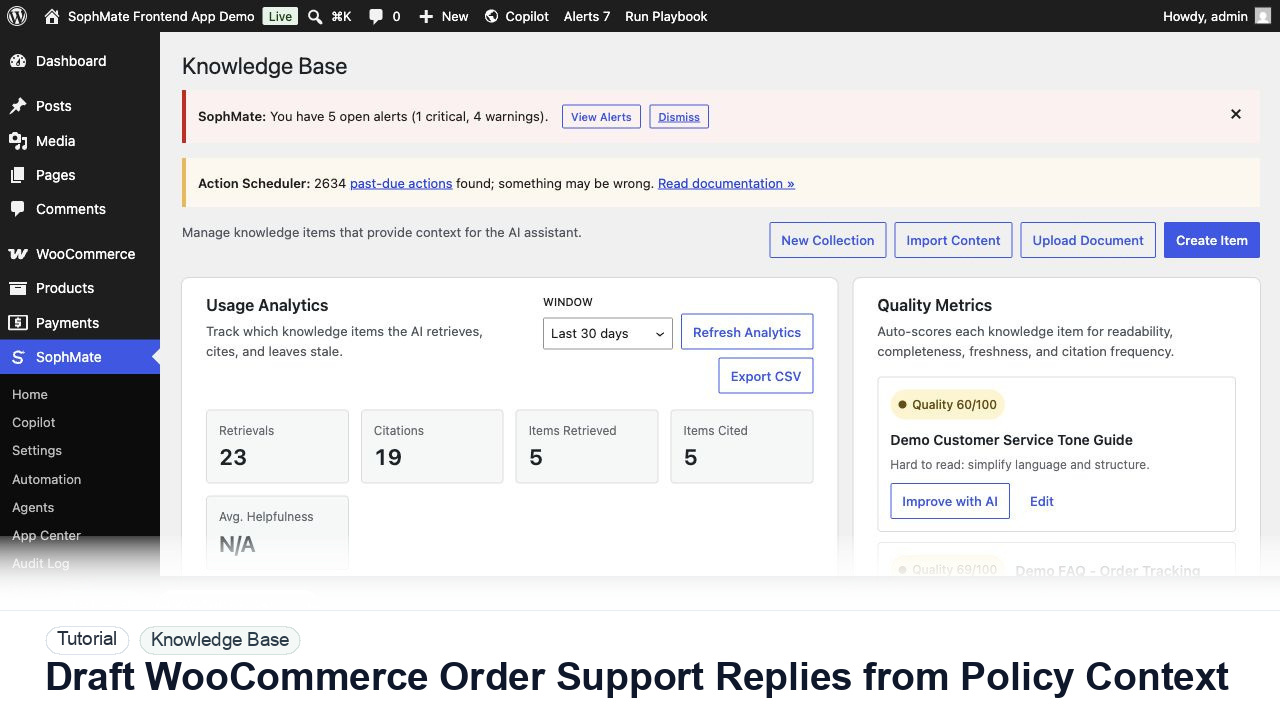
Draft WooCommerce order replies using order context, Knowledge Base policies, tone guides, and review controls before sending anything to a customer.