Create a WooCommerce Coupon with a Reviewed Change Plan
Create a WooCommerce coupon with SophMate, review the generated change plan, and apply the discount only after settings are confirmed.
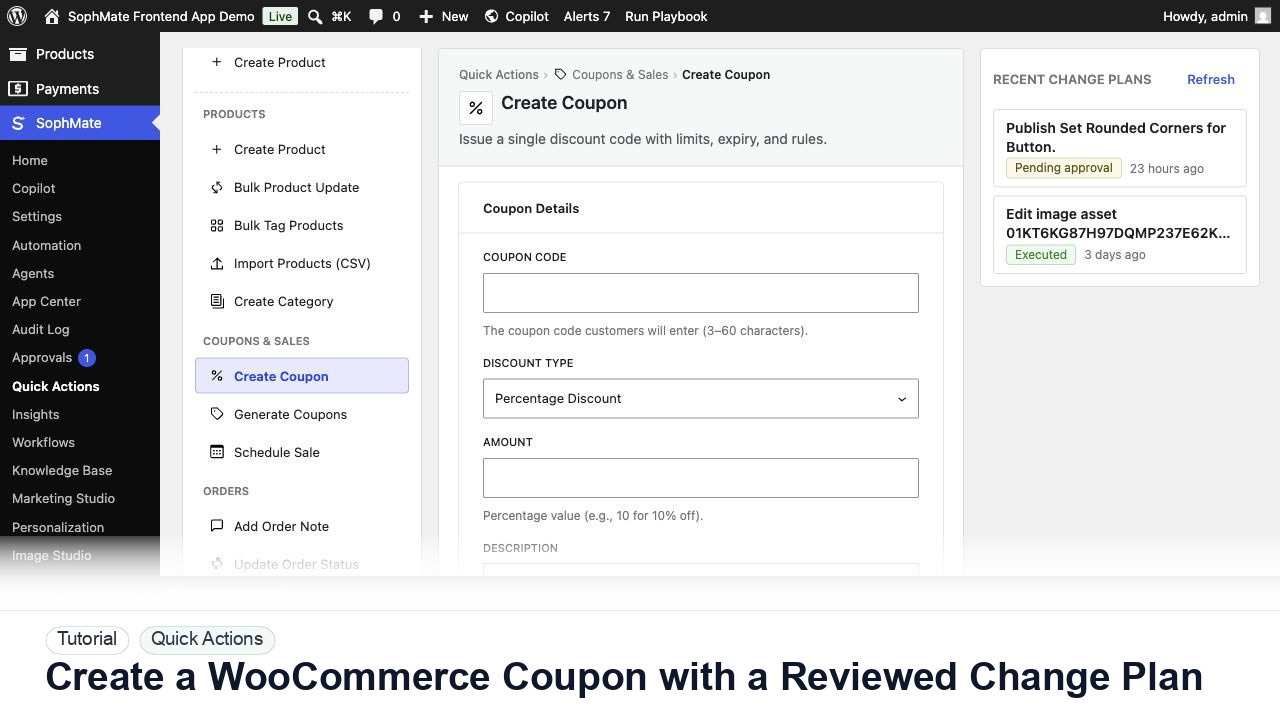
Create a WooCommerce coupon with SophMate, review the generated change plan, and apply the discount only after settings are confirmed.
By the end of this tutorial, you will know how to use SophMate for WooCommerce AI coupon while keeping the work reviewable inside WordPress.
A marketer wants a limited discount code for a product category but does not want an AI tool to publish it without review.
Use this tutorial to evaluate whether SophMate turns common WooCommerce work into structured, reviewable operations. The value is not speed alone; it is predictable inputs, visible proposed fields, and confirmation after execution.
Prepare this Quick Action from structured fields only. Validate required inputs, show the generated plan, keep data-changing work behind review, and confirm the affected record after execution.
The tutorial image shows the Create Coupon quick action with discount type, amount, limits, and restrictions visible, matching the reviewed WooCommerce coupon workflow.
Structured forms reduce ambiguity, but they still need review when they write WooCommerce or WordPress data.
Open Quick Actions or use the coupon-builder playbook. Enter the code, discount type, amount, expiration, usage limit, and any category restrictions.
Set a clear expiration, avoid unlimited usage unless intentional, and decide whether sale items or stacked coupons should be excluded.
SophMate turns the coupon request into a reviewable plan. Read the proposed WooCommerce fields instead of approving from the summary alone.
Approve only after the coupon matches the promotion. If a setting is unclear, reject or revise before execution.
After execution, test the coupon in cart or checkout and record the campaign source so later analysis is easier.
The Quick Action is successful when the structured fields produce the intended product, coupon, order, customer, or agent task and any data-changing result is visible in the approval or audit path.
If proposed fields are wrong, reject or revise the plan before execution. If execution already ran, use the audit trail and affected records to prepare a manual correction or rollback plan.
Document the exact structured fields used, expected WooCommerce result, reviewer, and storefront or admin check performed after execution.
The operator running the action owns the draft, while a reviewer owns execution when WordPress or WooCommerce data changes.
Escalate when a Quick Action affects the wrong record type, hides required fields, or produces a plan the reviewer cannot understand.
They reduce ambiguity with structured fields, but they do not remove review needs. Any action that writes WordPress or WooCommerce data should still expose proposed fields and approval status.
No. SophMate should make the work easier to draft, inspect, approve, and repeat. Human review remains necessary when output affects customers, money, published content, privacy, settings, or workflow execution.
Record the owner, input scope, access boundary, approval point, failure modes tested, evidence location, monitoring window, and rollback or stop path.
Execute one low-risk Quick Action, confirm the affected WooCommerce record, and save the exact field set as the model for future structured actions.
Next step
Review the SophMate listing for current package details, screenshots, compatibility notes, and license terms.
Related
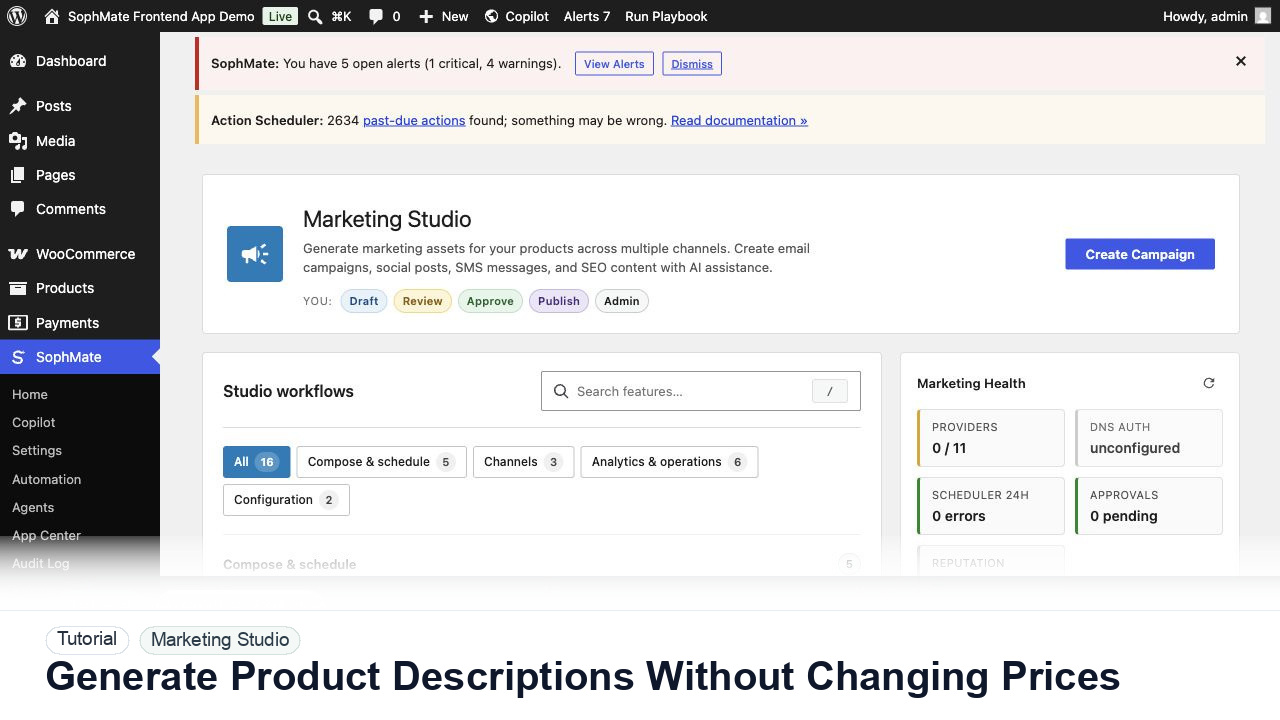
Use SophMate to draft product descriptions, SEO titles, and short descriptions while keeping price, stock, shipping, and variation settings out of scope.
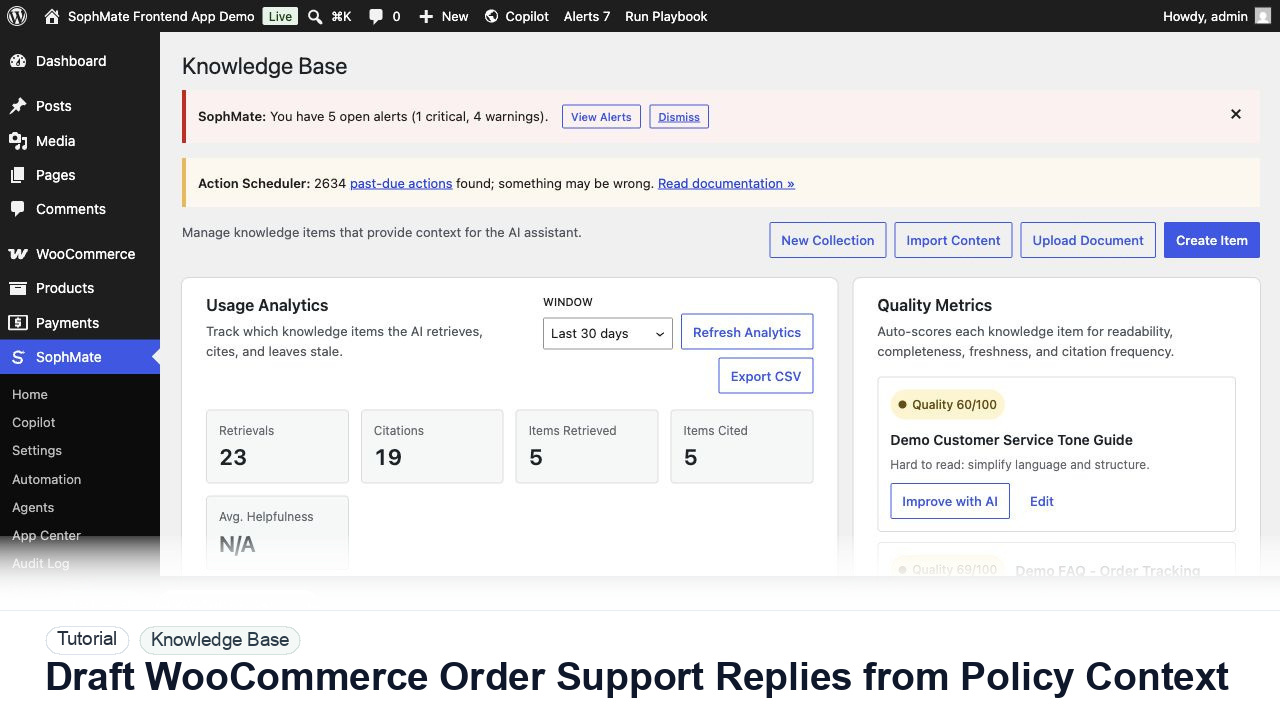
Draft WooCommerce order replies using order context, Knowledge Base policies, tone guides, and review controls before sending anything to a customer.
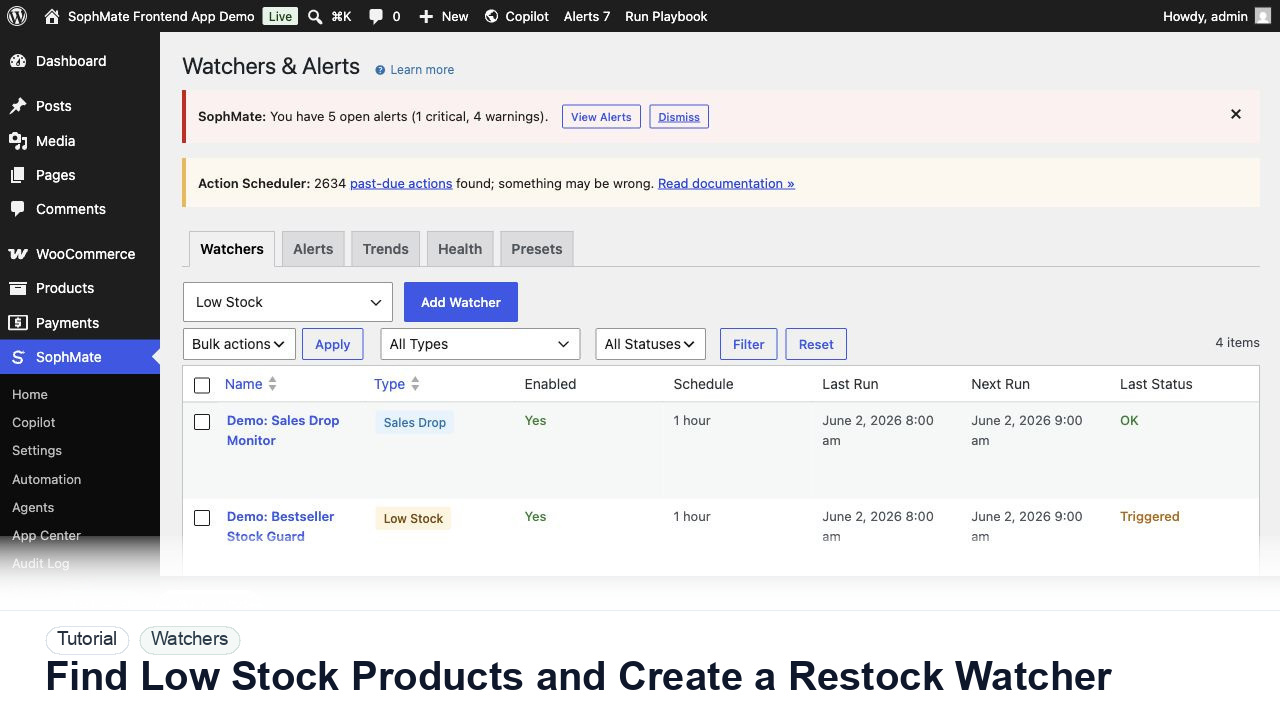
Use SophMate to find low-stock WooCommerce products, prioritize restock risk, and create a watcher so future inventory problems surface automatically.