WooCommerce operations 7 min read May 2, 2026

How to Fix Inventory Blind Spots in WooCommerce

Use SophMate to fix WooCommerce inventory blind spots by combining stock, sales velocity, campaigns, and watcher alerts.
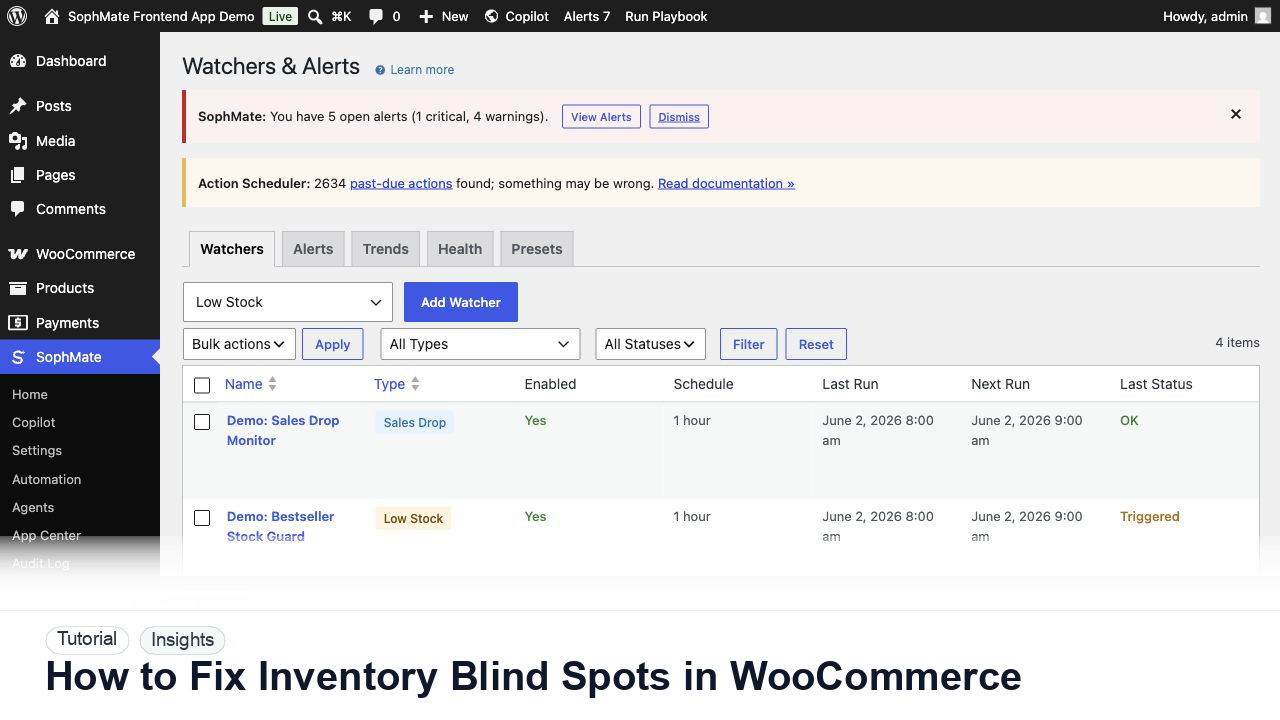
SophMate tutorial image for How to Fix Inventory Blind Spots in WooCommerce showing the related wp-admin workflow context.

Outcome

By the end of this tutorial, you will know how to use SophMate for fixing WooCommerce inventory blind spots while keeping the work reviewable inside WordPress.

Scenario

A team sees stock numbers in WooCommerce but still misses fast-moving products, bundled items, campaign products, and supplier delays.

WooCommerce pain point

WooCommerce inventory screens can show stock counts while still missing demand risk. The limitation is that sales velocity, bundle dependencies, campaign traffic, backorder policy, and supplier delays are not always reviewed together.

SophMate resolution path

  • Name the blind spot: velocity, bundle dependency, campaign demand, supplier delay, or owner response.
  • Use SophMate Insights and watchers to connect stock with demand context.
  • Route follow-up tasks through workflows with owners and approval points.

What to avoid in WooCommerce

  • Do not rely on quantity alone for fast-moving or promoted products.
  • Do not create alerts without an owner who can act.
  • Do not skip monthly review of missed stockouts and noisy alerts.

Buyer evaluation note

Use this tutorial to evaluate whether SophMate keeps WooCommerce reporting reviewable rather than turning AI summaries into business authority. Reports should preserve date range, refund, discount, margin, attribution, export, and approval context.

When not to use this workflow

  • Do not use Insights as accounting, tax, financial close, pricing approval, or client billing authority.
  • Do not act on a summary when refunds, discounts, attribution, margin assumptions, or date ranges are unclear.
  • Do not use this workflow to bypass the normal owner, reviewer, or approval path for production changes.
  • Defer the workflow when the source data, permission boundary, rollback owner, or customer impact cannot be explained.

Example operator request

Review these WooCommerce sales trends for decision support. Compare date range, refunds, discounts, margin context, attribution caveats, and recommend only reviewed next steps.

What the image shows

The tutorial image shows SophMate Insights context where sales trends, refunds, margin, goals, AI summaries, exports, and report schedules are reviewed before business decisions are made.

Before you begin

  • Choose the date range, timezone, comparison window, refund handling, discount context, margin assumption, and attribution source before asking for interpretation.
  • Decide who owns any follow-up action because reports should support decisions, not approve pricing, coupon, stock, or client-billing changes by themselves.
  • Confirm SophMate is active, diagnostics do not show blocking failures, and the current user role can open the relevant SophMate module.
  • Check provider, budget, privacy, and approval settings before asking SophMate to draft or execute work.
  • Keep customer data, API keys, purchase codes, and private credentials out of prompts unless this workflow explicitly requires and permits that context.

Access and data boundary

  • Limit reporting review to users who can see WooCommerce performance, refunds, campaign context, and approved business metrics.
  • Use aggregated ranges, exported summaries, and redacted examples instead of raw customer lists, payment details, or order-level data unless the decision requires record-level review.
  • Use the least-privileged SophMate role that can complete the review, and keep administrator-only access limited to setup, provider, billing, diagnostics, and high-risk approval work.
  • Prefer record IDs, short excerpts, and redacted screenshots over full customer records, payment details, provider keys, purchase codes, or raw server logs.

Guardrail

Treat AI summaries as decision support, not approval to change prices, coupons, stock, campaigns, customer segments, or financial reporting.

Common mistakes to avoid

  • Reading one headline metric without checking refunds, discounts, margin, inventory, campaign dates, and attribution limits.
  • Treating an AI summary as a finance report or approval to change coupons, prices, stock, or campaign spend.
  • Sharing exports with clients before redacting private customer, order, payment, and internal margin context.

Step 1: Map the blind spot

Identify whether the issue is sales velocity, bundle dependency, campaign traffic, backorder policy, supplier delay, or missing owner response.

Step 2: Compare stock with demand

Use SophMate Insights to review stock, top products, campaign calendar, order trends, and recent alerts together.

Step 3: Create targeted watchers

Add watchers for products or categories where stock quantity alone is not enough to represent risk.

Step 4: Route follow-up actions

Send purchase tasks, campaign pause suggestions, product substitutions, or customer messaging into approval-aware workflows.

Step 5: Review monthly

Check missed stockouts, noisy alerts, supplier delays, and campaign impact so blind spots shrink over time.

Review checklist

  • The blind spot is named.
  • Stock is reviewed with demand context.
  • Follow-up actions have an owner and approval path.

Production readiness

  • Confirm the date range, timezone, refunds, discounts, attribution source, margin assumptions, and comparison baseline before using summaries for decisions.
  • Route campaign, coupon, stock, pricing, or customer-impacting recommendations through the proper approval path instead of acting from the report alone.
  • Run the workflow first on a narrow, low-risk record or page before expanding scope.
  • Confirm the reviewer, approval rule, and evidence location before any production-changing action runs.

Failure modes to test

  • Test misleading date ranges, missing refund context, attribution gaps, margin assumptions, export failures, and report-driven recommendations that require approval.
  • Confirm financial or customer-impacting decisions do not proceed from an AI summary alone.
  • Test the path where the user lacks permission, required context is missing, or the reviewer rejects the result.
  • Confirm the failed state leaves an audit record, visible owner, and clear next action instead of a silent or ambiguous outcome.

Success signal

The reporting workflow is successful when the date range, refunds, margin context, attribution caveats, export evidence, and approval handoff are clear before any business action follows.

Post-run monitoring

  • Compare the AI summary against visible charts, WooCommerce reports, refunds, discount activity, attribution source, and exported evidence after the first review.
  • Watch whether suggested follow-up actions create approval plans, campaign briefs, or watcher thresholds instead of untracked manual changes.
  • Review the audit log, diagnostics, and affected WordPress records shortly after the first run.
  • Record any confusing output, missing source context, permission issue, cost spike, or reviewer correction before repeating the workflow.

Safe expansion criteria

  • The report baseline, date range, refund handling, margin context, attribution source, and export evidence are accepted by the business owner.
  • Follow-up actions have named owners and approval routes before the reporting workflow becomes recurring or client-facing.
  • The first run has a documented owner, evidence, review result, and stop path.
  • A second operator can repeat the workflow from the notes without relying on hidden context.

Rollback or stop path

If report context is incomplete or misleading, stop any campaign, coupon, stock, pricing, or customer-impacting follow-up until the date range, source data, refunds, margin assumptions, and owner review are corrected.

What to document

Document report date range, timezone, comparison window, refund and discount context, attribution caveats, export location, summary owner, and any approved follow-up action.

Owner and cadence

The store owner, finance owner, or marketing lead should review reports before decisions. Use this workflow after campaigns, monthly reviews, seasonal spikes, or unusual refund and margin changes.

Escalate when

Escalate when reports drive pricing, stock, coupon, campaign, client billing, financial, or customer-impacting decisions and source data, attribution, refunds, or margin assumptions are unclear.

Common questions

Can Insights replace accounting or financial close reports?

No. Insights is decision support for operators. Accounting, tax, margin close, and financial reporting should stay in the systems and review processes responsible for those records.

Does this workflow remove the need for human review?

No. SophMate should make the work easier to draft, inspect, approve, and repeat. Human review remains necessary when output affects customers, money, published content, privacy, settings, or workflow execution.

What should be documented before expanding the workflow?

Record the owner, input scope, access boundary, approval point, failure modes tested, evidence location, monitoring window, and rollback or stop path.

Next action

Use this report once as a decision review baseline. If it leads to a coupon, campaign, stock, pricing, or client-reporting decision, route that follow-up through the relevant approval or campaign workflow and keep the export attached to the decision record.

Next step

Bring this workflow into your WordPress site

Review the SophMate listing for current package details, screenshots, compatibility notes, and license terms.

View on CodeCanyon

Related

More from WooCommerce operations

Pro