What Image Studio does
Generate, edit, organize, and publish images from a WordPress admin canvas with prompts, brand kit controls, presets, jobs, stock sources, and media-library handoff.
SophMate is built for WordPress and WooCommerce teams that want useful AI help without turning the site into an invisible automation box. The module keeps the work close to wp-admin, where products, orders, pages, policies, users, and operational history can be reviewed by the people responsible for the site.
Best-fit teams
- Marketers, editors, and store teams that need AI-generated campaign or product visuals reviewed inside the WordPress media workflow.
- Agencies producing brand-aware drafts where rights, alt text, placement, and approval status matter as much as the image itself.
- Teams that want WordPress-native context, permission checks, and audit history instead of a disconnected AI workspace.
- Buyers evaluating whether the module can fit a real operating process, not only produce an impressive demo response.
What teams see in wp-admin
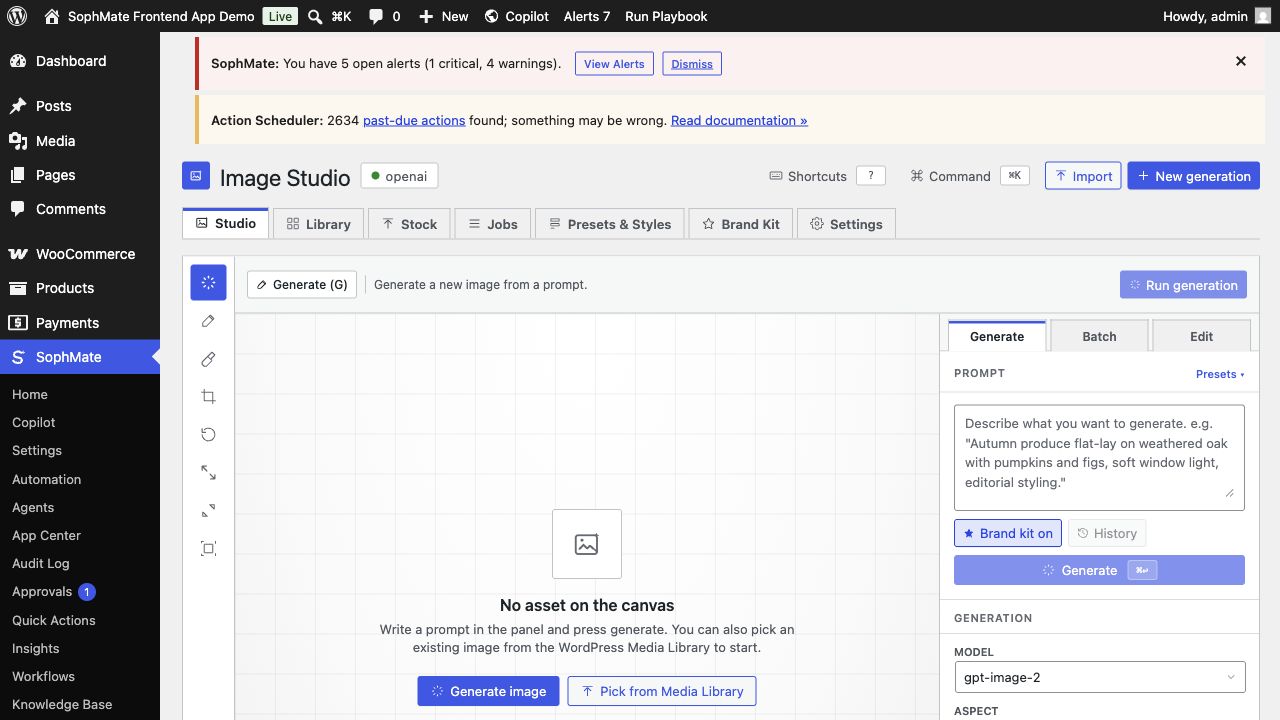
Image Studio shows the prompt panel, canvas, model controls, brand kit, presets, library, jobs, and media-library handoff. Creative drafts stay separate from approved WordPress media until an editor accepts the asset and metadata.
Best-fit jobs
- Create a product hero image from a brand-aware prompt.
- Pick an existing media asset and edit it without losing asset history.
- Save approved images to the Media Library only when ready.
Product capabilities
- Prompt-based generation
- Batch, edit, and brand-kit modes
- Image jobs and activity
- Collections and presets
- Media Library import
Setup prerequisites
- Define brand kit inputs, allowed providers, rights review expectations, and who can import approved assets into the Media Library.
- Prepare product references, campaign intent, placement requirements, and alt-text standards before generating large batches.
- Set provider budgets and role access before giving users a workflow that can become a site-changing plan.
- Keep staging, backup, or rollback expectations clear whenever the feature can affect public content, commerce data, customer messages, or theme output.
Operating notes
Keep generated drafts out of the Media Library until the image, alt text, source notes, and intended placement are accepted by the editor or marketer responsible for the page.
Rollout checklist
- Generate a small batch, reject weak drafts, then import only approved assets with filename, alt text, and placement notes.
- Review campaign assets on the target page before generating variants at scale.
- Name the owner of the first rollout window and schedule a review before making the feature a default team habit.
- Capture what changed during the first run so future administrators can distinguish setup mistakes from product behavior.
Risks and guardrails
- Risk: polished images can still be inaccurate or rights-sensitive. Guardrail: review product truth, brand fit, third-party marks, likeness, and placement.
- Risk: Media Library clutter hides approved assets. Guardrail: import only accepted drafts with metadata and intended use.
- Treat convenience as a rollout risk whenever the feature can write data, contact customers, publish content, or change the storefront.
- Keep permissions, budgets, audit review, and rollback expectations visible during the first production use.
When to use a different path
Do not publish generated images just because they look polished. Product accuracy, rights, brand fit, alt text, and intended placement still need editorial review.
How it stays governed
The important pattern is draft, review, approve, then execute. Read-only questions can stay conversational. Work that affects products, coupons, content, customers, workflows, images, or settings should move through a reviewed plan, workflow run, or publishing step. That is why Image Studio belongs beside approval-based action plans, audit and diagnostics controls, and the broader SophMate tutorial library.
Evidence to capture
- Save prompt, provider, source references, brand kit, draft status, rejection reason, accepted asset metadata, alt text, and placement.
- Capture rights or product-accuracy review notes before importing assets into the Media Library.
- Link evidence to the relevant docs, tutorials, or use case when the feature becomes part of a repeatable operating procedure.
- Keep evidence concise enough for support and governance review; avoid exporting secrets or unnecessary customer data.
What to measure after rollout
Measure accepted drafts, rejected drafts, Media Library imports, alt-text completion, and campaign assets that needed regeneration because the prompt or brand kit was weak.
Decision record
- Record provider, brand rules, rights review owner, import policy, and where approved generated assets may be used.
- Write down the first production scenario, the reviewer, and the evidence that would prove the rollout is working.
- Revisit the decision after the first incident, failed run, support ticket, or policy change rather than letting the original setup become permanent by accident.
Where to go next
Compare this module against the rest of the SophMate feature library, map it to a team scenario in use cases, or start with a practical guide from SophMate tutorials.