Verify CodeCanyon Purchase and Support Details Before Contacting Support
Prepare purchase, version, environment, diagnostics, reproduction steps, and support-safe evidence before contacting SophMate support.
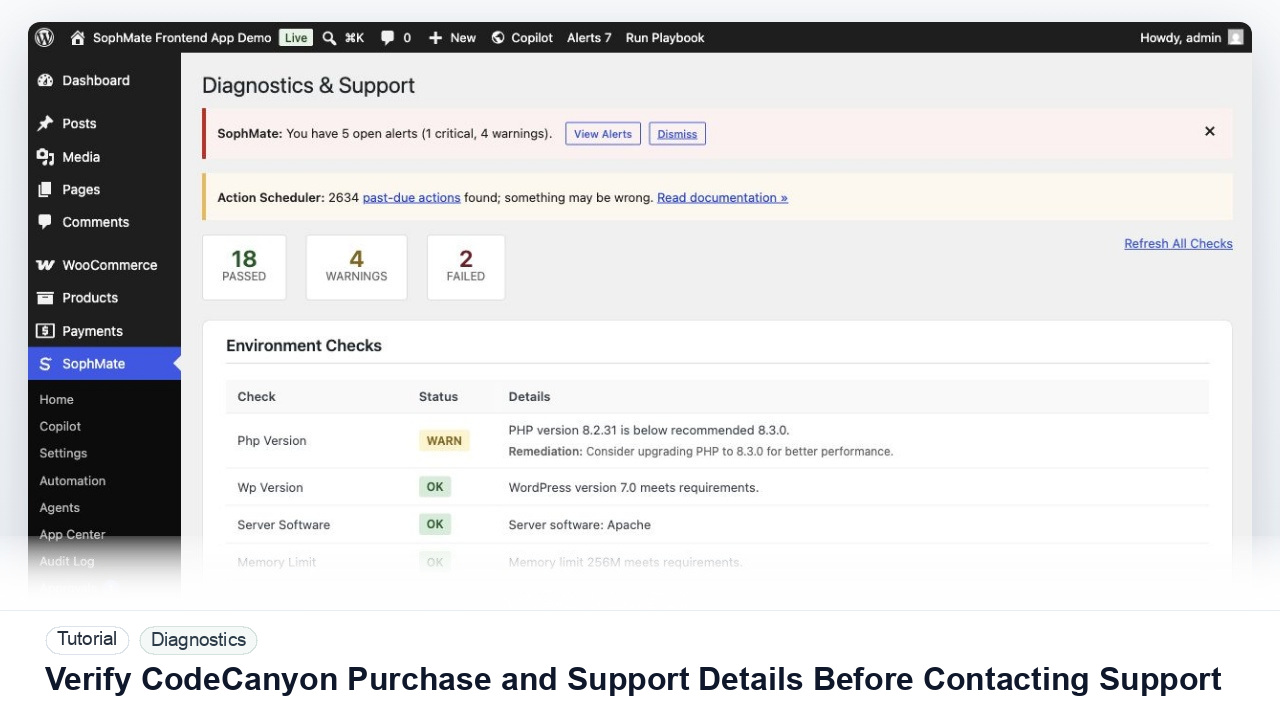
Prepare purchase, version, environment, diagnostics, reproduction steps, and support-safe evidence before contacting SophMate support.
By the end of this tutorial, you will know how to use SophMate for SophMate CodeCanyon support while keeping the work reviewable inside WordPress.
A buyer needs help with a SophMate issue and wants to send support enough context without exposing credentials or customer data.
Use this tutorial to evaluate post-purchase operations: update ownership, support evidence, redaction, rollback readiness, and version context. Buyers should be able to maintain SophMate without turning every issue into an undocumented support ticket.
Prepare a support-ready report with SophMate version, WordPress and WooCommerce versions, PHP version, affected screen, timestamp, diagnostics summary, and reproduction steps. Redact purchase codes, credentials, and customer data.
The tutorial image shows Diagnostics and Support context where environment checks, connectivity, plugin inventory, extensions, and support reports are prepared.
Use these records to explain behavior without disclosing secrets or unnecessary customer data.
Have the CodeCanyon account, purchase status, support entitlement, SophMate version, WordPress version, WooCommerce version, and PHP version ready before opening the request.
Use SophMate Diagnostics and Support to copy the report or create a support bundle when needed. Review the output before sharing it.
List the exact SophMate screen, action, expected result, actual result, timestamp, and whether the issue occurs on staging, production, or both.
Attach screenshots that show the screen and error state, but crop or redact provider keys, customer data, order details, and private URLs when they are not required.
Support can resolve product issues faster when custom theme, custom tool, hosting, and feature-request context is described separately.
The diagnostics workflow is successful when support can see the environment state, failed check, and reproduction steps without receiving provider keys or unnecessary private data.
If evidence is incomplete or unsafe to share, stop escalation until redaction, timestamps, environment details, and reproduction steps are corrected.
Document purchase context, SophMate version, WordPress/WooCommerce/PHP versions, affected screen, exact timestamp, reproduction steps, diagnostics report, and redaction notes for any screenshots.
The buyer or site administrator should own support requests. Use this checklist whenever contacting support, especially when the issue involves provider connectivity, failed workflow execution, Theme Assistant fetches, or production errors.
Escalate when the support request involves production outage, repeated provider failures, missing purchase context, security-sensitive evidence, or a bug that can be reproduced with clear diagnostics.
Send exact timestamps, affected screen, environment details, failed check, reproduction steps, and redacted diagnostics. Do not send provider keys, server credentials, purchase codes, or unrelated customer records.
No. SophMate should make the work easier to draft, inspect, approve, and repeat. Human review remains necessary when output affects customers, money, published content, privacy, settings, or workflow execution.
Record the owner, input scope, access boundary, approval point, failure modes tested, evidence location, monitoring window, and rollback or stop path.
Create the support report from the documented evidence, review it for secrets, then attach only the diagnostics, screenshots, and reproduction details needed to reproduce the issue.
Next step
Review the SophMate listing for current package details, screenshots, compatibility notes, and license terms.
Related
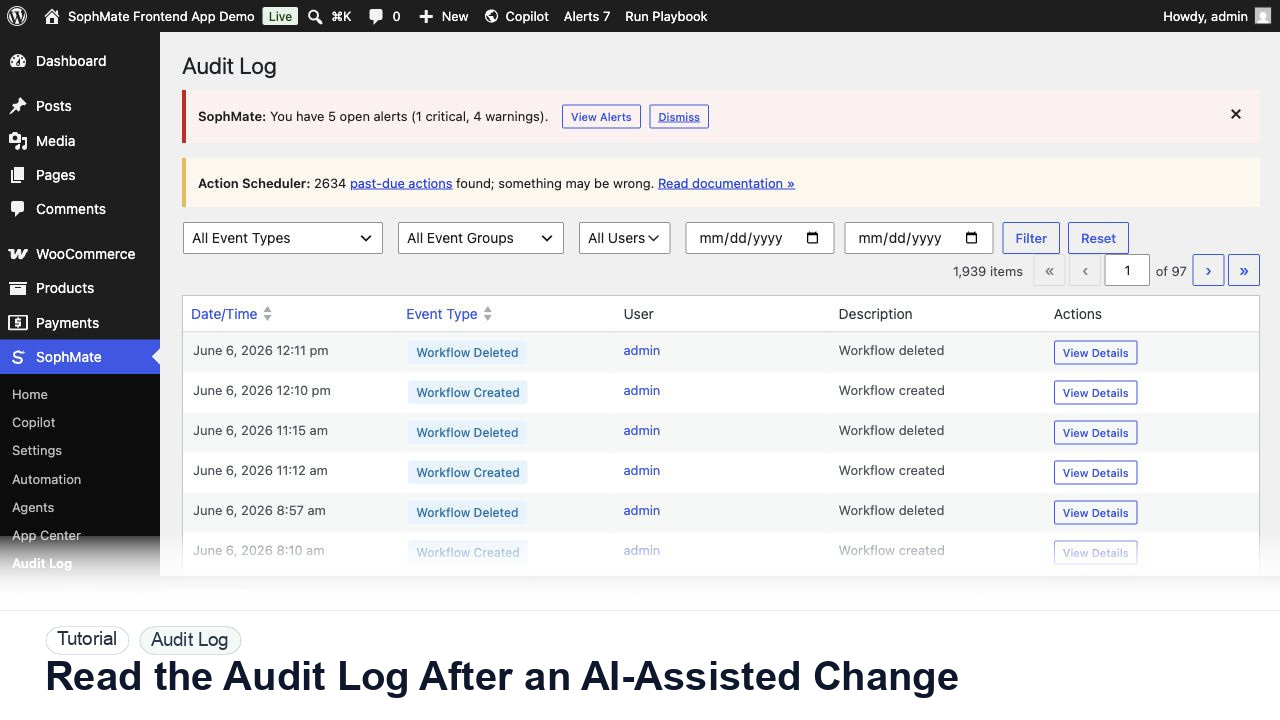
Use the SophMate Audit Log to verify who proposed, approved, executed, failed, retried, exported, or purged AI-assisted work.
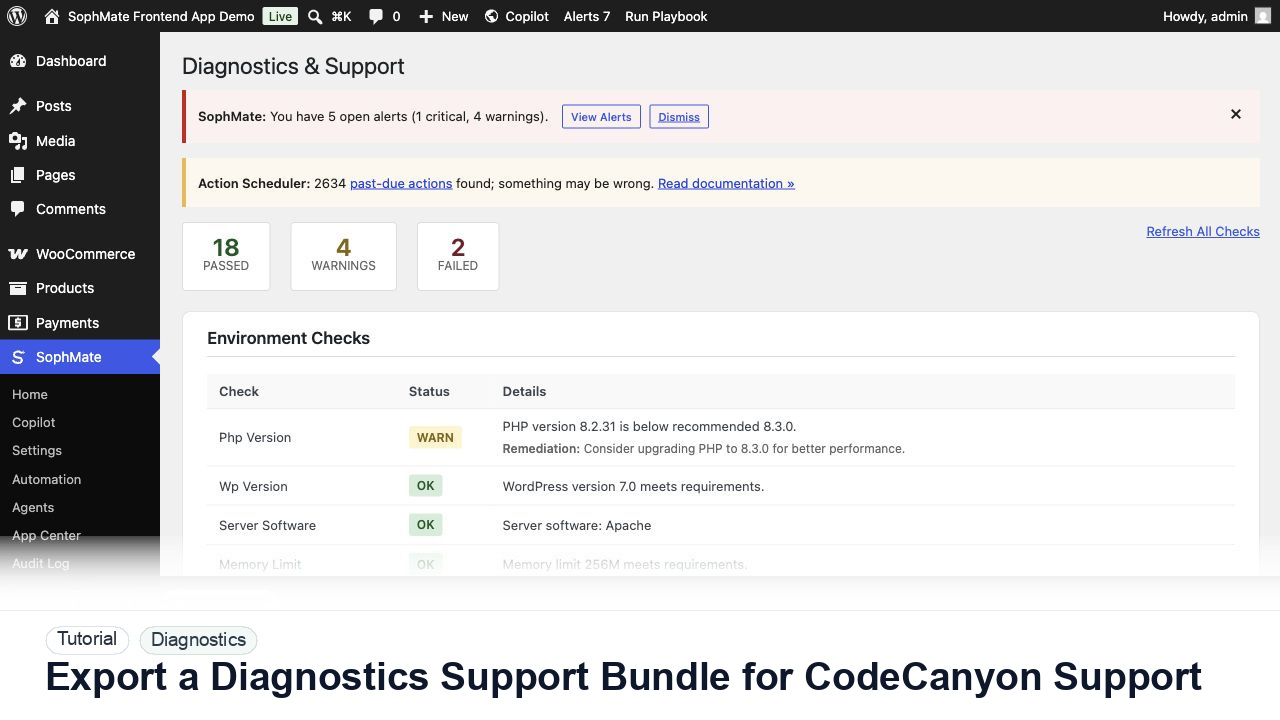
Use SophMate Diagnostics and Support to check environment status, provider connectivity, PHP extensions, plugin inventory, and support bundle data before contacting support.
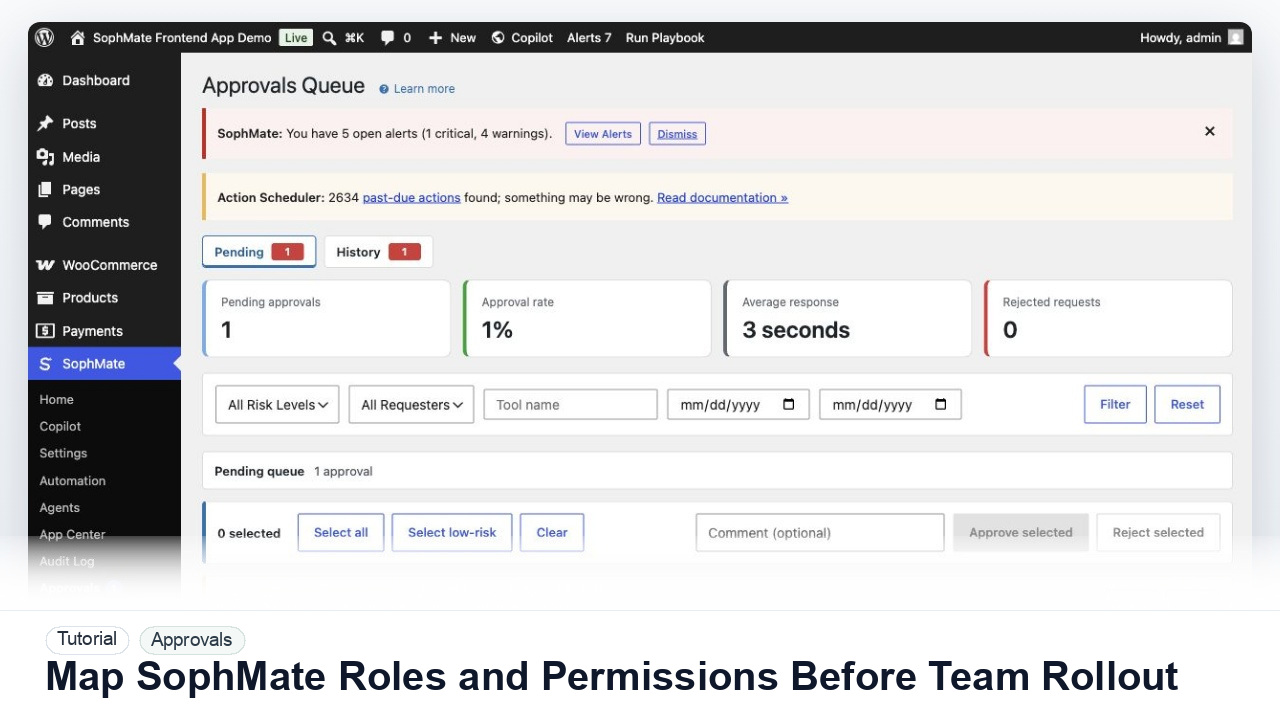
Map administrators, editors, marketers, support users, agency operators, and developers to SophMate capabilities before opening AI workflows to a wider team.