Use Image Studio Edit Stacks, Versions, and Similar Search
Review Image Studio edit stacks, asset versions, revert points, similar-image search, comments, and Media Library reuse decisions.
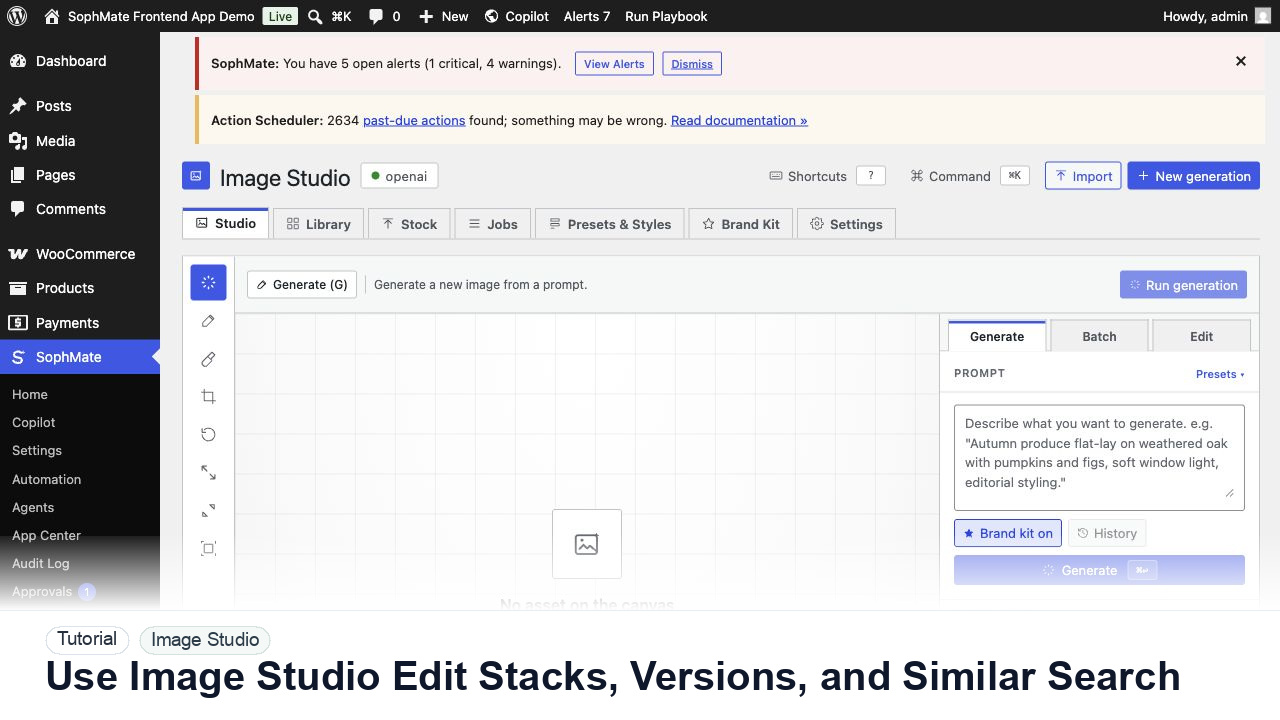
Review Image Studio edit stacks, asset versions, revert points, similar-image search, comments, and Media Library reuse decisions.
By the end of this tutorial, you will know how to use SophMate for SophMate Image Studio versions while keeping the work reviewable inside WordPress.
A designer edits a generated product hero several times and wants a clean record of which version can be reused in campaigns.
Use this tutorial to evaluate whether SophMate keeps generated visuals production-ready. Buyers should see product accuracy, rights notes, brand fit, alt text, owner review, Media Library handoff, and placement decisions before assets go live.
Generate image options for this approved campaign brief. Keep drafts separate until product accuracy, rights notes, brand fit, alt text, owner, and Media Library placement are reviewed.
The tutorial image shows Image Studio in wp-admin so the reader can see prompt controls, brand kit context, asset review, and the handoff point before anything enters the Media Library.
Keep drafts separate from approved Media Library assets until image quality, rights, alt text, and placement are reviewed.
Review original prompt, source references, generated draft, comments, edit stack, and each accepted version before choosing a reusable asset.
Find related assets to avoid duplicates and check whether older visuals are still accurate for current packaging, offer, and brand rules.
Before major edits, save a named version so the team can return to a known good asset without guessing which image was approved.
Capture designer, marketer, legal, or product-owner comments that explain rejection, acceptance, rights, and placement.
Import or attach the final asset with alt text, filename context, rights notes, and intended post or product placement.
The image workflow is successful when only approved assets enter the Media Library with useful metadata, clear alt text, and a known campaign or page placement.
If an asset is inaccurate, risky, or off-brand, keep it out of the Media Library, archive the draft, and regenerate only after updating prompt or brand-kit constraints.
Document prompt, brand kit, source provider or stock source, rights notes, selected asset, alt text, and intended placement before Media Library import.
A marketer or editor owns the asset decision, while the brand owner should review recurring campaign visuals and Media Library handoff rules.
Escalate when image rights, product accuracy, brand compliance, or customer-facing claims are uncertain.
No. Keep drafts separate until product accuracy, rights notes, brand fit, alt text, owner, and intended placement are approved.
No. SophMate should make the work easier to draft, inspect, approve, and repeat. Human review remains necessary when output affects customers, money, published content, privacy, settings, or workflow execution.
Record the owner, input scope, access boundary, approval point, failure modes tested, evidence location, monitoring window, and rollback or stop path.
Select one approved draft, add rights and alt-text notes, then import it to the Media Library only when the placement owner accepts the asset.
Next step
Review the SophMate listing for current package details, screenshots, compatibility notes, and license terms.
Related
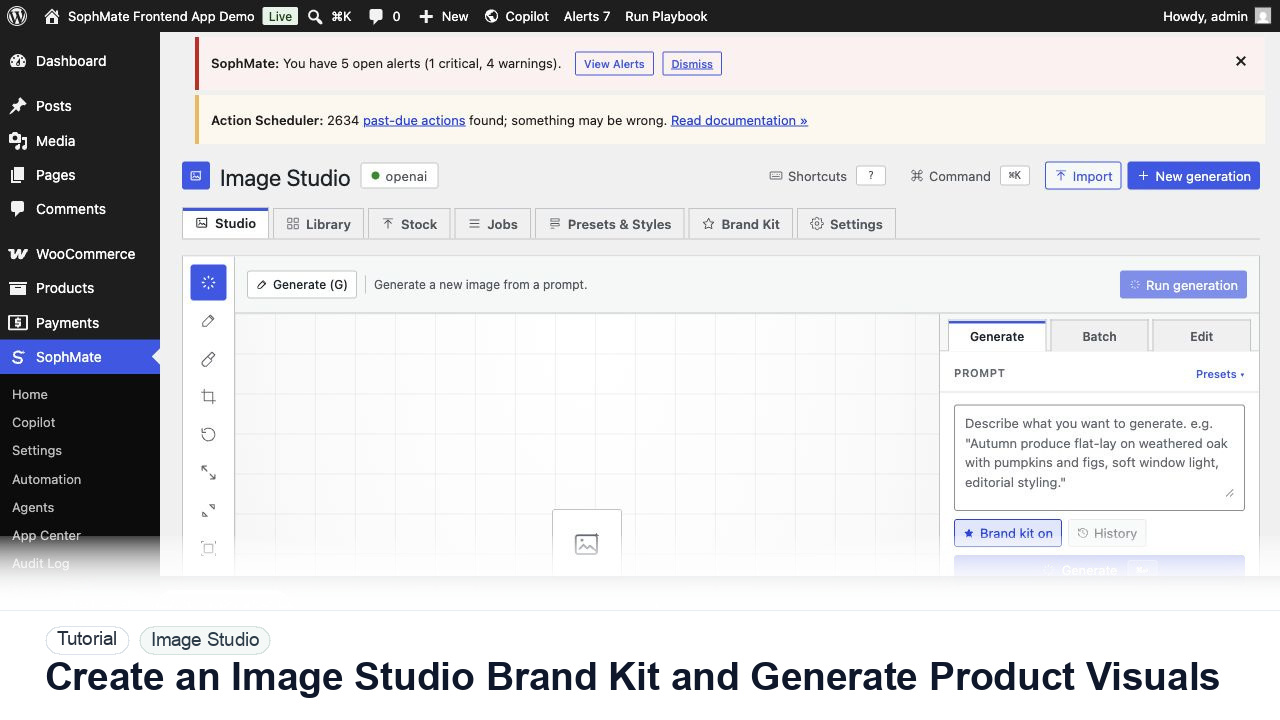
Create an Image Studio brand kit, write a product visual prompt, generate a draft, and keep image publishing under review.
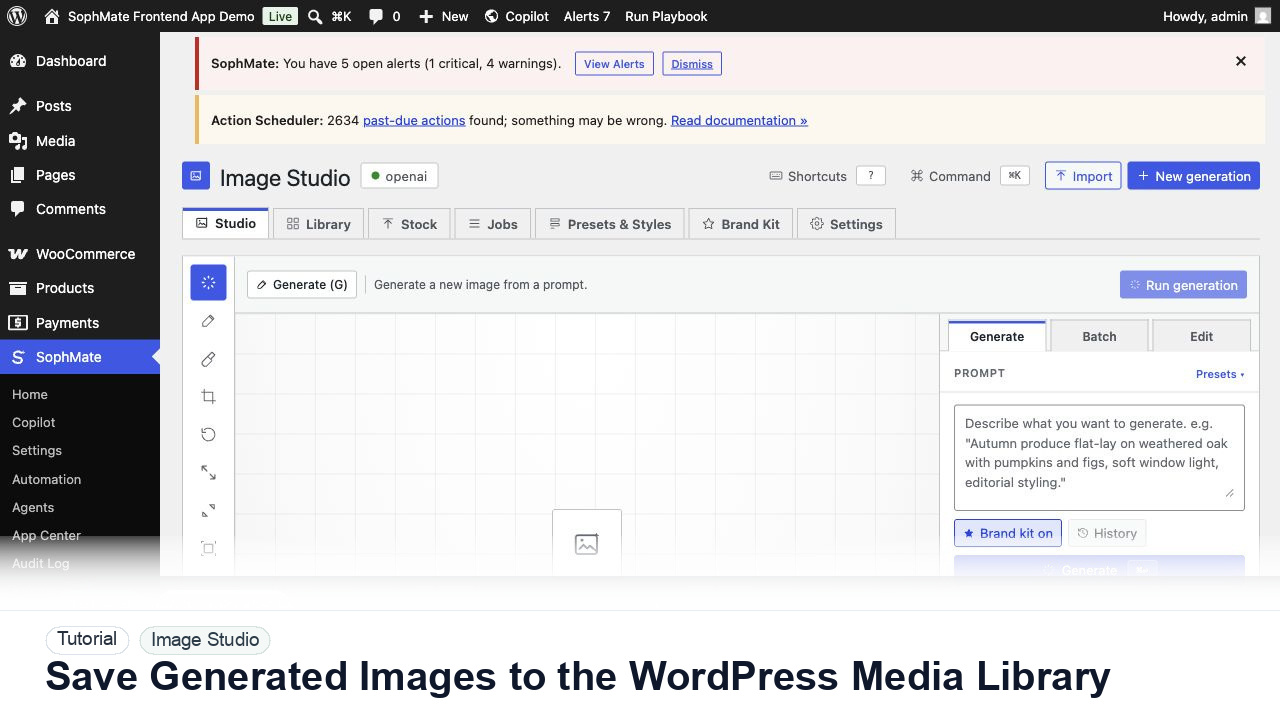
Move approved Image Studio outputs into the WordPress Media Library with metadata, alt text, and publishing intent.
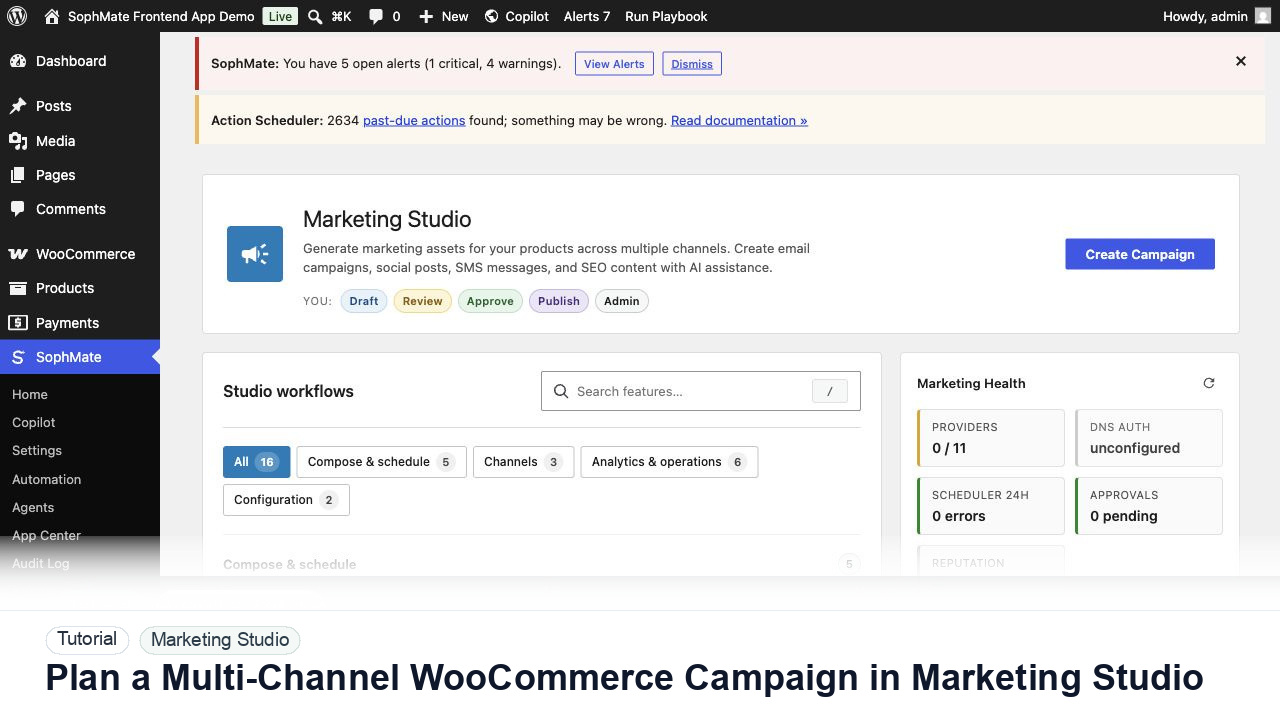
Use Marketing Studio to plan campaign goals, product context, channel drafts, provider health, review status, and next actions for WooCommerce promotions.