Plan a Multi-Channel WooCommerce Campaign in Marketing Studio
Use Marketing Studio to plan campaign goals, product context, channel drafts, provider health, review status, and next actions for WooCommerce promotions.
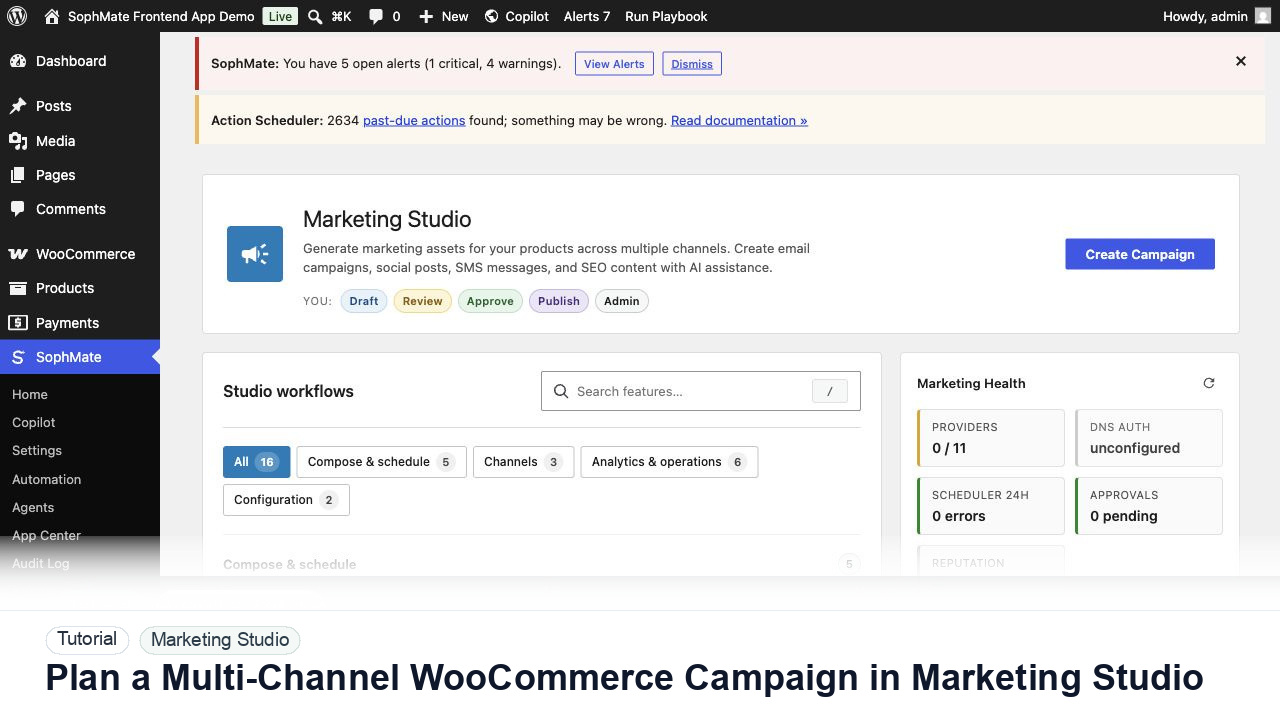
Use Marketing Studio to plan campaign goals, product context, channel drafts, provider health, review status, and next actions for WooCommerce promotions.
By the end of this tutorial, you will know how to use SophMate for WooCommerce AI marketing campaign while keeping the work reviewable inside WordPress.
A store is launching a seasonal promotion and needs email, social, and onsite copy that references real products and stock limits.
Use this tutorial to evaluate whether SophMate can help marketing teams draft faster without bypassing launch controls. The workflow should preserve product facts, offer rules, audience limits, inventory risk, claims review, and channel ownership.
Prepare a campaign draft from these product facts, offer rules, audience, channel constraints, inventory limits, and approval owner. Do not schedule or publish until review passes.
The tutorial image shows Marketing Studio context where campaign planning, channel health, product signals, and review steps sit together.
Review product availability, offer terms, channel health, and approval status before publishing or scheduling campaign material.
Choose the campaign objective, target audience, offer, product scope, and launch window before generating copy.
Review provider, DNS auth, scheduler, approval, and reputation indicators. Fix channel problems before drafting large campaigns.
Ask Marketing Studio for email subject lines, body copy, social posts, onsite banners, and follow-up variants.
Use product recommendations and inventory signals so the campaign does not promote items that cannot fulfill demand.
Move the campaign through review before publishing. Keep high-impact sends out of auto-publish paths unless policy allows it.
The campaign workflow is successful when product context, offer terms, channel health, creative assets, and approval status are all visible before publishing.
If campaign terms, deliverability, claims, or inventory are wrong, stop publishing, keep drafts unscheduled, and route the brief back through campaign approval.
Document campaign goal, products, audience, offer rules, channel health, generated variants, approval owner, and launch decision.
A marketing owner should review each campaign before launch and compare results after the campaign window closes.
Escalate when campaign copy touches regulated claims, aggressive discounts, inventory risk, deliverability problems, or customer promises.
Only after offer rules, inventory, channel health, sender authentication, claims, and approval ownership are confirmed. Drafting and scheduling should stay separate until launch review passes.
No. SophMate should make the work easier to draft, inspect, approve, and repeat. Human review remains necessary when output affects customers, money, published content, privacy, settings, or workflow execution.
Record the owner, input scope, access boundary, approval point, failure modes tested, evidence location, monitoring window, and rollback or stop path.
Move one approved draft into the right channel as a draft, not a send, and attach offer rules, inventory caveats, and reviewer notes to the campaign record.
Next step
Review the SophMate listing for current package details, screenshots, compatibility notes, and license terms.
Related
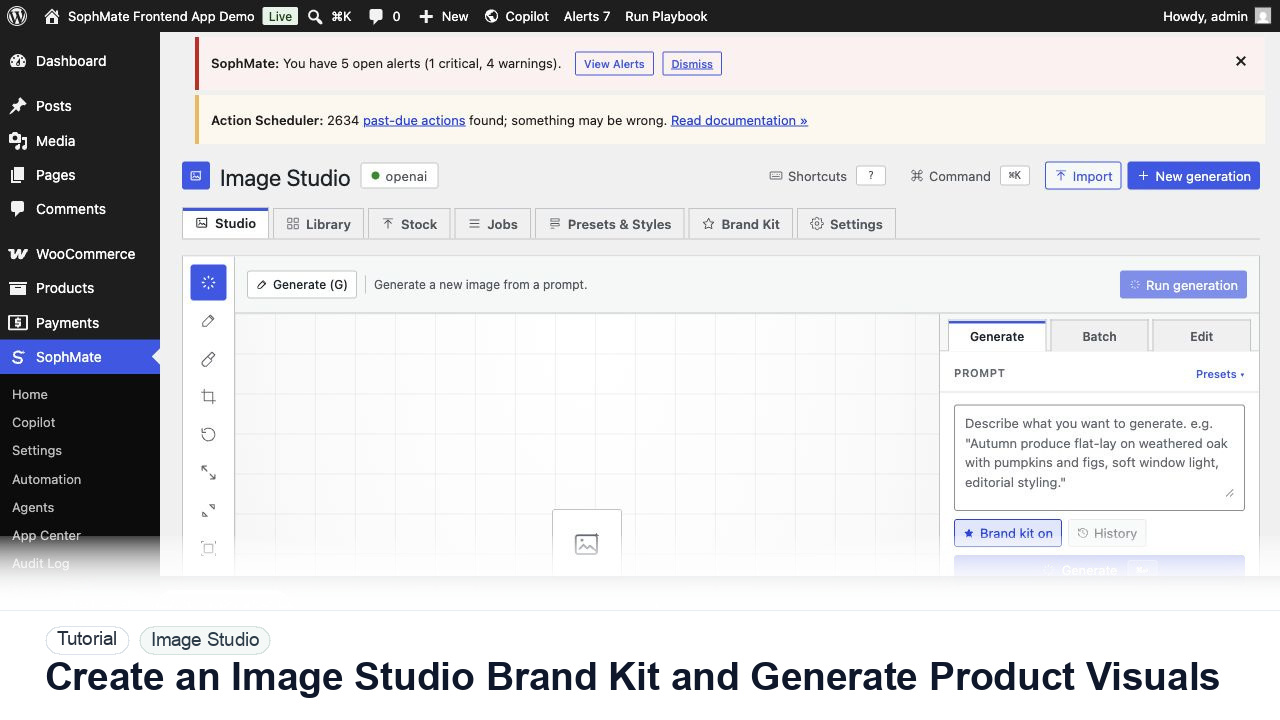
Create an Image Studio brand kit, write a product visual prompt, generate a draft, and keep image publishing under review.
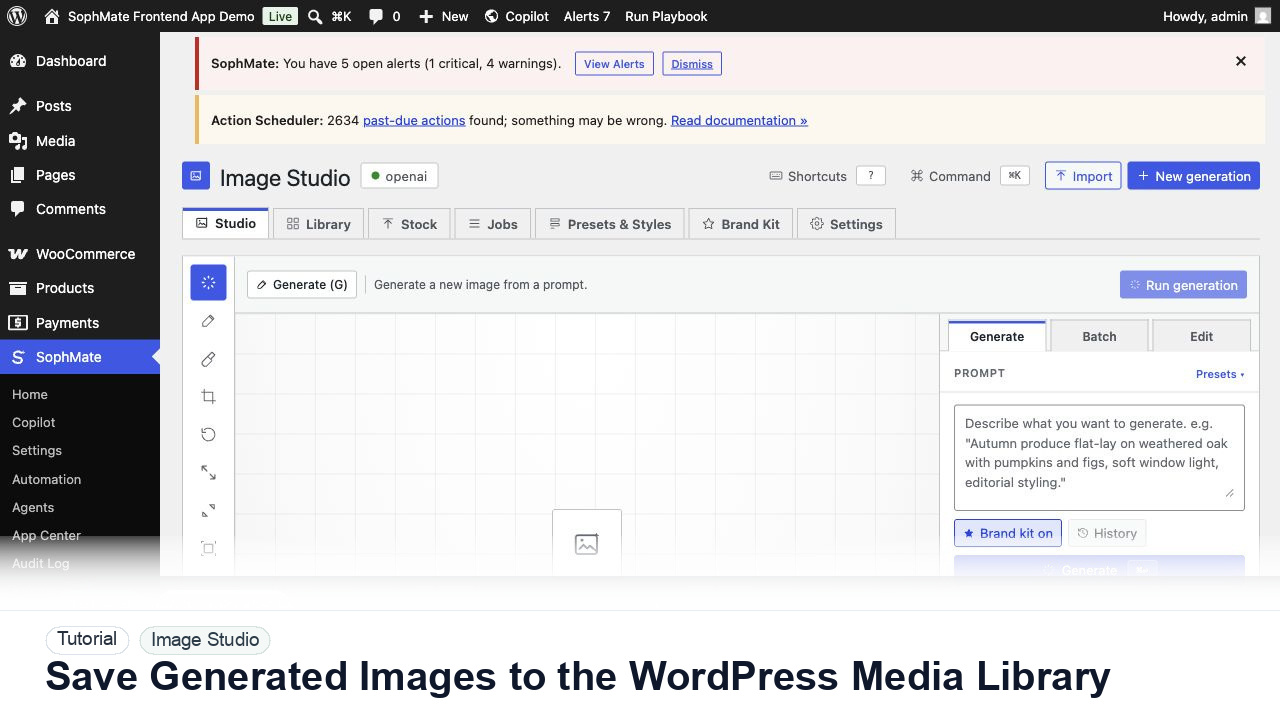
Move approved Image Studio outputs into the WordPress Media Library with metadata, alt text, and publishing intent.
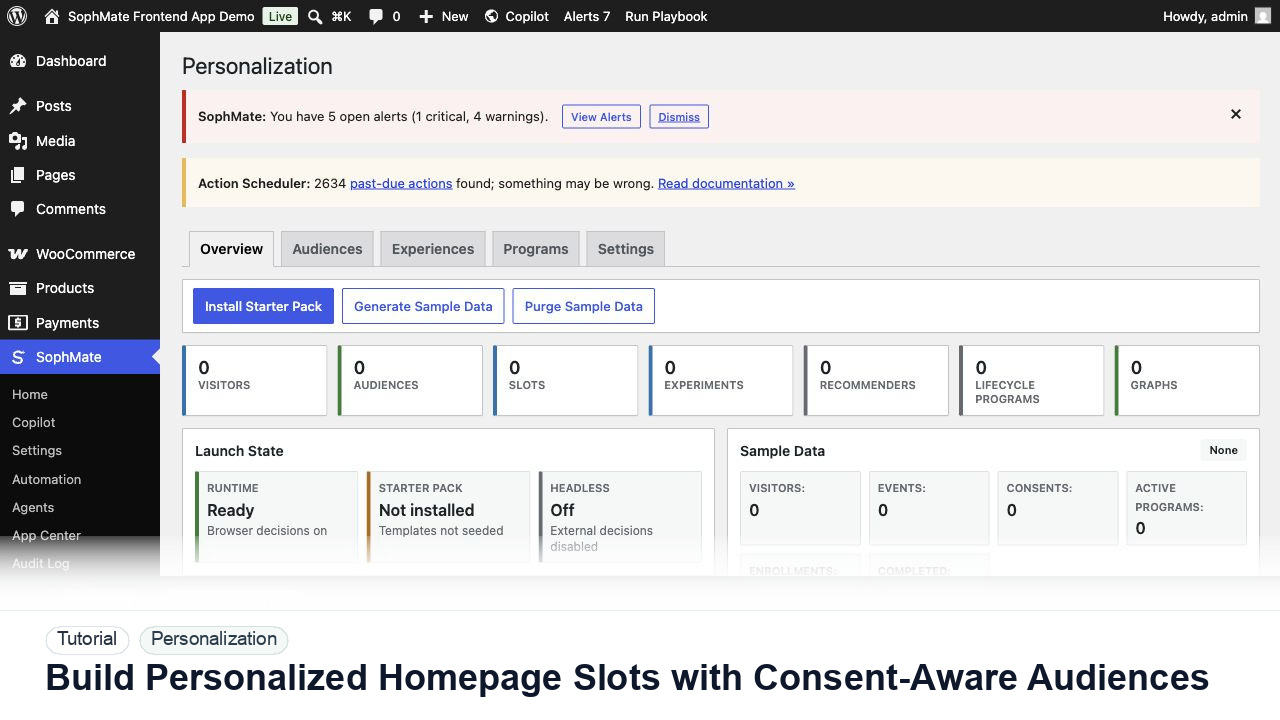
Create a personalization audience, assign it to a homepage slot, and keep privacy and explainability controls visible before launch.