Best Way to Automate Low Stock in WooCommerce
Use SophMate watchers and workflows to automate WooCommerce low-stock follow-up without creating noisy alerts or unapproved actions.
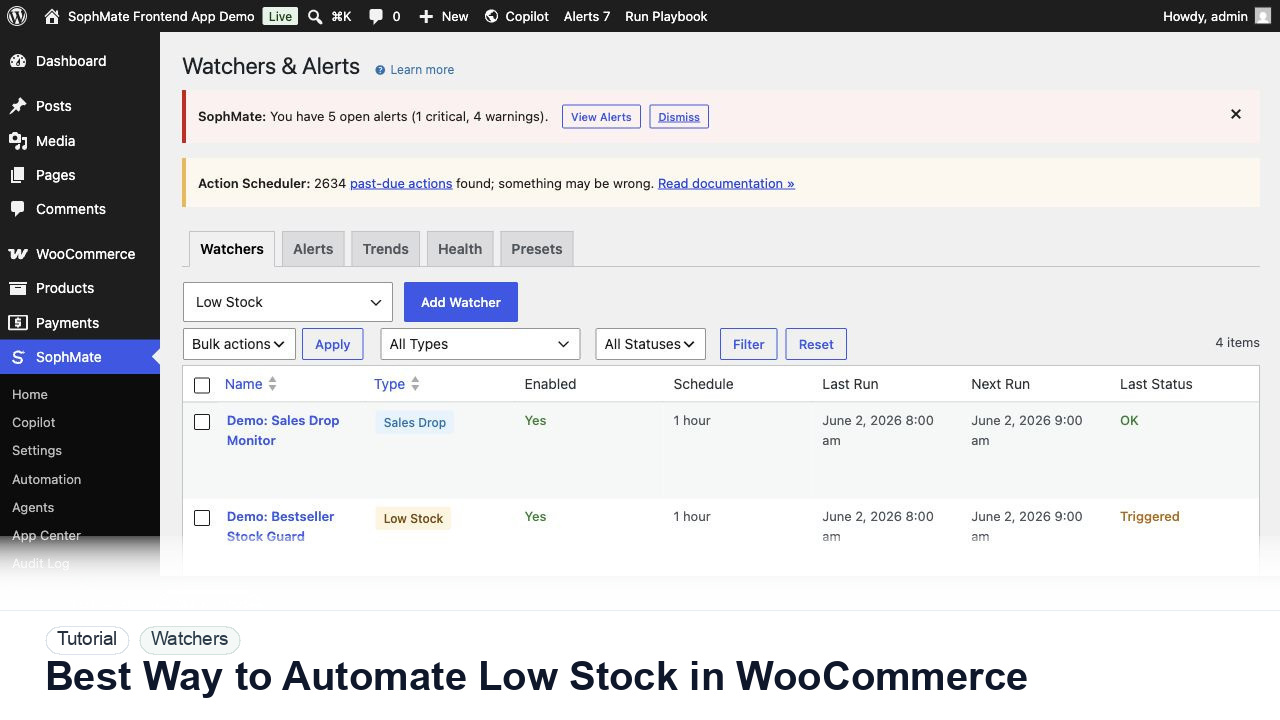
Use SophMate watchers and workflows to automate WooCommerce low-stock follow-up without creating noisy alerts or unapproved actions.
By the end of this tutorial, you will know how to use SophMate for automating WooCommerce low stock while keeping the work reviewable inside WordPress.
A store keeps discovering low-stock products after ads are already running, and the team needs a repeatable early-warning workflow.
WooCommerce low-stock alerts can be too generic for real campaign risk. The limitation is that a fixed threshold rarely considers sales velocity, supplier lead time, product priority, and active promotions together.
Use this tutorial to evaluate whether SophMate workflows start with operational maturity instead of unattended writes. The product signal is clear triggers, owners, approval points, alerts, cost expectations, run evidence, and kill switches.
Convert this recurring task into a safe first workflow. Start with read-only or notification-only output, define trigger, owner, approval point, failure alert, cost expectation, and kill switch.
The tutorial image shows Watchers and Alerts context where severity, ownership, alert history, and escalation paths are managed.
Start with notification and summary outputs before enabling write actions or unattended execution.
Use stock quantity, sales velocity, campaign calendar, supplier lead time, and product importance to define what low stock means for this store.
Use Watchers and Alerts to detect products below the threshold. Start with notification-only behavior before connecting workflow actions.
Route alerts to the person who can pause campaigns, request inventory, adjust merchandising, or approve customer-facing changes.
If SophMate should draft purchase tasks, campaign pause recommendations, or product visibility changes, keep those outputs behind approval.
Track false positives, missed products, noisy categories, and slow response times so thresholds improve instead of creating alert fatigue.
The watcher is successful when alerts are rare enough to matter, assigned to an owner, and connected to a clear response path.
If output is noisy, duplicated, delayed, or unsafe, disable the workflow or watcher category, preserve run history, and restart only after owner review.
Document trigger, owner, run history, expected output, approval point, failure response, and kill switch owner.
The workflow owner should inspect first runs immediately and review active workflows or watchers on a regular operations cadence.
Escalate when workflows may write data, repeat failures, miss critical alerts, or run without a clear owner.
Usually no. Start with read-only, staging, notification-only, or approval-gated behavior until trigger scope, owner response, failure handling, and run history are proven.
No. SophMate should make the work easier to draft, inspect, approve, and repeat. Human review remains necessary when output affects customers, money, published content, privacy, settings, or workflow execution.
Record the owner, input scope, access boundary, approval point, failure modes tested, evidence location, monitoring window, and rollback or stop path.
Run the first version as read-only, simulation, or notification-only, then review alerts, costs, audit records, and kill switch behavior before allowing writes.
Next step
Review the SophMate listing for current package details, screenshots, compatibility notes, and license terms.
Related
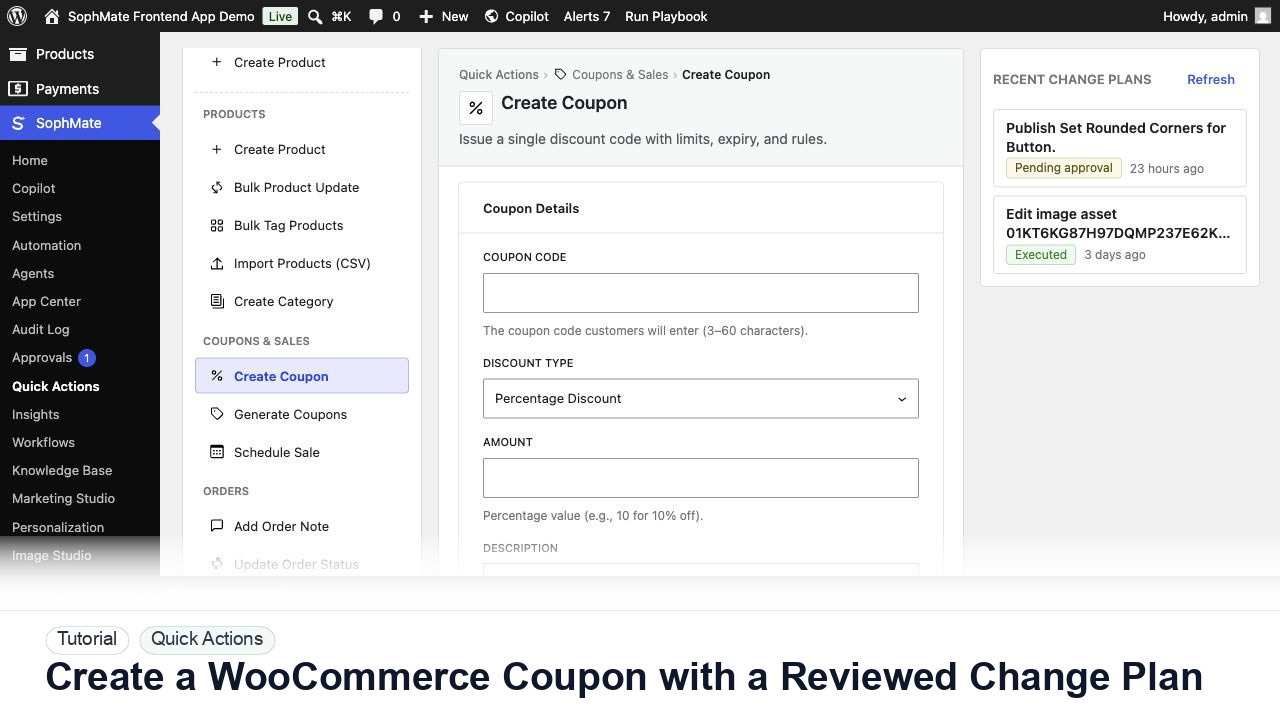
Create a WooCommerce coupon with SophMate, review the generated change plan, and apply the discount only after settings are confirmed.
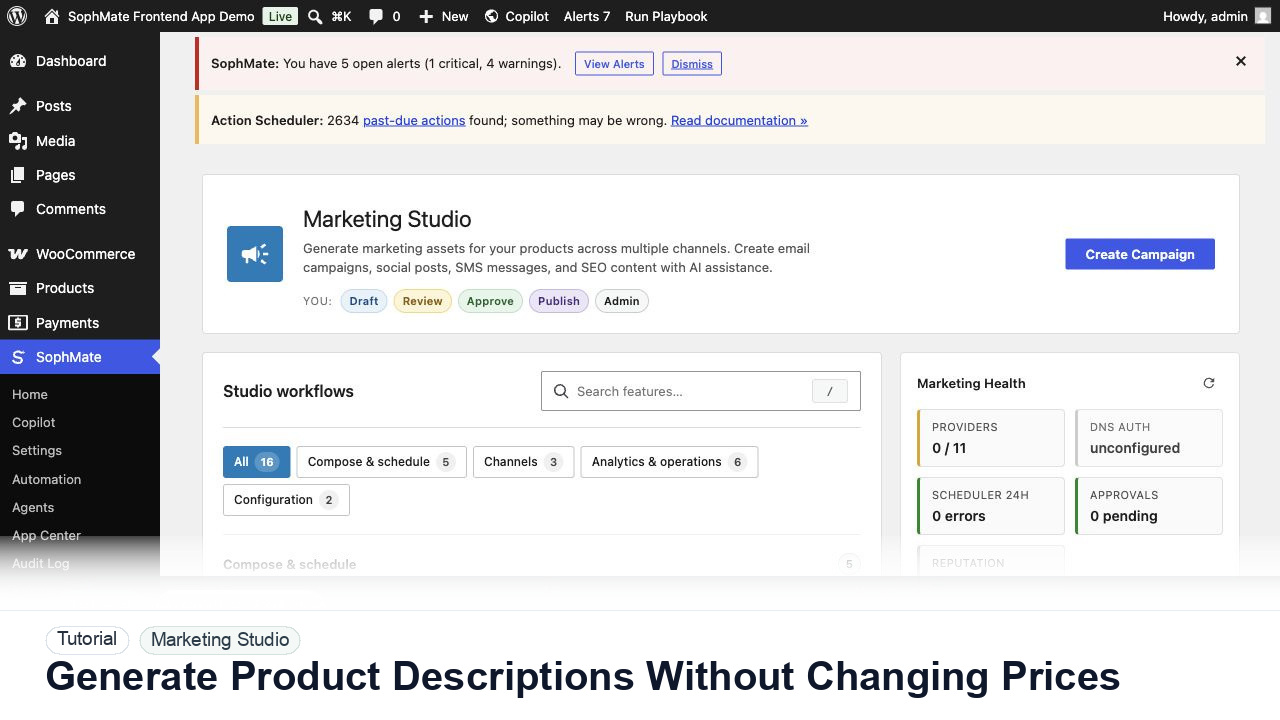
Use SophMate to draft product descriptions, SEO titles, and short descriptions while keeping price, stock, shipping, and variation settings out of scope.
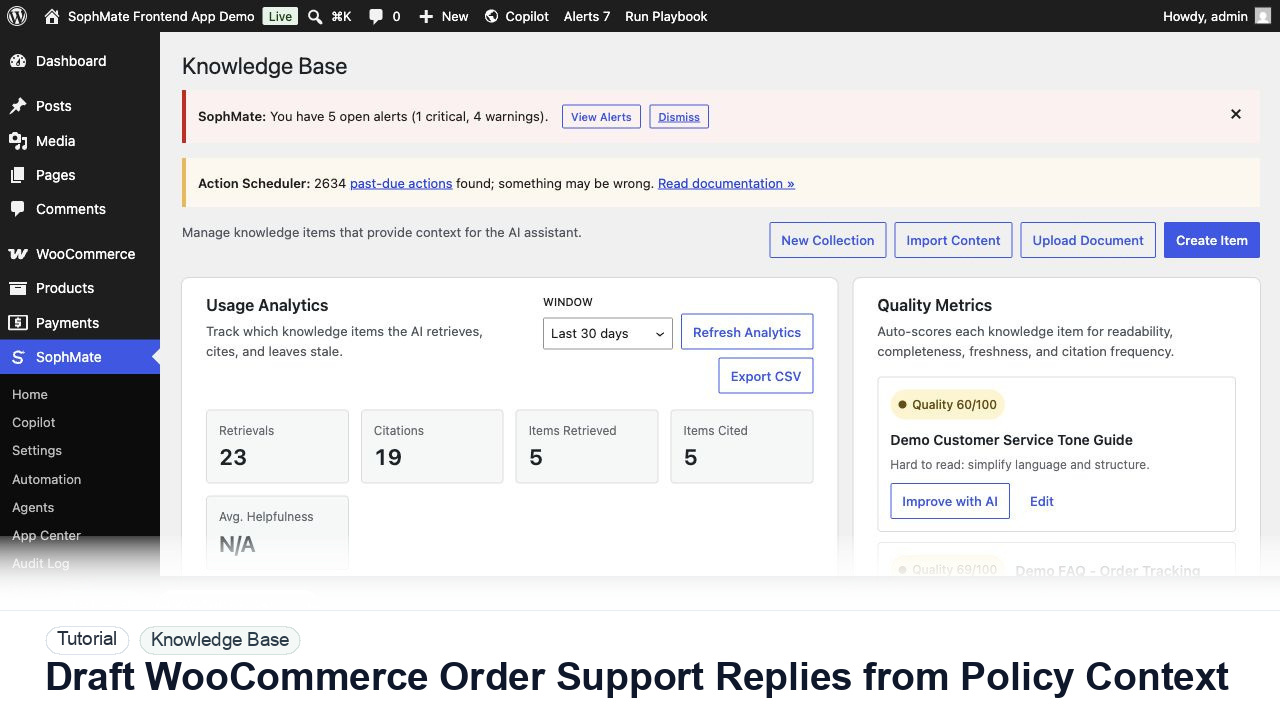
Draft WooCommerce order replies using order context, Knowledge Base policies, tone guides, and review controls before sending anything to a customer.