Use Copilot to Ask WooCommerce Questions in wp-admin
Ask SophMate Copilot about WooCommerce sales, orders, refunds, products, and next steps without leaving the WordPress admin screen.
Ask SophMate Copilot about WooCommerce sales, orders, refunds, products, and next steps without leaving the WordPress admin screen.
By the end of this tutorial, you will know how to use SophMate for WooCommerce AI Copilot while keeping the work reviewable inside WordPress.
A store manager wants a quick read on this week of orders before deciding whether to launch a restock campaign.
Use this tutorial to evaluate whether SophMate makes WordPress AI chat useful without creating untracked changes. The product signal is a clear path from read-only answers to reviewed action plans when a recommendation affects the site.
Answer this as a read-only Copilot review. Use the visible WordPress or WooCommerce context, name assumptions, avoid saving private customer details to memory, and turn any site-changing recommendation into an action plan.
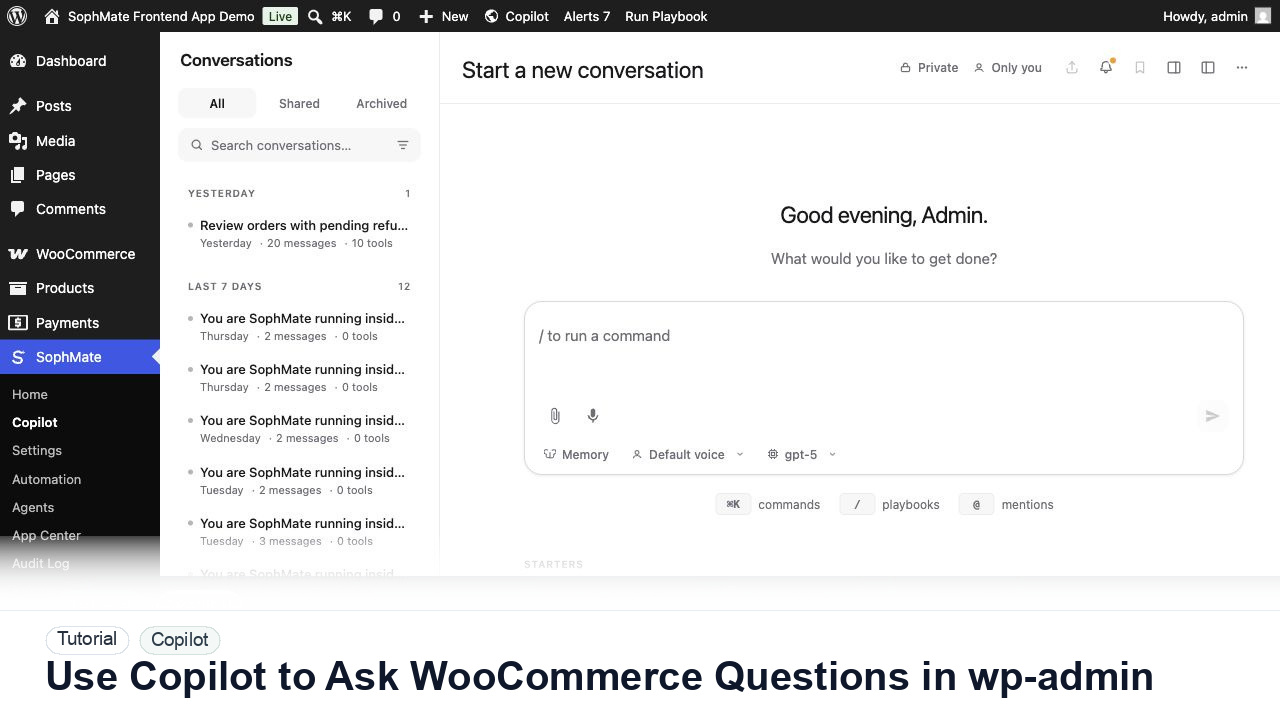
The tutorial image shows Copilot in wp-admin so the reader can connect the workflow to conversation history, slash commands, prompts, and the point where an answer may become a reviewed action plan.
Keep read-only questions conversational. When Copilot suggests changing products, coupons, content, customers, or settings, turn the recommendation into a reviewed plan.
Use SophMate > Copilot when the question needs more room than the sidebar. The fullscreen workspace shows conversation history, starter prompts, slash commands, and context controls.
Start with a focused question such as "Summarize orders and refunds from the last seven days and list anything that needs follow-up." Avoid asking for a site-changing action first.
Ask Copilot to explain which products, categories, or order states drove the result. The conversation history keeps the thread readable for later review.
If the answer suggests a coupon, product update, or customer note, ask SophMate to propose an action plan rather than applying a change directly.
Use memory only for repeatable team preferences, not private customer details. Keep sensitive order-specific material inside the current conversation.
The workflow is successful when Copilot produces a bounded answer, the user can verify the context, and any site-changing next step becomes a reviewed plan rather than an untracked edit.
If an answer is unsafe or unsupported, do not continue the thread as a change request. Start a narrower read-only prompt, improve source context, or move the work to a reviewed plan.
Document the prompt pattern, useful follow-up questions, source context used, and the point where the conversation should become an action plan.
The workflow owner should review this pattern after the first few uses, then promote stable prompts into playbooks when repeated work is clear.
Escalate when Copilot cannot access expected context, suggests unsafe changes repeatedly, or produces answers that cannot be verified from visible sources.
Treat Copilot as the planning and review surface. Product, coupon, customer, support, CSS, workflow, or settings changes should become an action plan or another reviewed workflow before execution.
No. SophMate should make the work easier to draft, inspect, approve, and repeat. Human review remains necessary when output affects customers, money, published content, privacy, settings, or workflow execution.
Record the owner, input scope, access boundary, approval point, failure modes tested, evidence location, monitoring window, and rollback or stop path.
Run one read-only prompt, then convert only the safest useful recommendation into an action plan so the team can inspect the handoff from chat to governed change.
Next step
Review the SophMate listing for current package details, screenshots, compatibility notes, and license terms.
Related
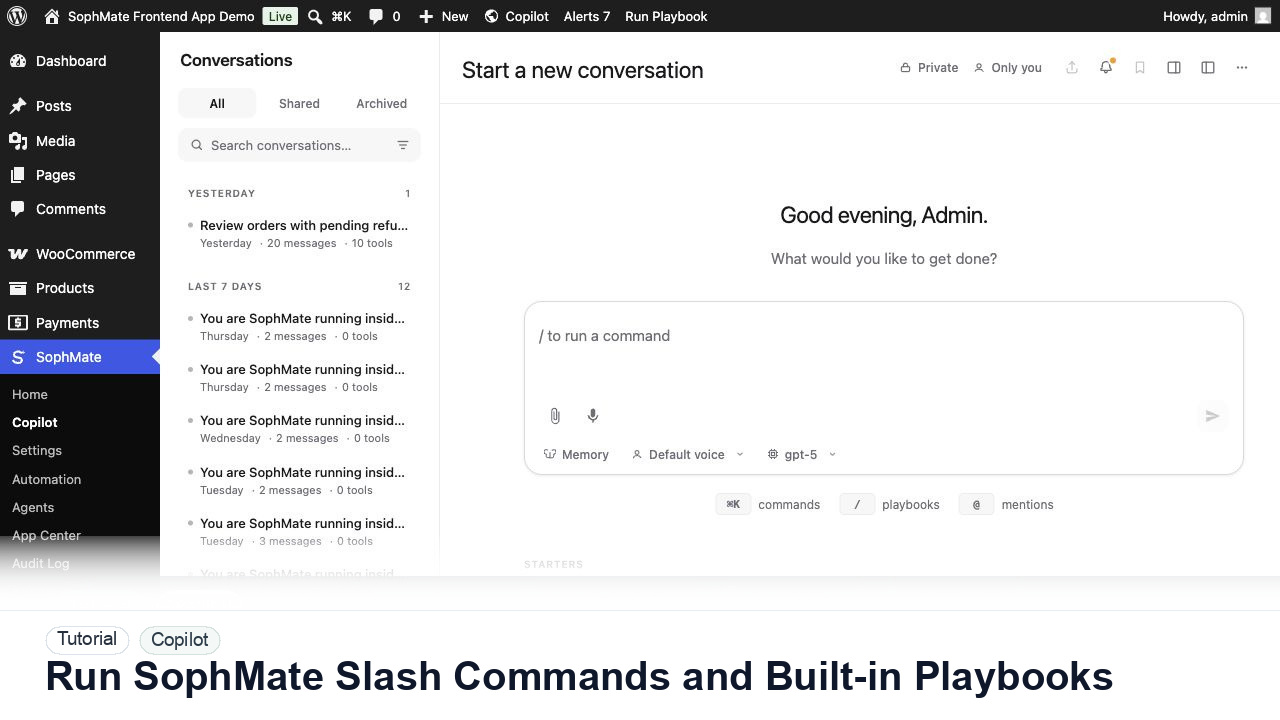
Use slash commands such as weekly summaries, low-stock checks, coupon builders, support replies, and campaign briefs directly from Copilot.
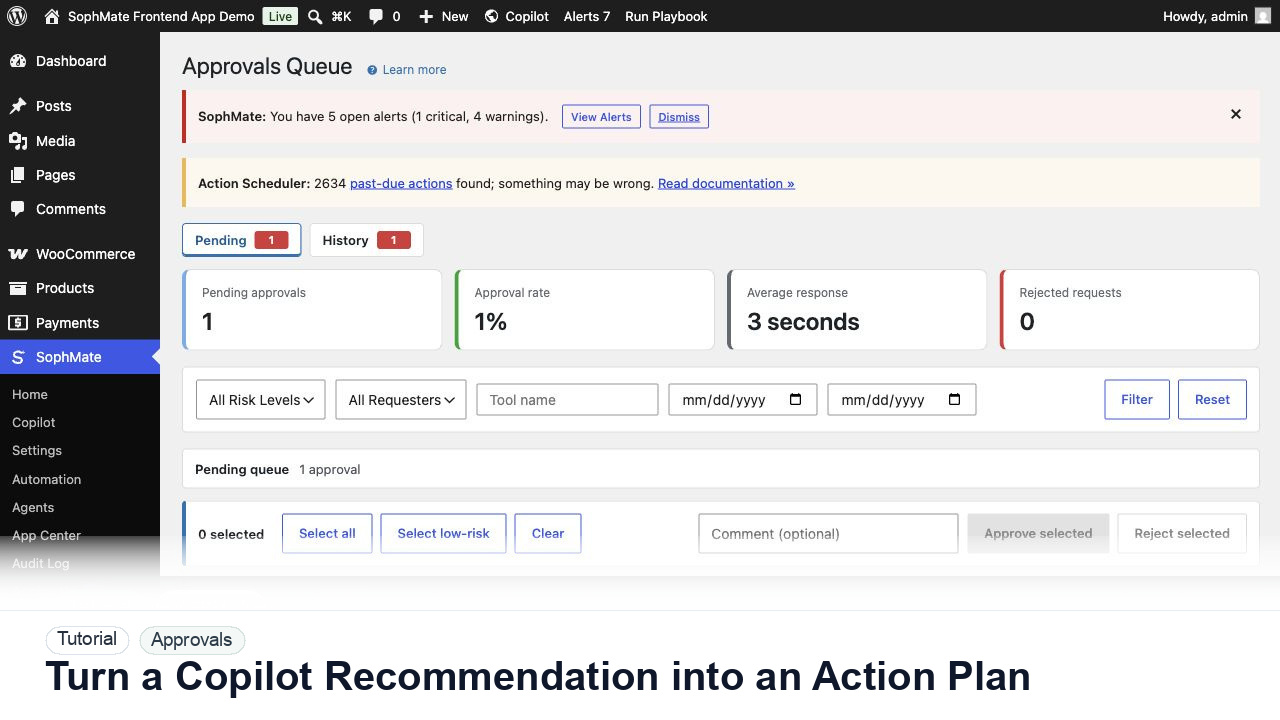
Convert a Copilot recommendation into a SophMate action plan with risk level, diff preview, reviewer notes, and approval before execution.
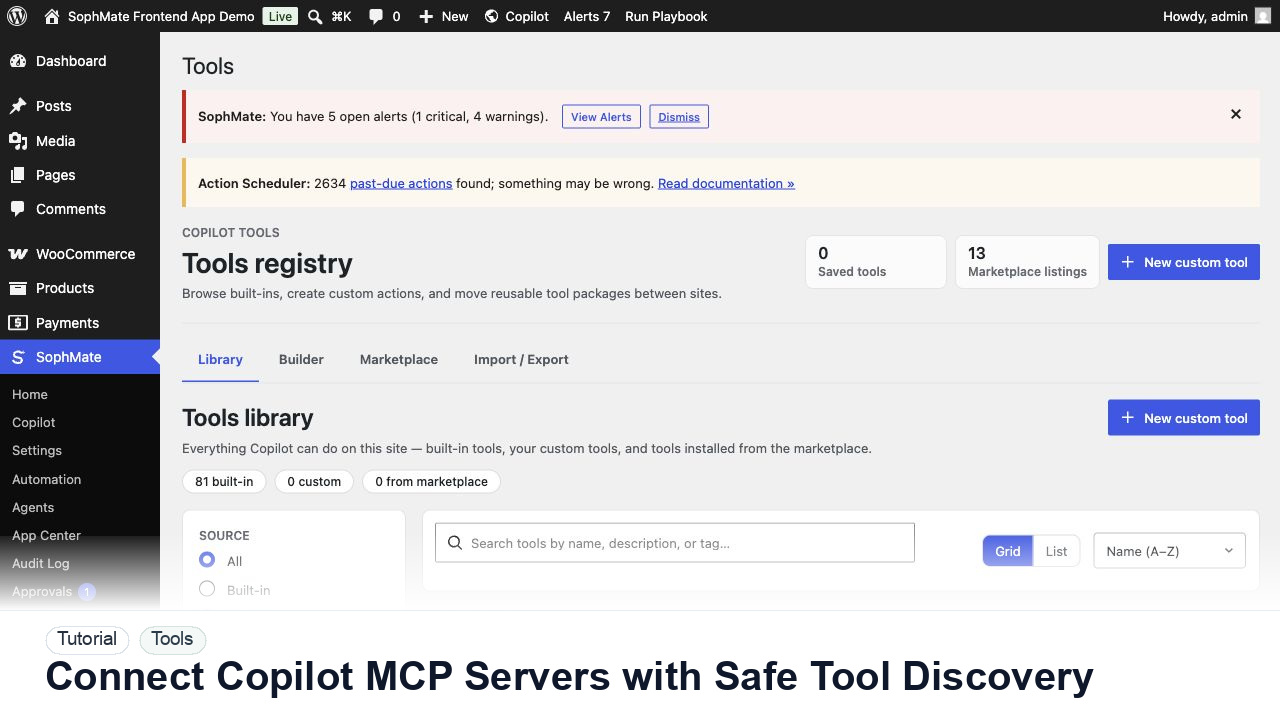
Register, test, refresh, and review Copilot MCP servers before their tools can influence SophMate prompts, agents, or workflows.