Prepare an Agency Client Site for SophMate Governance
Prepare client WordPress and WooCommerce sites for SophMate with roles, provider ownership, budgets, playbooks, approvals, diagnostics, and client reporting.
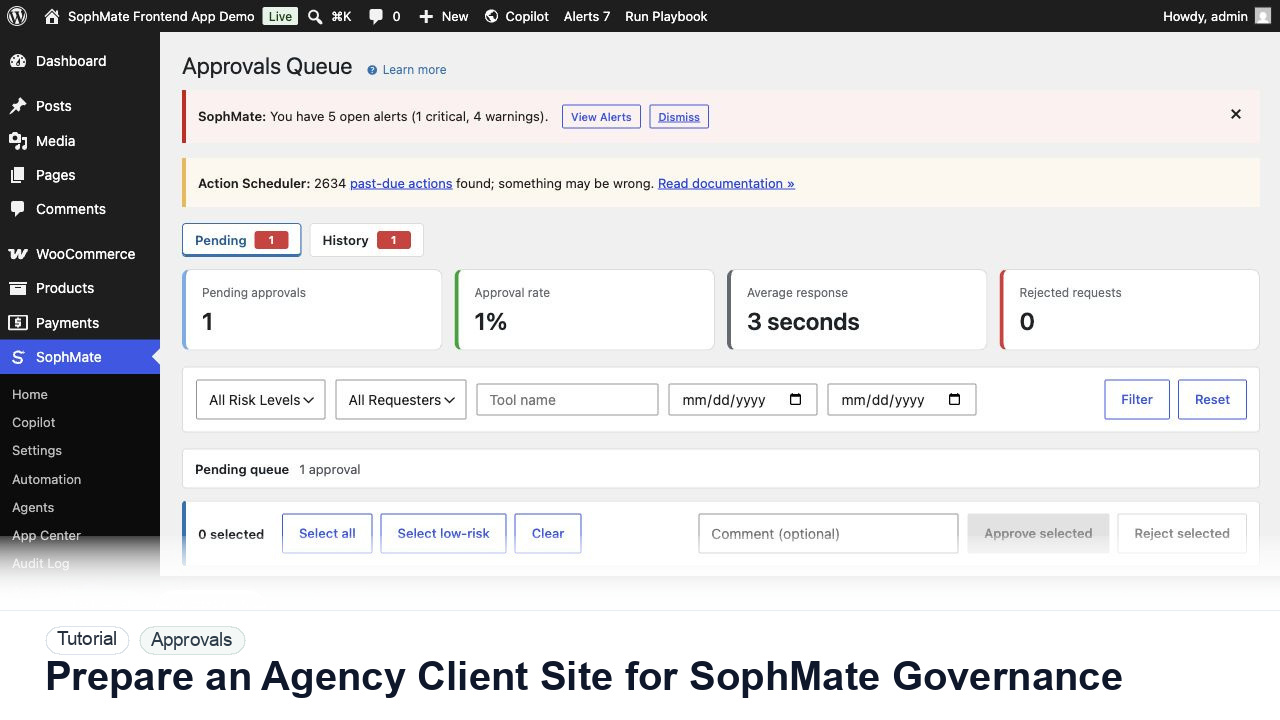
Prepare client WordPress and WooCommerce sites for SophMate with roles, provider ownership, budgets, playbooks, approvals, diagnostics, and client reporting.
By the end of this tutorial, you will know how to use SophMate for WordPress agency AI governance while keeping the work reviewable inside WordPress.
An agency is installing SophMate on several client stores and needs repeatable governance before editors start using AI workflows.
Use this tutorial to evaluate whether SophMate can keep AI-assisted changes accountable. Buyers should look for affected records, field-level intent, risk level, reviewer authority, rollback notes, and audit evidence before execution.
Turn this recommendation into a reviewed action plan. List affected records, exact field changes, risk level, reviewer, rollback note, and audit evidence before execution.
The tutorial image shows the Approvals queue context because this workflow depends on understanding risk, reviewer ownership, pending plans, and execution status before changes affect the site.
Do not bulk approve mixed-risk plans. Separate commerce, customer, content, and system changes before approving.
Decide whether the client or agency owns the provider key and budget. Document the choice before connecting SophMate.
Map administrators, editors, support users, marketers, and agency operators to the capabilities they actually need. Keep high-risk approvals restricted.
Start with tested playbooks for reporting, product copy, support replies, and campaign briefs. Adapt them to the client tone and policies.
Import policies, tone guides, and procedures for each site. Never assume one client policy applies to another.
Use audit logs, diagnostics, and presentations to show what SophMate did, what was approved, and what needs client decision.
The approval workflow is successful when reviewers can explain the affected records, risk, diff, decision, execution result, and audit trail without reconstructing the process from memory.
If proposed fields are wrong, reject or revise the plan before execution. If execution already ran, use the audit trail and affected records to prepare a manual correction or rollback plan.
Document plan risk, reviewer, affected records, decision reason, execution result, and any revision requested before approval.
An administrator or operations lead should review approval behavior weekly during rollout, then monthly once risk and volume stabilize.
Escalate when approval risk looks wrong, affected records are unclear, execution fails, or audit records do not explain the decision.
Bulk approval is safest for similar low-risk plans with the same owner and rollback pattern. Mixed commerce, customer, content, visual, and settings changes should be reviewed separately.
No. SophMate should make the work easier to draft, inspect, approve, and repeat. Human review remains necessary when output affects customers, money, published content, privacy, settings, or workflow execution.
Record the owner, input scope, access boundary, approval point, failure modes tested, evidence location, monitoring window, and rollback or stop path.
Approve or reject one low-risk plan with a clear reviewer note, then confirm the audit log explains the decision before using the pattern on higher-risk changes.
Next step
Review the SophMate listing for current package details, screenshots, compatibility notes, and license terms.
Related
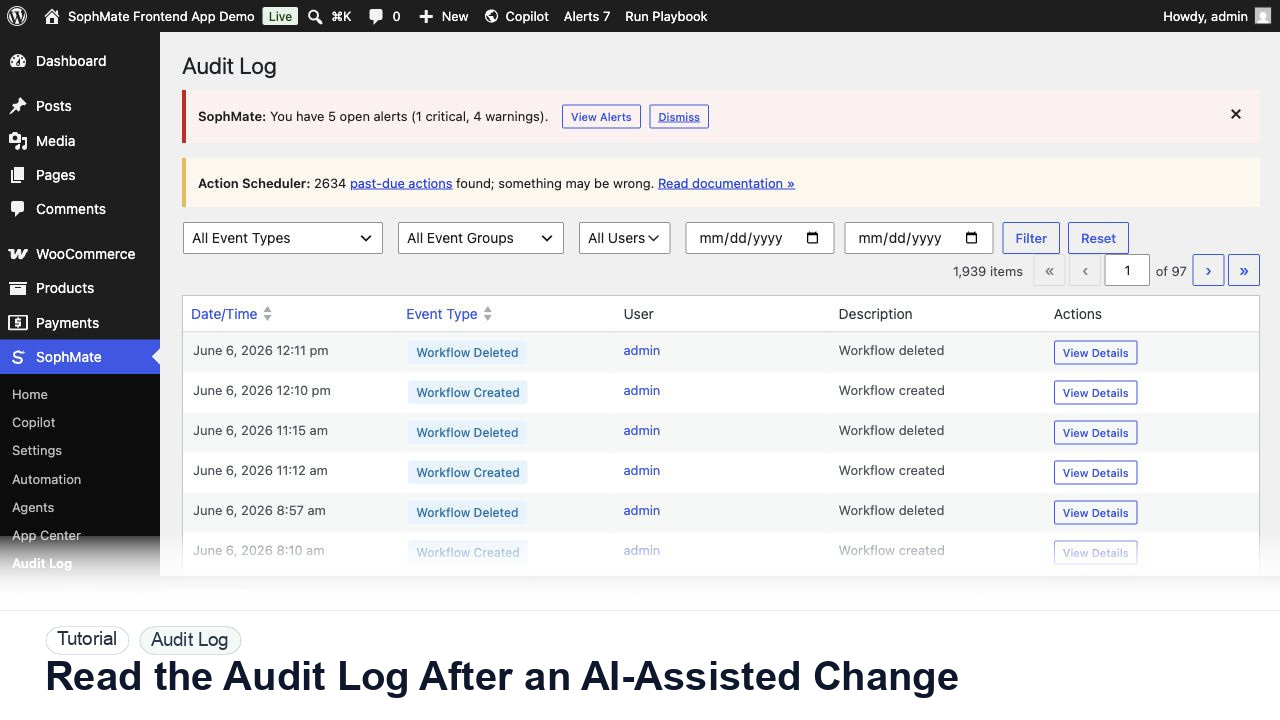
Use the SophMate Audit Log to verify who proposed, approved, executed, failed, retried, exported, or purged AI-assisted work.
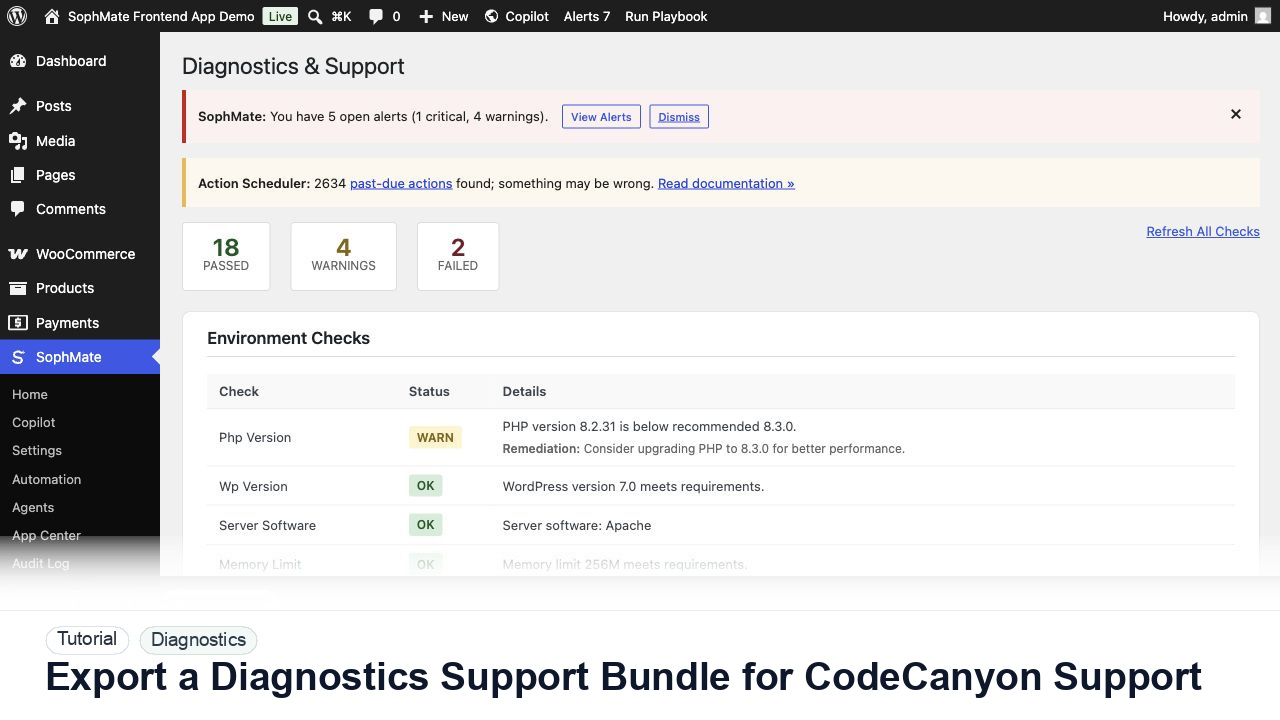
Use SophMate Diagnostics and Support to check environment status, provider connectivity, PHP extensions, plugin inventory, and support bundle data before contacting support.
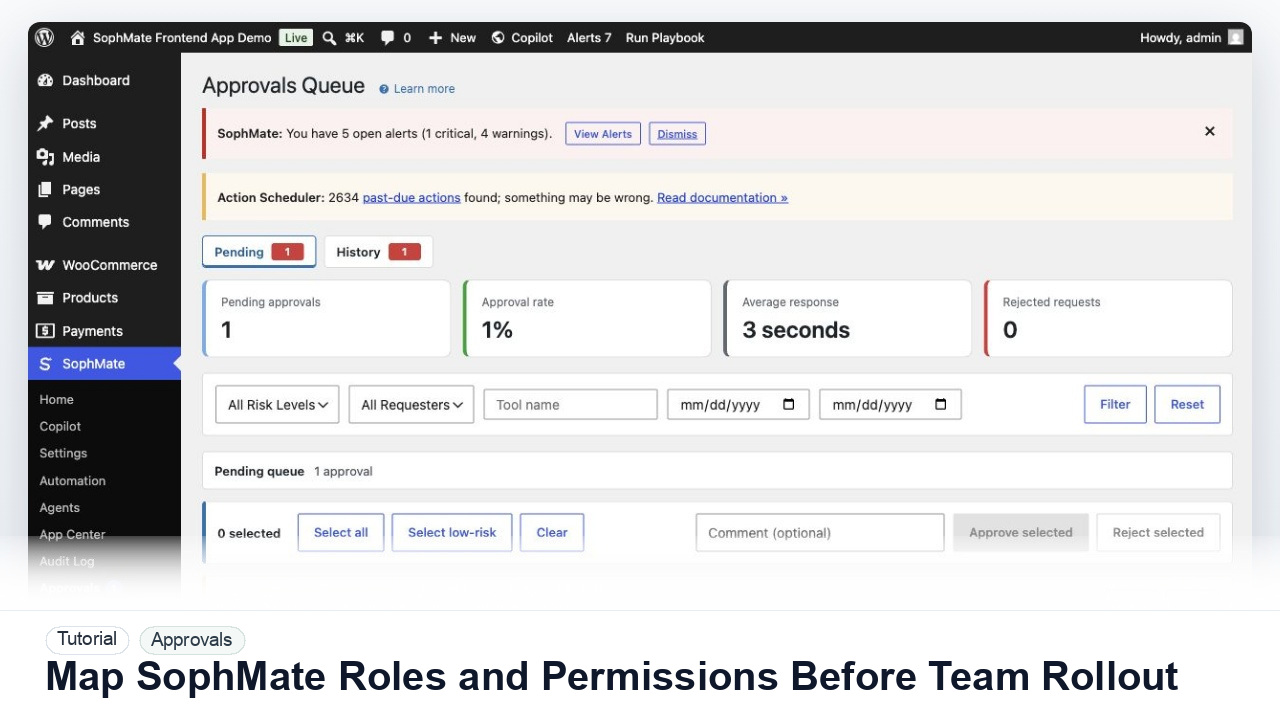
Map administrators, editors, marketers, support users, agency operators, and developers to SophMate capabilities before opening AI workflows to a wider team.