Outcome
By the end of this tutorial, you will know how to use SophMate for fixing WooCommerce stockout campaigns while keeping the work reviewable inside WordPress.
Scenario
A campaign keeps sending traffic to products that are nearly sold out, creating customer frustration and wasted ad spend.
WooCommerce pain point
WooCommerce campaigns can keep promoting products after stock risk changes. The limitation is that marketing calendars and inventory state often drift apart, creating wasted traffic and customer frustration.
SophMate resolution path
- Compare campaign products with stock, sales velocity, backorders, bundles, and supplier timing.
- Use watchers to flag promoted products before they become campaign failures.
- Review campaign pauses, substitutions, onsite copy, and support notes before publishing changes.
What to avoid in WooCommerce
- Do not keep sending campaign traffic to unavailable products.
- Do not swap promoted products without checking offer terms and customer promises.
- Do not let stockout fixes bypass campaign approval.
Buyer evaluation note
Use this tutorial to evaluate whether SophMate workflows start with operational maturity instead of unattended writes. The product signal is clear triggers, owners, approval points, alerts, cost expectations, run evidence, and kill switches.
When not to use this workflow
- Do not automate a process the team cannot run and explain manually.
- Do not enable write actions when trigger scope, owner response, failure notification, or kill switch behavior is untested.
- Do not use this workflow to bypass the normal owner, reviewer, or approval path for production changes.
- Defer the workflow when the source data, permission boundary, rollback owner, or customer impact cannot be explained.
Example operator request
Convert this recurring task into a safe first workflow. Start with read-only or notification-only output, define trigger, owner, approval point, failure alert, cost expectation, and kill switch.
What the image shows
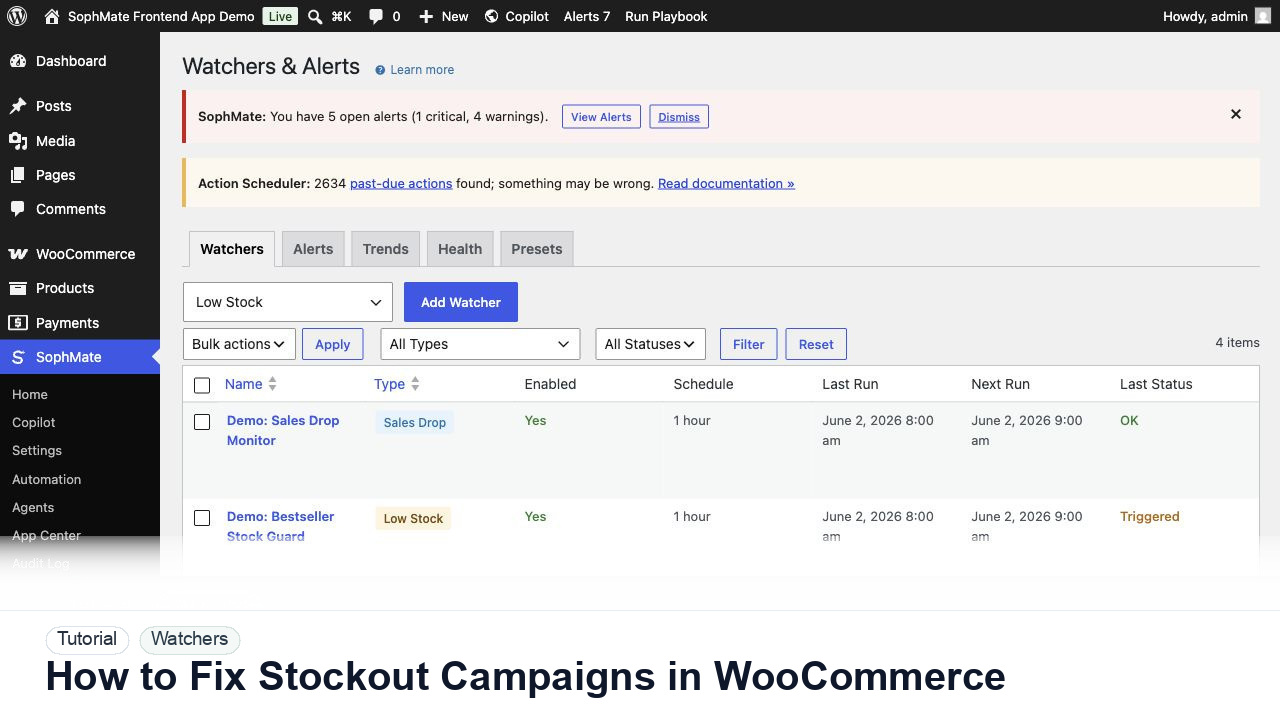
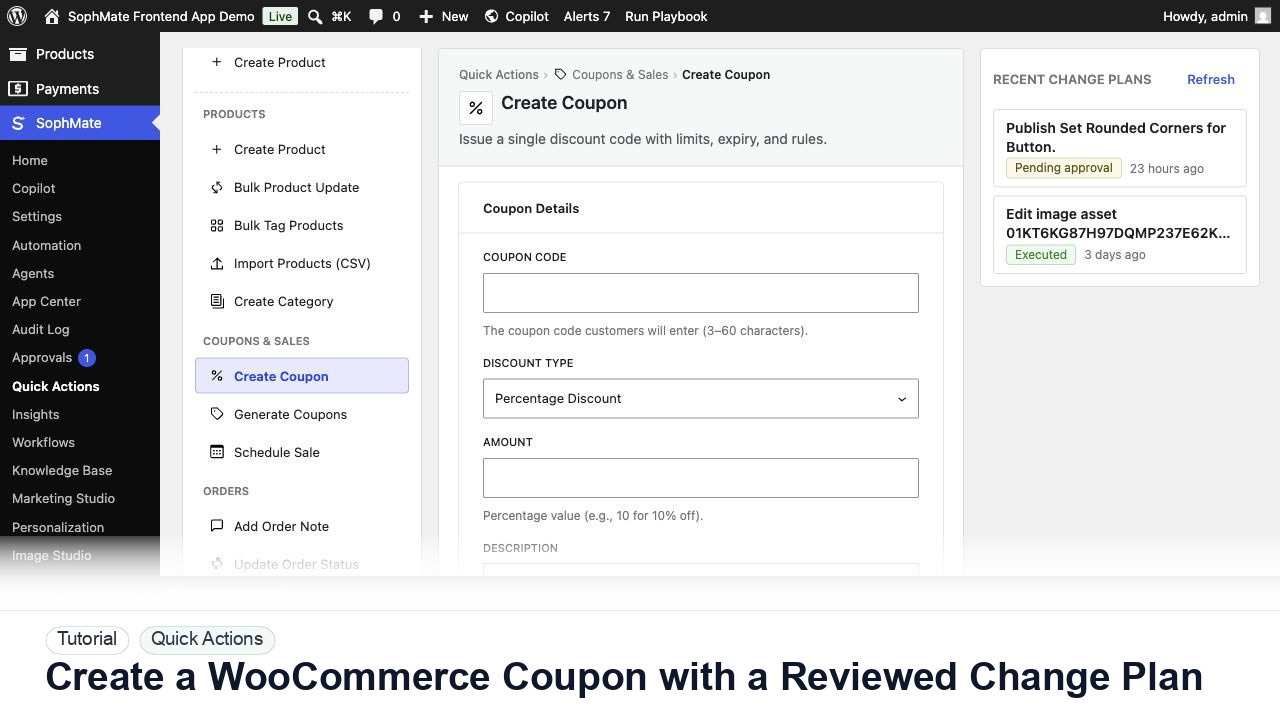
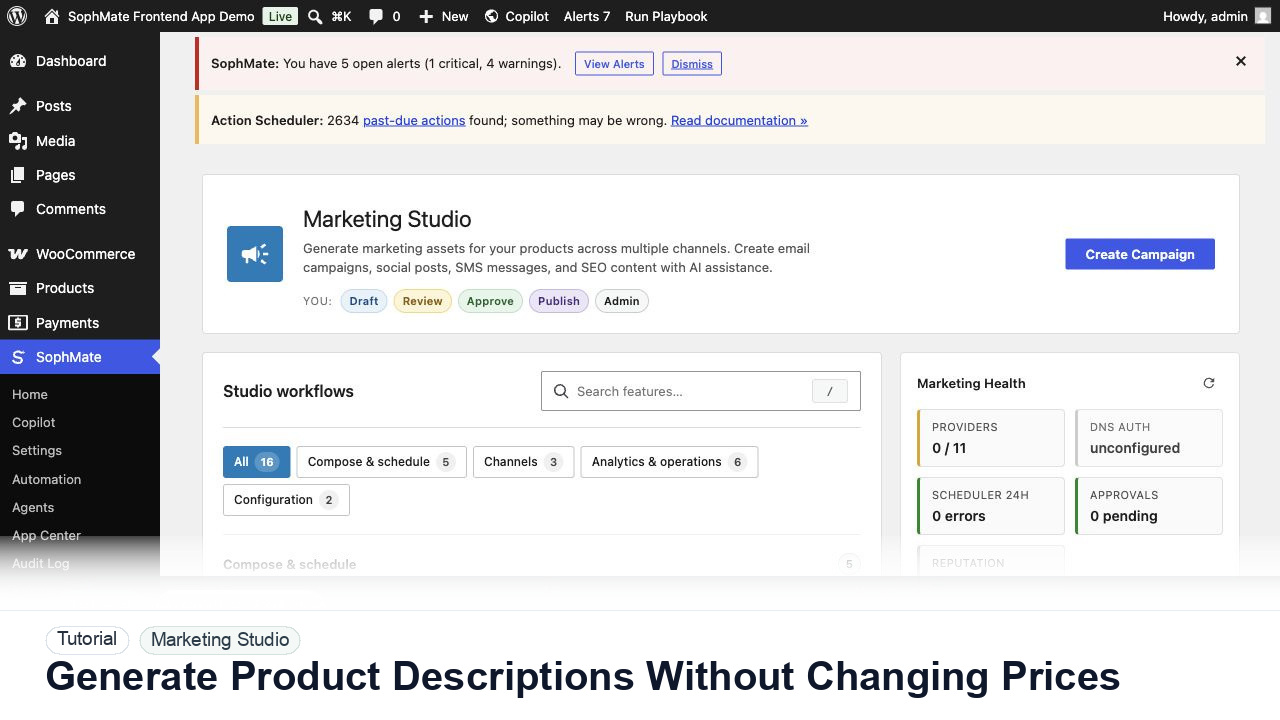
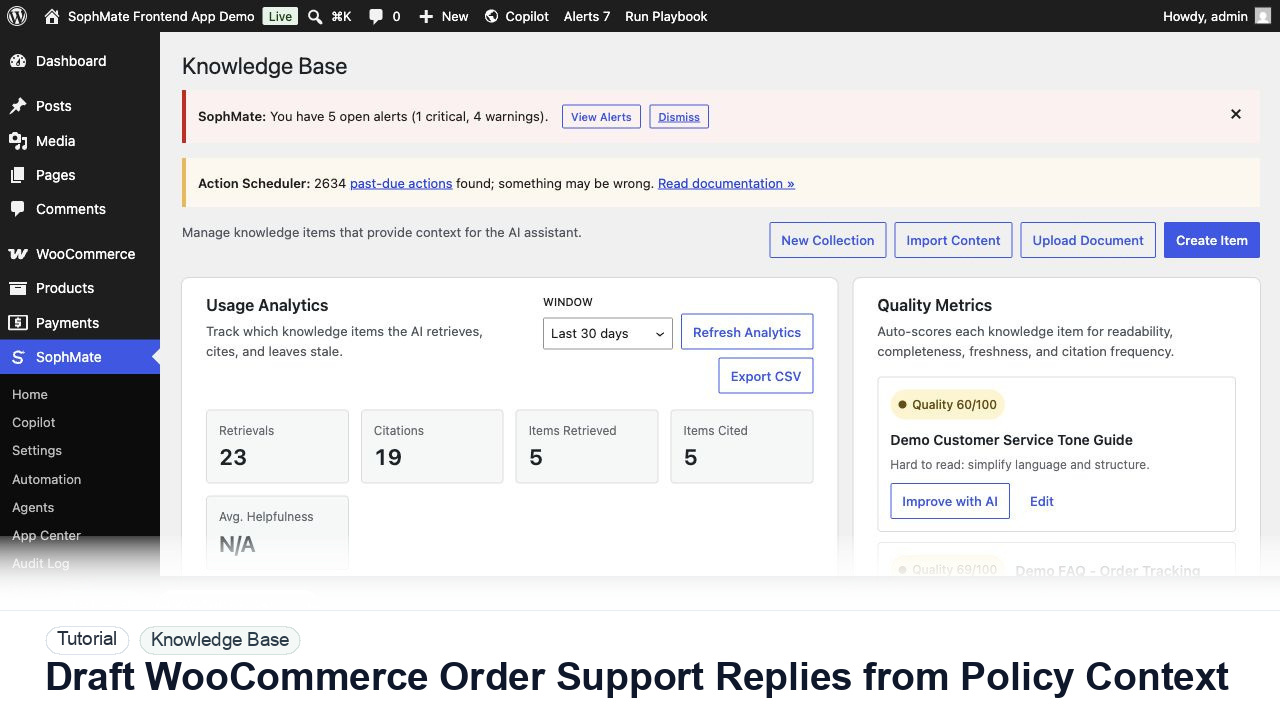
The tutorial image shows Watchers and Alerts context where severity, ownership, alert history, and escalation paths are managed.
Before you begin
- Write down trigger scope, owner, expected output, approval point, failure alert, cost expectation, and kill switch before the first run.
- Start in staging, simulation, read-only, or notification-only mode unless the workflow has already passed a narrower review.
- Confirm SophMate is active, diagnostics do not show blocking failures, and the current user role can open the relevant SophMate module.
- Check provider, budget, privacy, and approval settings before asking SophMate to draft or execute work.
- Keep customer data, API keys, purchase codes, and private credentials out of prompts unless this workflow explicitly requires and permits that context.
Access and data boundary
- Start with staging, simulation, notification-only, or read-only access before granting workflows write-capable access to production records.
- Limit triggers to named record types, owners, schedules, and failure notifications so workflow scope cannot expand through vague input scope.
- Use the least-privileged SophMate role that can complete the review, and keep administrator-only access limited to setup, provider, billing, diagnostics, and high-risk approval work.
- Prefer record IDs, short excerpts, and redacted screenshots over full customer records, payment details, provider keys, purchase codes, or raw server logs.
Guardrail
Start with notification and summary outputs before enabling write actions or unattended execution.
Common mistakes to avoid
- Creating alerts with no owner or response expectation.
- Setting thresholds so noisy that the team starts ignoring them.
- Connecting an alert to a write action without approval.
Step 1: Match campaign items to stock risk
Compare promoted products with stock quantity, sales velocity, backorders, bundles, and supplier timing before the next send.
Step 2: Create stockout watchers
Use Watchers to flag promoted products that fall below the campaign threshold or become unavailable.
Step 3: Draft a campaign response
Ask SophMate to recommend pausing ads, swapping products, changing onsite copy, or notifying support, but keep execution reviewed.
Step 4: Review customer promises
Check email, social, landing pages, and product copy for claims that are no longer true after stock changes.
Step 5: Monitor after correction
Track stockouts, campaign spend, support contacts, conversion, and substitution performance.
Review checklist
- Campaign products are checked against stock risk.
- Watchers cover promoted products.
- Campaign changes are reviewed before publishing.
Production readiness
- Run the first version in staging, simulation, notification-only, or read-only mode before enabling write behavior.
- Confirm trigger, owner, run history, retry behavior, kill switch, and failure notification path.
- Run the workflow first on a narrow, low-risk record or page before expanding scope.
- Confirm the reviewer, approval rule, and evidence location before any production-changing action runs.
Failure modes to test
- Test duplicate triggers, delayed jobs, retry exhaustion, noisy alerts, missing owner, failed notification, and kill-switch behavior.
- Confirm queued, running, and scheduled work behaves predictably when workflow execution is paused.
- Test the path where the user lacks permission, required context is missing, or the reviewer rejects the result.
- Confirm the failed state leaves an audit record, visible owner, and clear next action instead of a silent or ambiguous outcome.
Success signal
The watcher is successful when alerts are rare enough to matter, assigned to an owner, and connected to a clear response path.
Post-run monitoring
- Review first-run artifacts, failures, retries, duplicate prevention, alert noise, cost, and owner response time.
- Watch queued, running, and scheduled states before adding write actions or increasing scope.
- Review the audit log, diagnostics, and affected WordPress records shortly after the first run.
- Record any confusing output, missing source context, permission issue, cost spike, or reviewer correction before repeating the workflow.
Safe expansion criteria
- First-run history shows expected output, manageable alert volume, known cost, and clear failure handling.
- Write actions remain disabled or approval-gated until simulation and owner review pass.
- The first run has a documented owner, evidence, review result, and stop path.
- A second operator can repeat the workflow from the notes without relying on hidden context.
Rollback or stop path
If output is noisy, duplicated, delayed, or unsafe, disable the workflow or watcher category, preserve run history, and restart only after owner review.
What to document
Document trigger, owner, run history, expected output, approval point, failure response, and kill switch owner.
Owner and cadence
The workflow owner should inspect first runs immediately and review active workflows or watchers on a regular operations cadence.
Escalate when
Escalate when workflows may write data, repeat failures, miss critical alerts, or run without a clear owner.
Common questions
Should the first workflow write production data?
Usually no. Start with read-only, staging, notification-only, or approval-gated behavior until trigger scope, owner response, failure handling, and run history are proven.
Does this workflow remove the need for human review?
No. SophMate should make the work easier to draft, inspect, approve, and repeat. Human review remains necessary when output affects customers, money, published content, privacy, settings, or workflow execution.
What should be documented before expanding the workflow?
Record the owner, input scope, access boundary, approval point, failure modes tested, evidence location, monitoring window, and rollback or stop path.
Next action
Run the first version as read-only, simulation, or notification-only, then review alerts, costs, audit records, and kill switch behavior before allowing writes.
Next step
Bring this workflow into your WordPress site
Review the SophMate listing for current package details, screenshots, compatibility notes, and license terms.
View on CodeCanyon